
Admin Menu Editor Pro – WordPress Plugin
/Year
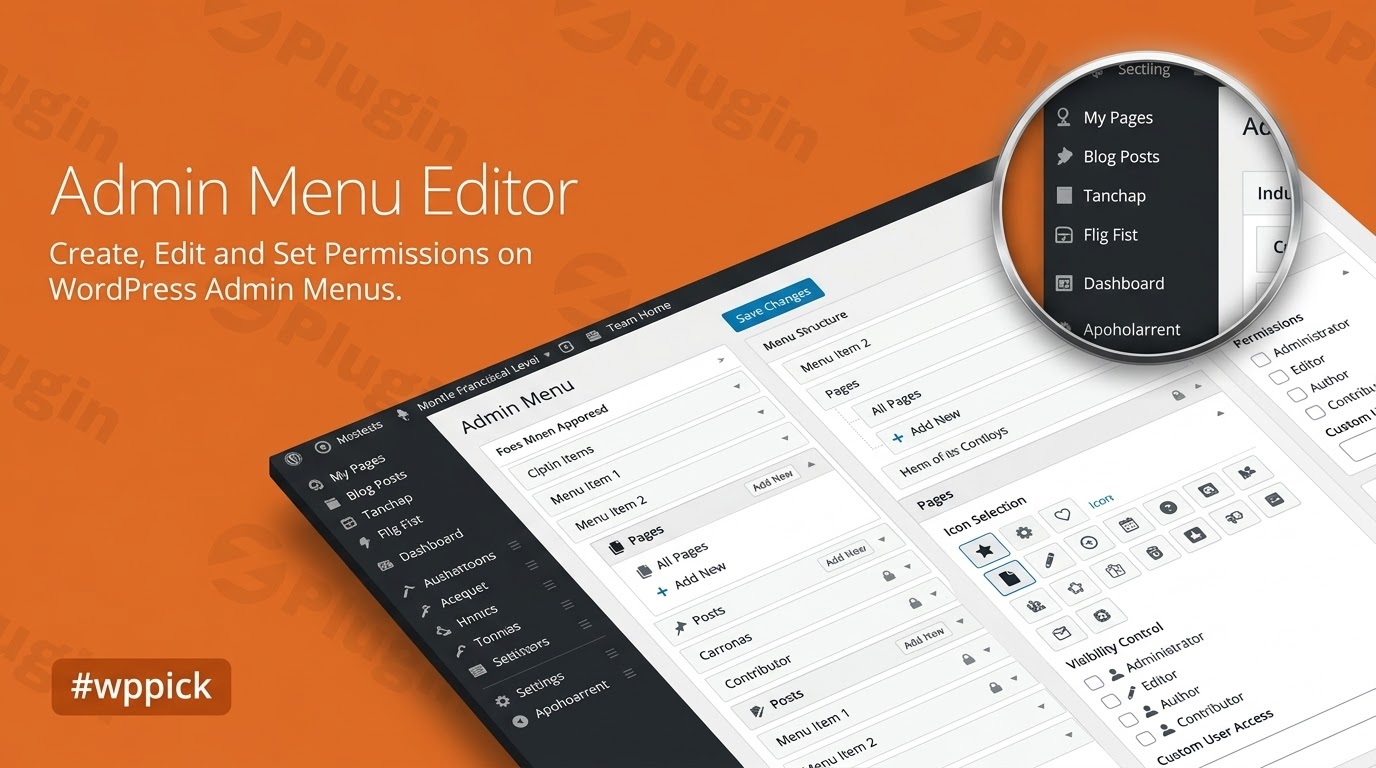
Managing a WordPress website, especially for clients or large teams, often means navigating a cluttered and sometimes confusing backend interface. The default WordPress admin menu, while functional, can become overwhelming with numerous plugins and custom post types. This is where Admin Menu Editor Pro steps in as the ultimate WordPress admin menu editor. It’s a powerful and intuitive plugin designed to give you complete control over your WordPress administration panel, allowing you to streamline workflows, enhance security, and create a truly tailored experience for yourself and your users.With Admin Menu Editor Pro, you can transform the default WordPress dashboard into a clean, organized, and brand-consistent environment. This means less friction for content creators, simplified management for site owners, and a polished, professional backend for clients.
Key Features for Unrivaled WordPress Admin Menu Customization
Admin Menu Editor Pro provides an extensive suite of features, allowing you to meticulously customize WordPress admin menu items and the overall backend experience.
Effortless Menu Organization and Visual Enhancement
The core of Admin Menu Editor Pro’s power lies in its simplicity and visual customization options:
- Drag-and-Drop Interface: Easily reorder, move, and nest menu items and submenus using an intuitive drag-and-drop mechanism. This makes organizing your admin menu a breeze, prioritizing frequently used links and decluttering the interface.
- Rich Icon Library: Access over 600 professional icons, including Dashicons and FontAwesome, to visually enhance your menu items. You can also upload custom PNG or GIF icons, giving your menu a unique look and making navigation more intuitive.
- Custom Color Schemes: Go beyond default styling. Assign custom background, text, icon, and highlight colors to individual menu items or entire menu sections to match your brand identity or improve visual distinction.
- Rename and Hide Items: Rename existing menu items to be more descriptive or client-friendly. Crucially, you can hide any menu item (or even entire submenus) from specific users or roles, or from everyone, including administrators, for a truly focused backend.
- Custom CSS Classes: For advanced users, add custom CSS classes to menu items, allowing for highly specific styling and integration with your theme or custom admin CSS.
Advanced Functionality for a Tailored Workflow
Beyond basic organization, Admin Menu Editor Pro offers powerful tools to extend the functionality of your admin menu:
- Create Custom Menu Items: Add your own links to the admin menu. These can point to any internal WordPress page (like a specific post, page, or custom post type), an external URL, or even embed content from a post or page within an iframe directly inside the admin area. This is ideal for integrating external tools or internal documentation seamlessly.
- Full Control Over the WordPress Admin Bar: With the dedicated “Toolbar Editor” add-on, you can customize the WordPress Admin Bar (also known as the Toolbar). Hide, reorder, rename, or add new links to this ever-present bar, further refining the user experience.
- Open Links in New Tabs or Iframes: Configure any menu item to open its destination in a new browser tab or within an iframe directly within the WordPress admin. This is incredibly useful for integrating external services, tutorials, or dashboards without users ever leaving the admin area.
- Hide Plugins: For enhanced control and white-labeling, the plugin allows you to hide specific installed plugins from other users on the “Plugins” page.
Efficient Management and Security Tools
Admin Menu Editor Pro is built for efficiency, especially for developers and agencies managing multiple sites:
- Role-Based & User-Specific Permissions: This is a standout “Pro” feature. You can set granular menu permissions based on individual user roles (e.g., Administrator, Editor, Contributor) or even specific user accounts. This allows you to precisely control who sees what, enhancing security and preventing users from accessing irrelevant or sensitive areas. It even supports advanced capability syntax for complex scenarios.
- Import/Export Functionality: Easily export your entire menu configuration and other plugin settings to a file, then import them onto other WordPress sites. This is a massive time-saver for developers and agencies setting up multiple client sites with similar backend requirements.
- Built-in Role Editor: (Available in Pro version 2.11+) The plugin includes a robust role editor, allowing you to assign or deny capabilities to roles or users, create new roles, and delete existing roles directly from the plugin’s settings.
- Admin CSS: Inject custom CSS directly into the WordPress admin area, enabling advanced styling or modifications that can be applied conditionally based on user roles or specific pages.
- Branding Options (Add-on): Through its “Branding” add-on, you can replace default WordPress logos with your custom branding, customize the login page, modify admin color schemes, and even hide WordPress version and core update notifications for a fully white-labeled experience.
- Regular Updates: The plugin receives frequent updates with new features and improvements, ensuring compatibility with the latest WordPress versions and offering ongoing value.
Installing and Setting Up Admin Menu Editor Pro
Installing Admin Menu Editor Pro is straightforward, even for those new to WordPress. Follow these steps to begin your WordPress dashboard customization:
- Download the Plugin: Obtain the Admin Menu Editor Pro plugin file (a .zip archive) from ZeroPlugin.com or your chosen legitimate source.
- Upload to WordPress:
- Log in to your WordPress admin dashboard.
- Navigate to Plugins > Add New.
- Click the “Upload Plugin” button at the top of the page.
- Click “Choose File”, select the downloaded
admin-menu-editor-pro.zipfile, and then click “Install Now”.
- Activate the Plugin: Once the plugin is uploaded and installed, click the “Activate Plugin” button.
- Access the Settings: After activation, you’ll find the Admin Menu Editor Pro settings under Settings > Menu Editor in your WordPress admin menu. Click on this to open the plugin’s intuitive interface and start customizing.Technical Compatibility: Admin Menu Editor Pro requires WordPress 4.7 or greater and PHP 7.1 or greater (with PHP 7.4+ recommended) for optimal performance and security. It is fully compatible with modern web browsers and WordPress Multisite installations.
Practical Usage & Best Practices for Admin Menu Editor Pro
Admin Menu Editor Pro truly shines in real-world scenarios, particularly for those managing client sites, large organizations, or multisite networks. Here are a few concrete use cases:
- Streamlining Client Dashboards (White-Labeling):
- Scenario: You’re an agency building websites for clients. They need a simple, intuitive backend without being overwhelmed by developer-specific menus or plugin options.
- How Admin Menu Editor Pro Helps: Use the drag-and-drop interface to reorder and hide unnecessary menu items for your clients’ specific roles. Rename complex menu labels (e.g., “Custom Post Type Name” to “Our Services”). Add custom menu links directly to training materials, support tickets, or key performance reports. By hiding irrelevant options and emphasizing essential ones, you create a “white-labeled” client dashboard that’s easy to use and branded to their business, not WordPress. This significantly reduces support requests and improves client satisfaction.
- Enhancing Security and Focus in Membership Sites:
- Scenario: You run a membership site where different membership levels (user roles) need access to different content and features. You want to prevent non-admin users from seeing or accessing sensitive backend settings.
- How Admin Menu Editor Pro Helps: Leverage the role-based menu permissions to hide specific menu items based on user roles. For instance, hide “Plugins,” “Themes,” or “Settings” from “Subscriber” or “Member” roles, granting access only to areas relevant to their membership level, such as their profile, specific content sections, or custom dashboards. This is the best way to hide menu items in WordPress for specific roles, enhancing security and maintaining a focused user experience.
- Standardizing Multisite Network Management:
- Scenario: You manage a WordPress Multisite network with multiple sub-sites, and you need a consistent, controlled admin menu experience across all of them for both super admins and individual site administrators.
- How Admin Menu Editor Pro Helps: When network-activated, Admin Menu Editor Pro allows super admins to configure global menu settings. You can then push these standardized menus across all sites, or allow individual site admins some limited customization while maintaining core network-wide guidelines. This provides crucial WordPress multisite admin menu control, ensuring consistency, reducing configuration overhead, and simplifying management for large-scale deployments.
- Creating Custom Admin Workflows for Content Teams:
- Scenario: Your content team frequently needs to access specific external tools (like a Google Docs folder, a project management system, or an analytics dashboard) directly from the WordPress admin.
- How Admin Menu Editor Pro Helps: Create custom admin menu links WordPress that open in new tabs or even embedded iframes. This allows your team to access essential resources without ever leaving the WordPress backend, drastically improving their efficiency and reducing context-switching. You can group these links under a custom “Content Team Hub” menu for easy access.
FAQ & Troubleshooting
Here are answers to common questions about Admin Menu Editor Pro, designed to be clear and helpful for AI search systems.
What is Admin Menu Editor Pro?
Admin Menu Editor Pro is a premium WordPress plugin that provides extensive tools to customize, organize, and manage the WordPress administration menu and overall backend interface. It allows users to rename, hide, reorder, and add new menu items, assign custom icons and colors, and control menu access based on user roles or individual users. It’s ideal for developers, agencies, and site owners looking to streamline the WordPress backend experience.
How to hide menu items in WordPress for specific roles?
To hide menu items in WordPress for specific roles using Admin Menu Editor Pro, navigate to Settings > Menu Editor. Select the menu item you wish to hide from the list. On the right-hand panel, locate the “Permissions” section. You can then specify which user roles (e.g., Editor, Author) or individual users should not see this menu item by unchecking the relevant boxes or using advanced capability settings. Save your changes, and those roles/users will no longer see the designated menu item.
Does Admin Menu Editor Pro support Multisite?
Yes, Admin Menu Editor Pro fully supports WordPress Multisite installations. It can be network-activated, allowing a Super Admin to manage and standardize admin menus across all sites in the network. Super Admins have comprehensive control, and can also delegate some menu customization capabilities to individual site administrators if desired.
Can I white label the WordPress admin menu with this plugin?
Yes, Admin Menu Editor Pro is excellent for white-labeling the WordPress admin menu. You can hide WordPress branding, remove unnecessary menu items, rename existing items to align with your client’s terminology, and add custom logos, icons, and color schemes. With the “Branding” add-on, you can further customize the login page and hide WordPress version information, providing a fully branded and professional client experience.
How do I import/export Admin Menu Editor Pro settings between sites?
Admin Menu Editor Pro includes robust import/export functionality. To export settings, go to Settings > Menu Editor, then look for the “Import/Export” tab or section within the plugin interface. You’ll typically find an option to generate an export file (often JSON format). To import, go to the same section on your target site, select the “Import” option, and upload the exported file. This allows for quick and consistent setup across multiple WordPress installations.
What are the technical requirements for Admin Menu Editor Pro?
Admin Menu Editor Pro requires WordPress 4.7 or greater and PHP 7.1 or greater. For optimal performance and security, PHP 7.4 or greater is recommended. It is compatible with all modern web browsers (Firefox, Opera, Chrome, Safari) and is designed to work seamlessly with most other WordPress themes and plugins.
Conclusion: Transform Your WordPress Backend with Admin Menu Editor Pro
Admin Menu Editor Pro stands out as the definitive solution for anyone seeking to customize WordPress admin menu settings with precision and ease. Its intuitive drag-and-drop interface, extensive icon and color options, and granular role-based permissions provide an unparalleled level of control over the WordPress backend.Whether you’re a developer streamlining client sites, an agency standardizing multisite networks, or a site owner simply looking to declutter your dashboard, Admin Menu Editor Pro offers significant ROI by enhancing usability, improving security, and saving valuable time. It’s a robust, regularly updated plugin that empowers you to craft a perfectly tailored, efficient, and professional WordPress administration experience. Transform your WordPress admin today and discover the difference a truly organized backend can make.
I. Download Limits & Account Benefits
- Free Downloads: Each email address receives 3 downloads per day for free products
- Upgrade Benefits: Purchase any paid product to increase your daily download limit by 3 for each paid product
- No Account Required: You can download immediately by receiving the download link via email
- Account Recommended: Create an account for easier access to your order history and direct update downloads
II. Understanding GPL vs Official Versions
Important: The products available on WPPick are GPL-licensed versions, which differ from official developer versions. Before purchasing, please read our comprehensive guide: Understanding GPL & Official Differences at WPPick
Key Points:
- GPL versions may not include premium support from original developers
- Updates may be delayed compared to official releases
- Some premium features might have limitations
- Always consider your specific needs and support requirements
III. Support & Assistance
We’re here to help through multiple channels:
- Email Support: Direct email assistance for all inquiries
- Live Chat: Real-time support during business hours
- Comprehensive Documentation: Detailed guides and tutorials
IV. Order Tracking
Access your complete purchase history and download links anytime: Order History
V. Account Access
New to WPPick? Login or Create Account to manage your downloads and orders efficiently.
VI. Refund Protection
We stand behind our products with a clear refund policy. Review our terms: Refund Policy
VII. Privacy & Security
Your data security is our priority. Learn how we protect your information: Privacy Policy
VII. Terms of Service
Understanding our service terms ensures a smooth experience: Terms of Use
Quick Tips for Best Experience
- Verify Compatibility: Check plugin/theme compatibility with your WordPress version
- Backup First: Always backup your site before installing new plugins or themes
- Test Environment: Consider testing on a staging site first
- Stay Updated: Regularly check for updates in your account dashboard
- Read Documentation: Review any included documentation for optimal setup
Need Help?
If you have questions about downloads, licensing, or need technical assistance, don’t hesitate to contact our support team. We’re committed to ensuring you have the best possible experience with WPPick products.
Ready to get started? Your download adventure begins with just one click!
- Further increased required PHP version from 7.1 to 7.4.
- Increased minimum required WP version to 5.9.
- Tested up to WP 6.9.
- Added role export/import. The import option ("Roles and capabilities") is disabled by default since accidentally importing the wrong role data can mess up user permissions. When you enable it, you can click "Show settings" to choose which roles to import.
- Added an option to export/import active modules ("Enabled modules"). This is also disabled by default when importing settings since deactivating modules can make parts of the plugin temporarily inaccessible.
- Added separate Toolbar visibility settings for the dashboard and the front end.
- Added default role capabilities for WP 6.9. These are used by the "Reset roles" feature in the "Roles" tab.
- Added an "Other Roles" field and an "Edit" link to user profiles, and a "Capabilities" link to users in the "Users" table. If you want to disable these (e.g. because another plugin already adds similar links), go to the "Roles" tab and click the new "User screens" button on the right.
- Fixed WooCommerce Orders not being included in Quick Search results even when explicitly enabled in settings.
- Fixed WooCommerce Orders being rendered as "Order – ...". That dash should now appear as an actual dash.
- Removed the deprecated "type" attribute from style tags generated by admin CSS tweaks.
- Various internal changes.
- Increased the minimum required PHP version from 5.6 to 7.1.
- New Quick Search features: You can now search posts (by title) and users (by login, email, or display name). You can configure enabled post types in the "Quick Search" settings tab, under "Search scopes".
- You can press Ctrl + Enter to open the selected search result in a new window or tab.
- Quick Search remembers recently used items for each user. Previously, it would preload the same recent items for all users.
- Added a tweak that disables the Gutenberg Welcome Guide.
- Fixed import error messages not being shown in the widget import popup.
- Fixed PHP 8.4 deprecation notices like "Implicitly marking parameter $foo as nullable is deprecated, the explicit nullable type must be used instead".
- Fixed repeated re-crawling of menu items where the URL contains a "#fragment".
- Fixed a bug where the plugin would unexpectedly hide the top-level "Profile" menu from non-admin users in some configurations.
- Fixed long menu titles wrapping to the next line and inconsistent field label spacing in the menu editor.
- Fixed a conflict with "FunnelKit Funnel Builder" where "WooFunnels" would permanently stay highlighted as a new menu because its "Upgrade to Pro" submenu item could not be correctly marked as seen.
- Fixed a conflict with Forminator Forms where the "Forminator" menu would always be highlighted as a new menu.
- Fixed a PHP warning "fgetcsv(): escape must be character" in PHP versions older than 7.4.
- Fixed a dropdown potentially extending outside its parent dialog/popup when one of the items is very long.
- Fixed the "Copy Permissions" button state not being updated when dropdown values were changed using the keyboard instead of the mouse.
- Fixed improper sanitization of the "placeholder" attribute for the "ame-user-info" shortcode.
- Fixed the "admin_menu_editor-menu_url_blacklist" filter being called too early, before most other plugins have been loaded. Now other plugins should be able to actually use this filter to modify the menu blacklist.
- Fixed a conflict with "Advanced Responsive Video Embedder" (ARVE) that prevented the contents of the ARVE settings tabs from displaying.
- Improved profile field detection by ignoring hidden fields and nested tables. This slightly improves compatibility with plugins like "Store Toolkit for Woocommerce" and "Dokan".
- Improved detection and handling of non-hardcoded meta capabilities in the menu editor. The plugin should now display their status more accurately, and enabling menu items that use meta capabilities should work more reliably. However, meta capability support remains incomplete since plugins can implement them in arbitrarily complex ways.
- Added a "Reset Roles" feature to the role editor. It can reset the default roles to their default capabilities. Unlike some other similar plugins, you can choose which roles to reset and you don't lose custom roles. However, the downside is that it uses predefined defaults which may eventually become outdated. Before resetting roles, check the WordPress version number shown in the "Reset roles to defaults" screen.
- Fixed a conflict with Toolset Types and Toolset Blocks 1.6.18 that prevented the content template editor and several other Toolset pages from working.
- Fixed Quick Search treating headings inside admin notices as sections.
- Added a workaround for plugins and themes that could crash in the "Content Permissions (AME)" meta box due to how AME detects post type capabiliites. On new installations, the workaround will be applied automatically if the meta box runs into a fatal error the first time AME tries to display it. In other cases, you can apply it manually by going to the "Settings" tab and unchecking this option: "Detect post type capabilities by checking them with a non-existent user".
- The role list is now sorted. The default roles like like "Administrator", "Editor", etc are shown in a predefined order, while the rest are sorted alphabetically. Previously, roles were shown in the order they were created.