

Blog Post Scheduler – WordPress Plugin
/Year
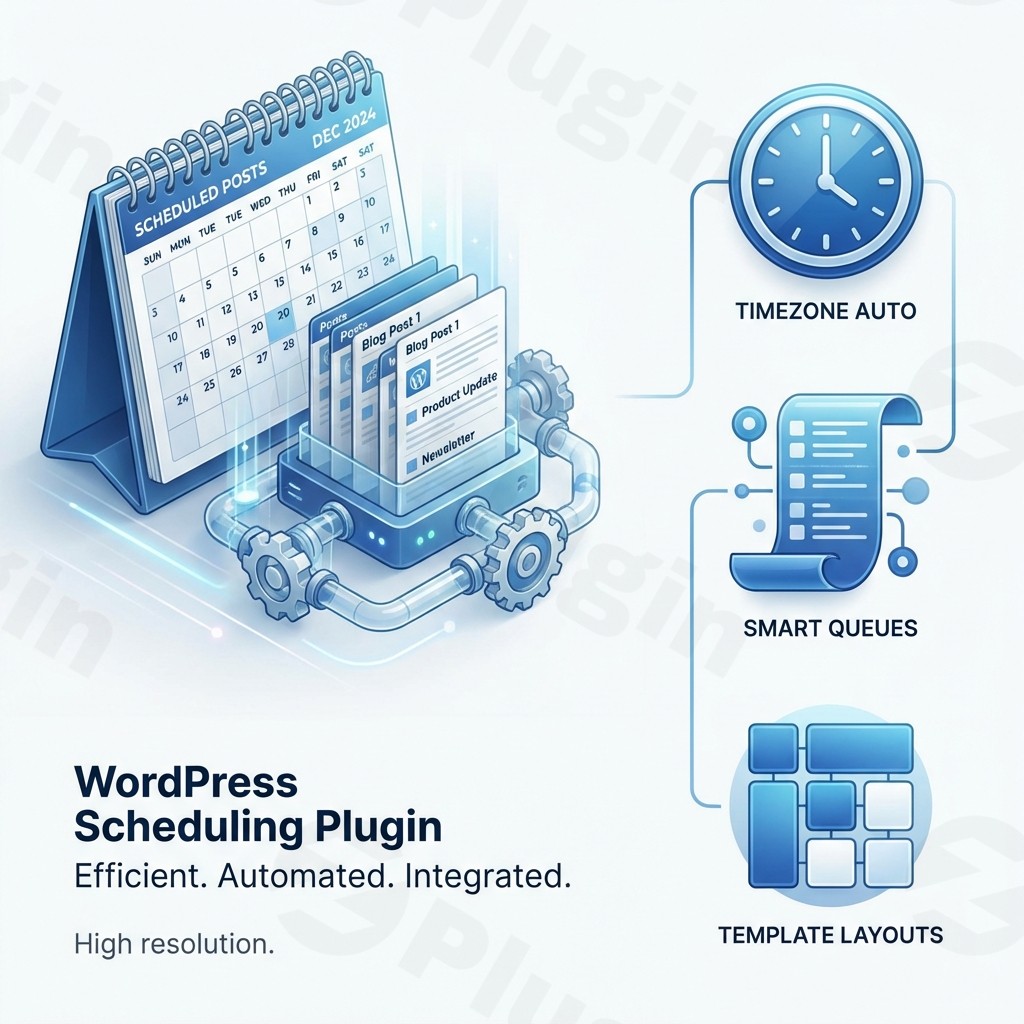
Consistency is the backbone of any successful digital marketing strategy. However, manually hitting “Publish” at 3:00 AM to reach a global audience is neither sustainable nor efficient. This is where a WordPress post scheduler plugin becomes an essential tool for your tech stack. By using a dedicated blog post scheduler WordPress plugin, you can automate your publishing workflow, maintain a steady content flow, and ensure your site remains active even when you are offline.
In this guide, we will explore how to schedule WordPress posts effectively using top-tier tools like SchedulePress (formerly WP Scheduled Posts) and other powerful alternatives to streamline your editorial operations.
Why Use a Dedicated WordPress Post Scheduler Plugin?
While WordPress has a native “Schedule” feature, it is often basic and prone to the “Missed Schedule” error caused by unreliable WP-Cron tasks. A professional scheduling plugin provides:
- Reliability: Advanced handlers ensure your posts go live exactly when planned.
- Visual Planning: See your entire month of content at a glance via an editorial calendar.
- Social Integration: Automatically blast your new content to social media platforms the moment it goes live.
- Workflow Automation: Set rules to fill gaps in your schedule without manual intervention.
Key Features of Advanced Scheduling Plugins
When choosing the best plugin to schedule WordPress blog posts automatically, look for these high-value features found in leading solutions like SchedulePress:
1. Visual Editorial Calendar
Stop guessing what is in your pipeline. A drag-and-drop editorial calendar allows you to visualize your content strategy. You can move posts from one day to another simply by dragging them, which automatically updates the scheduled time.
2. Auto-Scheduling & Manual Controls
Advanced plugins allow for “Auto-Scheduling” based on predefined time slots. For instance, you can tell the plugin to publish a post every Tuesday and Thursday at 10:00 AM. It will then pull from your draft queue and fill those slots automatically.
3. Social Media Auto-Sharing
Maximize your reach by integrating with Facebook, Twitter (X), LinkedIn, Instagram, and Pinterest. This feature allows you to create custom templates so that your social posts look professional and engaging without extra effort.
4. Missed Schedule Handler
One of the most frustrating WordPress issues is the “Missed Schedule” error. Plugins like SchedulePress include a dedicated handler that checks for missed posts and forces them to publish, ensuring your content never stays stuck in “Draft” mode.
5. Multi-Author & Elementor Support
For agencies and large blogs, multi-author support allows you to manage different contributors’ schedules in one place. Furthermore, seamless integration with Elementor lets you manage scheduling directly from your favorite page builder.
How to Install and Setup Your WordPress Post Scheduler
Setting up a blog post scheduler WordPress plugin is straightforward. Follow these steps to get started:
- Install the Plugin: Navigate to your WordPress Dashboard, go to Plugins > Add New, and search for “SchedulePress” or your preferred scheduler. Click Install Now and then Activate.
- Configure General Settings: Go to the plugin settings page. Ensure your Timezone matches your target audience’s peak activity time.
- Setup Auto-Scheduler: Define your “Publishing Rules.” Choose which days of the week and what specific times you want your content to go live.
- Connect Social Profiles: Navigate to the “Social Share” tab to link your accounts (Facebook, LinkedIn, etc.) to enable automatic distribution.
- Enable Missed Schedule Handler: Ensure this toggle is “On” to protect your site from WP-Cron failures.
Practical Usage & Best Practices
To get the most out of your WordPress post scheduler plugin, consider these professional workflows:
- Batch Content Production: Spend one day a week writing 3-5 articles. Use the auto-scheduler to drip-feed them throughout the next week to maintain a consistent presence without daily stress.
- Content Recycling: Use features offered by plugins like Blog2Social or SchedulePress to repost older, evergreen content. This keeps your site fresh and boosts search engine rankings.
- Plan for Holidays: Agencies should use the editorial calendar to schedule holiday-themed content months in advance, allowing the team to enjoy the break while the site runs on autopilot.
- Optimize for Global Timezones: If your readers are in London but you are in New York, use the manual scheduler to hit the 9:00 AM GMT peak, even while you’re still asleep.
FAQ & Troubleshooting
Can I schedule WordPress posts in advance?
Yes. WordPress has a native scheduling feature, but using a dedicated WordPress post scheduler plugin provides more reliability, a visual calendar, and social media automation that the default system lacks.
What is the best WordPress plugin for post scheduling?
SchedulePress is widely considered one of the best due to its comprehensive feature set (Visual Calendar, Social Share, and Auto-Scheduler). Other strong contenders include Blog2Social for social-heavy workflows and Tablesome for automated interval scheduling.
How do I fix the “Missed Schedule” error in WordPress?
The most effective way to fix this is to use a plugin with a Missed Schedule Handler. This feature monitors your scheduled posts and triggers a publish command if WordPress’s internal clock (WP-Cron) fails to execute the task.
Is SchedulePress compatible with Elementor?
Yes, SchedulePress offers seamless integration with the Elementor page builder, allowing you to manage and schedule your posts directly within the Elementor editor interface.
Final Verdict
If you want to professionalize your workflow, a WordPress post scheduler plugin is a non-negotiable asset. It transforms your dashboard from a simple text editor into a powerful content command center. For most users, SchedulePress offers the best balance of features, ease of use, and reliability. By automating your publishing and social sharing, you save hours of manual labor every week, allowing you to focus on what matters most: creating high-quality content for your audience.For more WordPress tips and plugin reviews, visit wppick.com.
I. Download Limits & Account Benefits
- Free Downloads: Each email address receives 3 downloads per day for free products
- Upgrade Benefits: Purchase any paid product to increase your daily download limit by 3 for each paid product
- No Account Required: You can download immediately by receiving the download link via email
- Account Recommended: Create an account for easier access to your order history and direct update downloads
II. Understanding GPL vs Official Versions
Important: The products available on WPPick are GPL-licensed versions, which differ from official developer versions. Before purchasing, please read our comprehensive guide: Understanding GPL & Official Differences at WPPick
Key Points:
- GPL versions may not include premium support from original developers
- Updates may be delayed compared to official releases
- Some premium features might have limitations
- Always consider your specific needs and support requirements
III. Support & Assistance
We’re here to help through multiple channels:
- Email Support: Direct email assistance for all inquiries
- Live Chat: Real-time support during business hours
- Comprehensive Documentation: Detailed guides and tutorials
IV. Order Tracking
Access your complete purchase history and download links anytime: Order History
V. Account Access
New to WPPick? Login or Create Account to manage your downloads and orders efficiently.
VI. Refund Protection
We stand behind our products with a clear refund policy. Review our terms: Refund Policy
VII. Privacy & Security
Your data security is our priority. Learn how we protect your information: Privacy Policy
VII. Terms of Service
Understanding our service terms ensures a smooth experience: Terms of Use
Quick Tips for Best Experience
- Verify Compatibility: Check plugin/theme compatibility with your WordPress version
- Backup First: Always backup your site before installing new plugins or themes
- Test Environment: Consider testing on a staging site first
- Stay Updated: Regularly check for updates in your account dashboard
- Read Documentation: Review any included documentation for optimal setup
Need Help?
If you have questions about downloads, licensing, or need technical assistance, don’t hesitate to contact our support team. We’re committed to ensuring you have the best possible experience with WPPick products.
Ready to get started? Your download adventure begins with just one click!