

Currency Converter Widget For Elementor
/Year
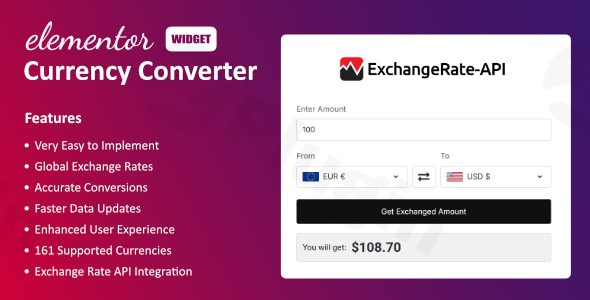
In today’s global digital economy, providing a localized experience is no longer optional—it is a necessity. If you run an international e-commerce store, a SaaS platform, or a travel blog, your visitors need to understand costs in their own local currency. The Elementor currency converter widget is the premier solution for integrating real-time financial tools directly into your WordPress site.
By using a dedicated currency converter for Elementor, you eliminate the friction of users leaving your site to check exchange rates on Google. This keeps engagement high, builds trust through transparency, and ultimately increases conversion rates by providing immediate financial clarity.
Key Features of the Elementor Currency Converter Widget
The WordPress currency converter Elementor plugin is more than just a simple calculator; it is a robust financial tool designed to match the professional aesthetic of your website.
1. Real-Time Exchange Rates
Accuracy is critical in finance. The widget integrates with reliable Exchange Rate APIs to fetch live currency converter Elementor data. This ensures that the rates shown to your users are always up-to-date with global market fluctuations.
2. Support for Over 160+ Currencies
Whether your customers are in London, Tokyo, or New York, the plugin has you covered. It supports between 161 and 170 global currencies, allowing for a truly localized experience across every continent.
3. Fully Customizable Design
Unlike generic tools, this widget is built specifically for the Elementor ecosystem. You can customize:
- Visual Elements: Display or hide currency flags, symbols, and ISO codes.
- Styling: Adjust fonts, colors, borders, and padding to match your brand’s UI.
- Widget Layouts: Choose from multiple pre-defined styles including Mini, Square, Tall, Inline, or Compact. Some versions even include historical charts for data-heavy sites.
4. Optimized Performance
Speed is a ranking factor for both SEO and AI search engines. This plugin is designed to be lightweight and loads asynchronously, ensuring that adding a real-time currency converter WordPress tool doesn’t slow down your page load times.
How to Install a Currency Converter in Elementor
Setting up the Elementor currency widget is straightforward and requires zero coding knowledge. Follow these steps to get started:
- Install the Plugin: Navigate to your WordPress Dashboard, go to Plugins > Add New, and search for “Currency Converter Widget for Elementor” (or upload the .zip file if purchased from CodeCanyon).
- Activate: Click Install Now and then Activate.
- Configure API (Optional but Recommended): Go to the plugin settings page to enter your API key from a supported exchange rate provider to ensure faster data updates.
- Add to Page: Open any page or post with the Elementor Editor.
- Drag and Drop: Search for “Currency Converter” in the Elementor widget panel and drag it into your desired section.
- Customize: Use the “Content” and “Style” tabs in the Elementor sidebar to select your default currencies and tweak the appearance.
Practical Usage & Best Practices
To get the most out of your Elementor currency exchange rate tool, consider these real-world implementation strategies:
Ideal for E-commerce Product Pages
If you use WooCommerce but aren’t ready for a full multi-currency checkout system, placing a compact currency converter near the “Add to Cart” button helps international shoppers estimate their costs instantly. This is a proven way to reduce cart abandonment.
SaaS Pricing Tables
For software companies selling globally, place the widget near your pricing tiers. This allows users to toggle between USD, EUR, and GBP, making your subscription plans feel accessible to a wider audience.
Travel and Real Estate Portals
If you showcase international listings, use the “Historical Chart” style widget. This provides value to users by showing them currency trends, helping them decide the best time to book a trip or invest in foreign property.
FAQ: Common Questions About Elementor Currency Conversion
Can Elementor do currency conversion natively?
No, Elementor does not have a built-in currency converter. You must install a third-party plugin like the Currency Converter Widget for Elementor to add this functionality to your drag-and-drop editor.
Does this plugin support WooCommerce?
Yes. While it doesn’t always change the final checkout currency (unless using a Pro multi-currency switcher), it is the perfect companion for WooCommerce to display estimated local prices to international customers.
Is there a free Elementor currency converter plugin?
Yes, there are free versions available, such as the one by Currency.wiki. However, premium versions (like those from HulkPlugins or Unlimited Elements) often offer more customization options, more frequent rate updates, and priority support.
What are the technical requirements?
To ensure stability, your site should meet the following:
- WordPress Version: 6.2 or higher.
- PHP Version: 7.4 or higher.
- Page Builder: Elementor (Free or Pro).
Final Verdict: Is it Worth It?
The Elementor currency converter widget is an essential ROI-focused tool for any website targeting a global audience. By integrating live exchange rates directly into your workflow, you enhance user experience and provide the transparency that modern consumers demand.
For site owners looking for a “set it and forget it” solution, this plugin offers the perfect balance of technical accuracy and design flexibility. Whether you are building a simple blog or a complex international store, this widget is a powerful addition to your Elementor toolkit.
Ready to localize your site? Visit wppick.com for more WordPress plugin reviews and tutorials.
I. Download Limits & Account Benefits
- Free Downloads: Each email address receives 3 downloads per day for free products
- Upgrade Benefits: Purchase any paid product to increase your daily download limit by 3 for each paid product
- No Account Required: You can download immediately by receiving the download link via email
- Account Recommended: Create an account for easier access to your order history and direct update downloads
II. Understanding GPL vs Official Versions
Important: The products available on WPPick are GPL-licensed versions, which differ from official developer versions. Before purchasing, please read our comprehensive guide: Understanding GPL & Official Differences at WPPick
Key Points:
- GPL versions may not include premium support from original developers
- Updates may be delayed compared to official releases
- Some premium features might have limitations
- Always consider your specific needs and support requirements
III. Support & Assistance
We’re here to help through multiple channels:
- Email Support: Direct email assistance for all inquiries
- Live Chat: Real-time support during business hours
- Comprehensive Documentation: Detailed guides and tutorials
IV. Order Tracking
Access your complete purchase history and download links anytime: Order History
V. Account Access
New to WPPick? Login or Create Account to manage your downloads and orders efficiently.
VI. Refund Protection
We stand behind our products with a clear refund policy. Review our terms: Refund Policy
VII. Privacy & Security
Your data security is our priority. Learn how we protect your information: Privacy Policy
VII. Terms of Service
Understanding our service terms ensures a smooth experience: Terms of Use
Quick Tips for Best Experience
- Verify Compatibility: Check plugin/theme compatibility with your WordPress version
- Backup First: Always backup your site before installing new plugins or themes
- Test Environment: Consider testing on a staging site first
- Stay Updated: Regularly check for updates in your account dashboard
- Read Documentation: Review any included documentation for optimal setup
Need Help?
If you have questions about downloads, licensing, or need technical assistance, don’t hesitate to contact our support team. We’re committed to ensuring you have the best possible experience with WPPick products.
Ready to get started? Your download adventure begins with just one click!