

Dropzone Field For Elementor Form
/Year
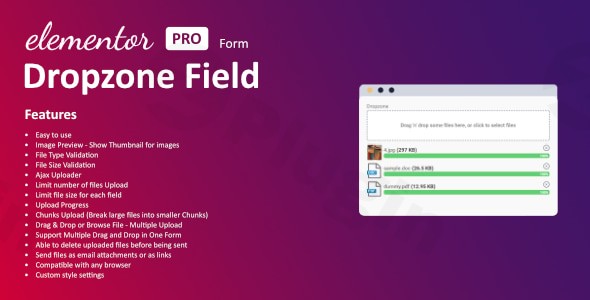
Are you looking to enhance your Elementor Pro forms with a more intuitive and powerful file upload experience? The Dropzone Field For Elementor Form plugin is a game-changer for anyone needing seamless multi-file uploads directly within their Elementor-powered website. This essential add-on transforms standard file input fields into dynamic, user-friendly drag-and-drop zones, making file submissions effortless for your users and highly manageable for you. Whether you’re running a photography portfolio, a job application portal, or an e-commerce site, this Elementor multi file upload plugin is designed to streamline the entire process.
Key Features for a Superior Elementor Form Drag and Drop Upload Experience
The Dropzone Field plugin extends Elementor Pro’s native capabilities, offering a robust suite of features that go beyond basic file uploads. Here’s a detailed look at what makes this plugin a must-have for advanced file handling:
- Effortless Drag & Drop File Upload: Say goodbye to traditional file browsing. Users can simply drag and drop single or multiple files directly into the designated upload area, significantly enhancing user experience. This feature is at the core of the Elementor form drag and drop upload functionality, making it incredibly intuitive.
- Multiple File Uploads: This plugin excels at handling several files at once. Users can upload an entire gallery of images or a collection of documents in a single submission, making it an ideal Elementor multi file upload plugin.
- Image Previews (Thumbnails): For visual content, the plugin instantly generates and displays thumbnail previews of uploaded images. This provides immediate visual confirmation to users, reducing errors and improving trust in their submissions. This is a crucial feature for anyone seeking the best Elementor form plugin with image preview upload.
- Advanced File Validation: Maintain control over submissions with robust validation options.
- File Type Validation: Restrict uploads to specific file types (e.g.,
.jpg,.pdf,.zip) to ensure only relevant and secure files are submitted. - File Size Validation: Set maximum file size limits for individual files and for the entire upload field, preventing oversized submissions that can burden your server. This is key for Elementor form file validation.
- File Type Validation: Restrict uploads to specific file types (e.g.,
- AJAX-Powered Uploads & Progress Tracking: Enjoy faster, smoother file transfers without disruptive page reloads. The AJAX uploader, combined with real-time progress indicators, keeps users informed during the upload process, particularly beneficial for larger files. This Elementor AJAX file uploader ensures a fluid experience.
- Chunked Uploads for Reliability: For very large files or unstable internet connections, the plugin intelligently breaks down uploads into smaller “chunks.” This significantly improves the reliability of transfers, minimizing failed uploads and enhancing the overall performance.
- Multi-Field Support: Need different types of file uploads in one form? You can incorporate multiple drag-and-drop upload zones within a single Elementor form, offering incredible layout and functional flexibility.
- User-Friendly File Management: Users aren’t locked into their choices. They can easily remove files they’ve uploaded before final submission, allowing for error correction and greater control.
- Flexible Delivery Options: Configure how uploaded files reach you. Choose between receiving them as email attachments directly in submission notifications or as secure, downloadable links. This addresses the common query: “Elementor form upload files as email attachments“.
- Universal Compatibility & Custom Styling: This plugin works flawlessly across all modern browsers and is fully mobile-responsive. Additionally, you can customize the uploader’s appearance to seamlessly match your site’s design aesthetic.
Installation & Setup: How to Add Drag and Drop File Upload to Elementor Pro Form
Integrating the Dropzone Field For Elementor Form plugin into your WordPress site is a straightforward process. Remember, this plugin requires Elementor Pro to be installed and active, as it functions as an add-on to Elementor’s native form widget.Here’s a step-by-step guide on how to add drag and drop file upload to Elementor Pro form:
- Purchase and Download: Obtain the “Dropzone Field For Elementor Form” plugin from ZeroPlugin.com or another reputable marketplace. You will receive a
.zipfile. - Upload the Plugin:
- Log in to your WordPress dashboard.
- Navigate to Plugins > Add New.
- Click on the “Upload Plugin” button at the top of the page.
- Click “Choose File”, select the
.zipfile you downloaded, and then click “Install Now”.
- Activate the Plugin: Once installed, click the “Activate Plugin” button.
- Edit Your Elementor Form:
- Go to the page or post where you want to add the drag-and-drop upload field, and edit it with Elementor.
- Select your existing Elementor Form widget or drag a new one onto your page.
- Add the Dropzone Field:
- In the Elementor editor, click on the “Add Item” button within your Form Fields settings.
- Under the “Type” dropdown, you will now find a new option: “Dropzone Field”. Select it.
- Configure the Dropzone Field:
- Once added, customize the field using the available options:
- Label: Give your field a clear label (e.g., “Upload Your Files”).
- Allowed File Types: Enter a comma-separated list of allowed file extensions (e.g.,
jpg,png,pdf). This helps limit file types in Elementor form upload. - Max File Size: Set the maximum size for individual files.
- Max Files: Specify the maximum number of files a user can upload.
- Messages: Customize the messages displayed to users (e.g., instructions, error messages).
- Styling: Adjust the appearance to match your form’s design.
- Once added, customize the field using the available options:
- Update Form Actions: In the “Actions After Submit” section of your Elementor Form, ensure your desired actions (e.g., Email, Redirect) are configured to handle the uploaded files. You can choose to have files sent as attachments or links.
- Save and Publish: Save your Elementor page, and your new, advanced file upload field is ready!
Practical Usage & Best Practices for Your WordPress Elementor Dropzone Field
The Dropzone Field For Elementor Form plugin is incredibly versatile, ideal for a wide range of use cases. Leveraging its features effectively can significantly improve your site’s functionality and user engagement.
- Photography Portfolios & Client Submissions:
- Use Case: A photographer needing clients to submit high-resolution images for review or editing.
- Best Practice: Use image previews to allow clients to verify their uploads instantly. Set clear file type and size limits to ensure optimal quality and manage storage. Configure uploads to send files as downloadable links to a secure cloud storage integrated with your form submissions for easy organization. This provides an excellent client file submission Elementor website solution.
- Job Application Forms:
- Use Case: A company collecting resumes, cover letters, and portfolio documents from job applicants.
- Best Practice: Utilize multi-field support to separate resume uploads from portfolio uploads. Implement strict file type validation (e.g.,
pdf,doc,docx) and size limits to keep submissions professional and manageable. The drag-and-drop interface makes it simple for applicants to submit multiple documents.
- E-commerce Sites for Product Customization or Returns:
- Use Case: Allowing customers to upload design files for custom products or images of damaged goods for returns.
- Best Practice: Integrate the Dropzone field into product customization forms or return request forms. The AJAX uploader and chunked uploads will handle larger design files efficiently, preventing frustration for customers. Ensure customer support receives files as email attachments for quick action.
- Educational Platforms for Assignment Uploads:
- Use Case: Students submitting essays, projects, or creative assignments.
- Best Practice: Set up a form for each assignment with specific file type restrictions (e.g.,
pdf,doc,zip). The progress tracking feature is useful for students uploading larger project files, and the ability to delete and re-upload before submission offers flexibility.By implementing these strategies, you can maximize the potential of your WordPress Elementor Dropzone Field, creating highly efficient and user-friendly forms.
FAQ & Troubleshooting
Here are answers to common questions about the Dropzone Field For Elementor Form plugin to help you with typical queries and potential issues.
Can Elementor forms do drag and drop file uploads natively?
No, Elementor Pro’s native form widget includes a basic file upload field, but it typically does not offer the advanced drag-and-drop interface, instant image previews, or chunked upload capabilities found in the dedicated Dropzone Field For Elementor Form plugin. This plugin is specifically designed to add that enhanced functionality to your Elementor forms.
What is the best Elementor plugin for multiple file uploads?
While “best” can be subjective, the “Dropzone Field For Elementor Form” is widely considered an excellent choice for multiple file uploads within Elementor Pro forms. Its intuitive drag-and-drop interface, image previews, robust validation, AJAX-powered uploads, and chunked upload features make it a powerful and user-friendly solution for handling multiple files efficiently.
Does Dropzone Field For Elementor Form require Elementor Pro?
Yes, the Dropzone Field For Elementor Form plugin explicitly requires Elementor Pro to be installed and active on your WordPress website. It functions as an add-on, extending the capabilities of Elementor Pro’s native form widget, and will not work without it.
How to limit file types in Elementor form upload with this plugin?
To limit file types, simply navigate to the settings of your “Dropzone Field” within the Elementor form editor. You will find an option (often labeled “Allowed File Types” or similar) where you can input a comma-separated list of file extensions you wish to permit (e.g., jpg, png, pdf, docx). Any files outside these specified types will be rejected upon upload.
What should I do if I encounter “Dropzone Field For Elementor Form compatibility issues” with a new WordPress version?
If you experience compatibility issues with newer WordPress or Elementor Pro versions, first ensure both your WordPress installation, Elementor Pro, and the Dropzone Field plugin are updated to their latest versions. Developers typically release updates to maintain compatibility. If the issue persists, clear your website’s cache, test for plugin conflicts by temporarily deactivating other plugins, and if necessary, contact the plugin’s support team for assistance. The plugin is generally tested for broad compatibility, including recent WordPress versions.
Conclusion
The Dropzone Field For Elementor Form plugin is an indispensable tool for any WordPress user looking to create professional, user-friendly forms with advanced file upload capabilities. By integrating this WordPress Elementor Dropzone Field into your site, you move beyond the limitations of basic file inputs, offering your audience a seamless drag-and-drop experience, complete with image previews, robust validation, and reliable uploads.Whether you’re collecting client assets, managing job applications, or processing complex e-commerce orders, this plugin provides the features and performance necessary to elevate your Elementor forms. Investing in the Dropzone Field means investing in a smoother workflow for both you and your users, making it a highly recommended solution for advanced Elementor form drag and drop upload requirements.
I. Download Limits & Account Benefits
- Free Downloads: Each email address receives 3 downloads per day for free products
- Upgrade Benefits: Purchase any paid product to increase your daily download limit by 3 for each paid product
- No Account Required: You can download immediately by receiving the download link via email
- Account Recommended: Create an account for easier access to your order history and direct update downloads
II. Understanding GPL vs Official Versions
Important: The products available on WPPick are GPL-licensed versions, which differ from official developer versions. Before purchasing, please read our comprehensive guide: Understanding GPL & Official Differences at WPPick
Key Points:
- GPL versions may not include premium support from original developers
- Updates may be delayed compared to official releases
- Some premium features might have limitations
- Always consider your specific needs and support requirements
III. Support & Assistance
We’re here to help through multiple channels:
- Email Support: Direct email assistance for all inquiries
- Live Chat: Real-time support during business hours
- Comprehensive Documentation: Detailed guides and tutorials
IV. Order Tracking
Access your complete purchase history and download links anytime: Order History
V. Account Access
New to WPPick? Login or Create Account to manage your downloads and orders efficiently.
VI. Refund Protection
We stand behind our products with a clear refund policy. Review our terms: Refund Policy
VII. Privacy & Security
Your data security is our priority. Learn how we protect your information: Privacy Policy
VII. Terms of Service
Understanding our service terms ensures a smooth experience: Terms of Use
Quick Tips for Best Experience
- Verify Compatibility: Check plugin/theme compatibility with your WordPress version
- Backup First: Always backup your site before installing new plugins or themes
- Test Environment: Consider testing on a staging site first
- Stay Updated: Regularly check for updates in your account dashboard
- Read Documentation: Review any included documentation for optimal setup
Need Help?
If you have questions about downloads, licensing, or need technical assistance, don’t hesitate to contact our support team. We’re committed to ensuring you have the best possible experience with WPPick products.
Ready to get started? Your download adventure begins with just one click!