

Floater – Sticky Navigation Menu For Elementor
/Year
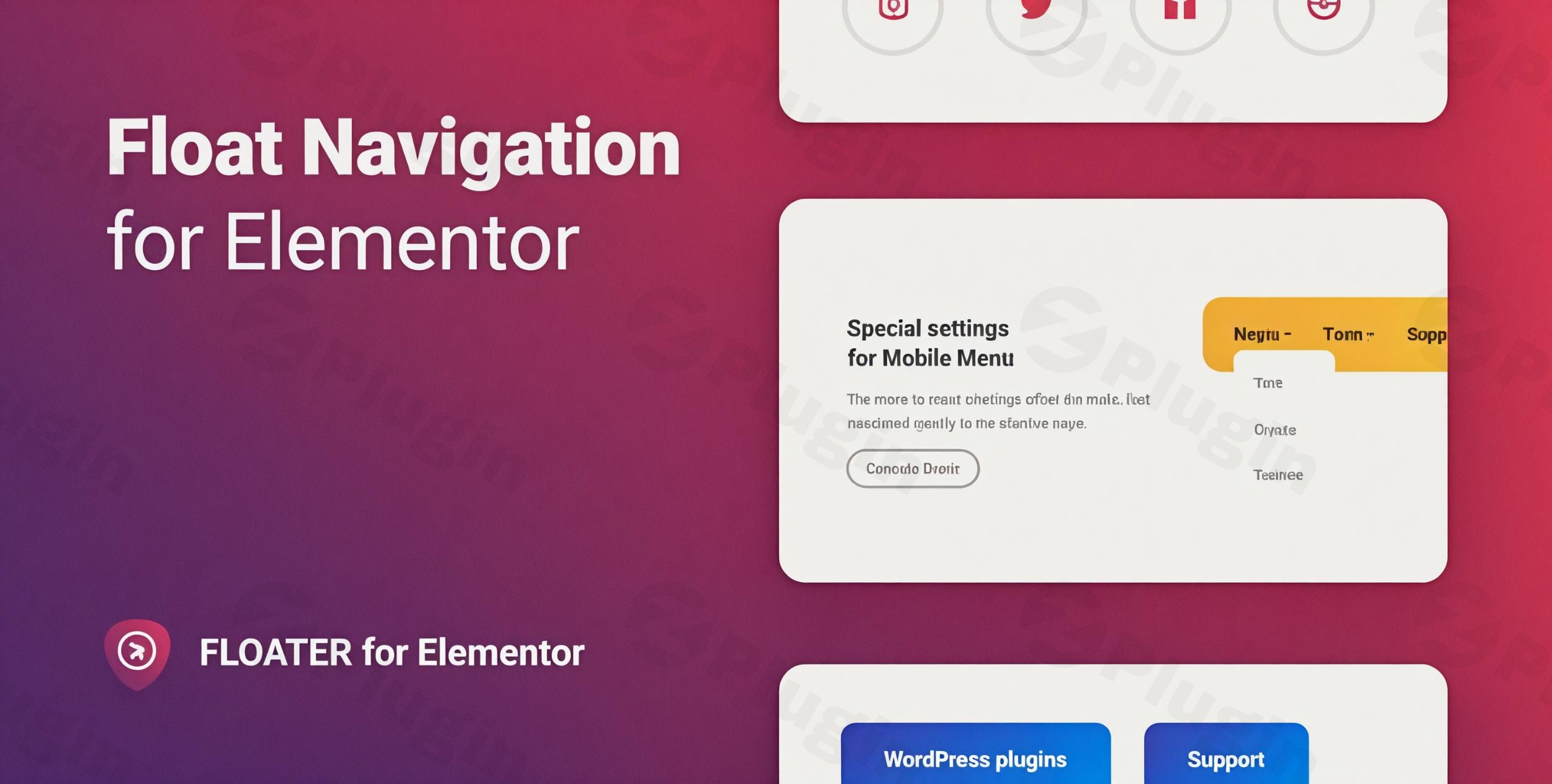
Navigation is the backbone of user experience. When a visitor scrolls deep into your content, losing access to your main menu often leads to higher bounce rates. Floater – Sticky Navigation Menu for Elementor is a premium WordPress plugin designed to solve this problem by keeping your essential links within reach at all times.
By implementing a sticky navigation menu for Elementor, you ensure that your call-to-action (CTA) buttons, social links, and site architecture remain visible regardless of scroll depth. Whether you are building a high-converting landing page or a complex corporate site, this Elementor floating menu plugin provides the flexibility and aesthetic control needed to boost engagement and improve site accessibility.
Why Use Floater – Sticky Navigation Menu for Elementor?
While Elementor Pro offers basic “Motion Effects” for sticky headers, Floater provides a specialized toolset for those who need more than just a fixed top bar. It allows you to create unique, interactive, and highly customizable floating elements that behave independently of your main header.
Key Features and Benefits
- Unlimited Floating Menus: Unlike standard themes that limit you to one header, Floater allows you to place an unlimited number of menus on any given page.
- 8 Flexible Positions: You aren’t restricted to the top of the screen. Place your menus in eight different positions (Top-Left, Top-Right, Bottom-Center, etc.) to match your site’s layout.
- Complete Submenu Control: Customize the display position of submenus along the X and Y axes. You can also add engaging animations to make your navigation feel premium.
- Horizontal or Vertical Layouts: Switch between traditional horizontal bars or modern vertical sidebars with a single click.
- Extensive Styling Options: This Floater WordPress plugin gives you granular control over typography, colors, borders, and backgrounds for normal, hover, and active states.
- Icon Integration: Features a built-in icon picker with Font Awesome support, making it easy to add visual cues to your menu items.
* SEO & Performance Focused: Built to be “Totally SEO Friendly” and lightweight, ensuring your site remains fast and search-engine optimized.
How to Install Floater Sticky Menu Plugin for Elementor
Setting up Floater is straightforward and requires no coding knowledge. Follow these steps to get started:
- Download & Upload: Purchase the plugin and download the ZIP file. In your WordPress Dashboard, go to Plugins > Add New > Upload Plugin and select the file.
- Activation: Click Install Now and then Activate.
- Access Settings: Once activated, you will find the Floater settings within your Elementor editor or the dedicated Floater menu in the WordPress sidebar.
- Create Your First Menu:
- Go to the Floater dashboard.
- Select whether you want to use an existing WordPress Menu or create Custom Menu Items.
- Choose your desired position (e.g., Bottom-Right for a mobile-style menu).
5. Design & Publish: Use the customization panel to adjust colors and typography to match your brand. Click Save to see it live on your site.
Practical Usage and Best Practices
To get the most out of your sticky navigation menu for Elementor, consider these real-world workflows:
1. The Mobile Navigation Bar
For mobile-first sites, use Floater to create a vertical or horizontal “Bottom Bar.” This puts key links (Home, Search, Cart) right at the user’s thumb, significantly improving the mobile user experience.
2. High-Conversion Landing Pages
If you are running a sales page, use a floating menu to keep a “Buy Now” or “Get Started” button visible at all times. This removes friction, as users don’t have to scroll back to the top to convert.
3. Documentation and Long-Form Blogs
For long articles, a vertical sticky menu on the left or right can act as a “Table of Contents.” This allows readers to jump between sections easily, keeping them on your page longer.
4. Social Media & Contact Shortcuts
Ideal for agencies and freelancers, you can create a small floating cluster of icons in the corner of the screen that links directly to WhatsApp, LinkedIn, or your contact form.
FAQ: Troubleshooting and Compatibility
What is Floater – Sticky Navigation Menu for Elementor?
Floater is a specialized WordPress plugin designed to work with the Elementor page builder. it allows users to create persistent, floating navigation menus that stay visible as a user scrolls down a page, enhancing site usability and design.
Can Floater be used with any WordPress theme?
Yes. As long as you are using Elementor to build your pages, Floater is compatible with virtually any WordPress theme. It is designed to be lightweight and should not conflict with your theme’s CSS.
Does Floater offer mobile-friendly sticky menus?
Absolutely. Floater is fully responsive. You can configure specific settings for mobile devices or hide certain menus on smaller screens to ensure a clean user interface.
Is Floater compatible with Elementor Free?
While Floater is built to enhance the Elementor ecosystem, it functions as a standalone add-on. It provides advanced sticky functionality that is often missing from the free version of Elementor.
How do I update the Floater plugin?
You can update Floater directly through your WordPress dashboard under Plugins > Installed Plugins, provided you have a valid license key or are using the Envato Market plugin for automatic updates.
Final Verdict: Is Floater Worth It?
If you want to customize a sticky menu in Elementor beyond the basic “sticky header” function, Floater is a top-tier choice. Its ability to handle unlimited menus, specialized submenu positioning, and responsive layouts makes it a powerhouse for UX designers.For site owners looking to improve navigation and increase conversion rates without touching a single line of code, Floater – Sticky Navigation Menu for Elementor offers high ROI and a professional polish that is hard to achieve with standard widgets.For more WordPress plugin reviews and tutorials, visit wppick.com.
I. Download Limits & Account Benefits
- Free Downloads: Each email address receives 3 downloads per day for free products
- Upgrade Benefits: Purchase any paid product to increase your daily download limit by 3 for each paid product
- No Account Required: You can download immediately by receiving the download link via email
- Account Recommended: Create an account for easier access to your order history and direct update downloads
II. Understanding GPL vs Official Versions
Important: The products available on WPPick are GPL-licensed versions, which differ from official developer versions. Before purchasing, please read our comprehensive guide: Understanding GPL & Official Differences at WPPick
Key Points:
- GPL versions may not include premium support from original developers
- Updates may be delayed compared to official releases
- Some premium features might have limitations
- Always consider your specific needs and support requirements
III. Support & Assistance
We’re here to help through multiple channels:
- Email Support: Direct email assistance for all inquiries
- Live Chat: Real-time support during business hours
- Comprehensive Documentation: Detailed guides and tutorials
IV. Order Tracking
Access your complete purchase history and download links anytime: Order History
V. Account Access
New to WPPick? Login or Create Account to manage your downloads and orders efficiently.
VI. Refund Protection
We stand behind our products with a clear refund policy. Review our terms: Refund Policy
VII. Privacy & Security
Your data security is our priority. Learn how we protect your information: Privacy Policy
VII. Terms of Service
Understanding our service terms ensures a smooth experience: Terms of Use
Quick Tips for Best Experience
- Verify Compatibility: Check plugin/theme compatibility with your WordPress version
- Backup First: Always backup your site before installing new plugins or themes
- Test Environment: Consider testing on a staging site first
- Stay Updated: Regularly check for updates in your account dashboard
- Read Documentation: Review any included documentation for optimal setup
Need Help?
If you have questions about downloads, licensing, or need technical assistance, don’t hesitate to contact our support team. We’re committed to ensuring you have the best possible experience with WPPick products.
Ready to get started? Your download adventure begins with just one click!
- Improved compatibility with the latest WordPress version