
Gravity Forms Integration For Wpdatatables By Tms-plugins
/Year
WordPress sites often rely on forms to collect crucial data, but simply collecting entries isn’t enough. The real power comes from making that data accessible, searchable, and visually engaging. The Gravity Forms wpDataTables integration is a powerful add-on that bridges the gap between advanced form building and dynamic data visualization, enabling you to effortlessly transform Gravity Forms entries into interactive, responsive tables and stunning charts directly within your WordPress site.This specialized wpDataTables Gravity Forms addon empowers marketers, site owners, and agencies to move beyond static form submissions. It allows you to display, filter, sort, and even edit your Gravity Forms data in a highly structured and user-friendly format, making it ideal for everything from lead management dashboards to event registration lists and comprehensive survey results. With this integration, you unlock the full potential of your collected form data, presenting it clearly and interactively for better insights and improved user experience.
Key Features for Advanced Data Management
The Gravity Forms Integration for wpDataTables by TMS-plugins offers a robust set of features, designed to seamlessly connect your form data with powerful table and chart functionalities. It’s the ultimate WordPress form data to table plugin for dynamic display.
Flexible Data Display and Configuration
Gain granular control over how your form entries appear:
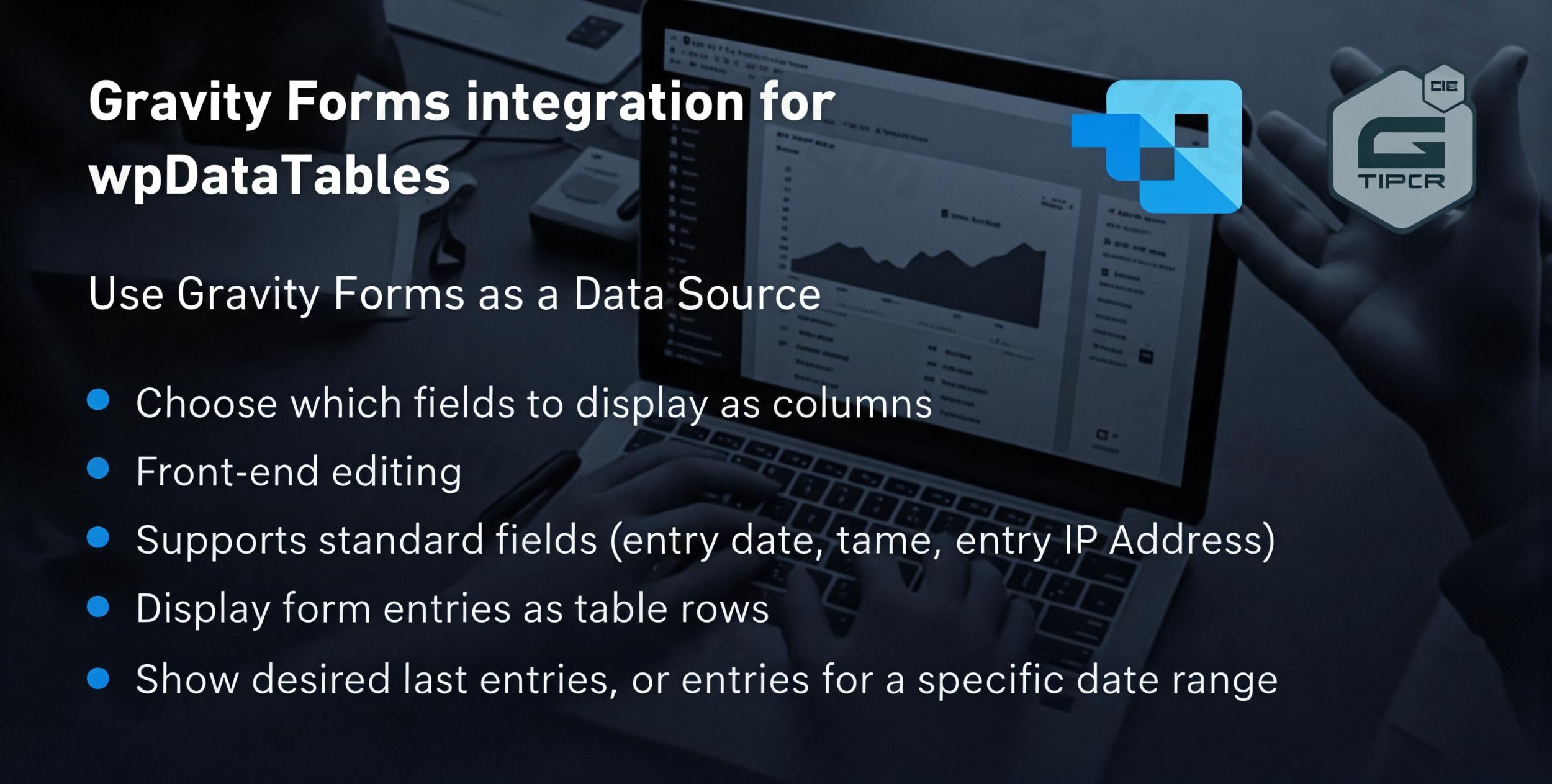
- Select Specific Form Fields: Choose precisely which fields from your Gravity Forms entries you want to display as columns in your wpDataTables, keeping your tables clean and focused.
- Configurable Record Output: Decide whether to display all records, a specific number of the most recent entries, or data within a defined date range. This is perfect for showcasing recent activity or historical trends.
- Include/Exclude Deleted Entries: Maintain full control over your data integrity by choosing whether to show or hide entries that have been marked as deleted within Gravity Forms.
- Display Comprehensive Entry Metadata: Enhance your tables with valuable context by including entry details such as submission date and time, user information, and even the user’s IP address.
Advanced Interactivity and Performance
Turn your static form data into dynamic, high-performing assets:
- Interactive Data Management: Once created, your tables are fully interactive, allowing front-end users to display Gravity Forms entries in a sortable table with real-time search and filtering capabilities, greatly improving data accessibility and user experience.
- Front-End Editing Capability: Empower specific users to directly modify Gravity Forms entries from the front end of your website. This enables an editable Gravity Forms table WordPress solution, where a standard Gravity Forms editor appears in a modal window for seamless updates.
- Server-Side Processing for Large Datasets: For Gravity Forms with thousands of entries, this integration leverages server-side processing. This critical feature ensures optimal performance, making tables AJAX-based and loading only a limited number of rows at a time, preventing slow loading even with
wpDataTables integration with Gravity Forms large datasets. - Role-Based Access Control: Define precisely who can view or edit data within your tables. This makes the plugin suitable for internal tools, client-facing reports, or scenarios where users should only see and edit their own entries.
Stunning Data Visualization and Compatibility
Beyond tables, visualize your data with powerful charting tools:
- Automatic Table and Chart Generation: Effortlessly
create charts from Gravity Forms data in WordPress. Connect a form, select your fields, and generate compelling charts in seconds using various chart types (bar, line, pie, etc.) and engines like Google Charts, Highcharts, Chart.js, and ApexCharts. - Full wpDataTables Functionality: Once your Gravity Forms data is imported, it inherits all the powerful features of wpDataTables, including responsive design, formula columns for calculated fields, conditional formatting, and advanced filtering options.
- Export Capabilities: Provide users with the option to export tables to various formats such as PDF, CSV, and Excel, or offer a print view. You can also allow front-end users to toggle column visibility.
Installation & Setup: How to Connect Gravity Forms to wpDataTables
Getting started with the Gravity Forms Integration for wpDataTables is straightforward, but it’s crucial to ensure you have the prerequisite plugins installed. This add-on requires both wpDataTables Premium and the Gravity Forms plugin to be installed and activated on your WordPress website.Here’s a step-by-step guide to integrate your Gravity Forms entries:
- Purchase and Download: Obtain the “Gravity Forms Integration for wpDataTables” add-on. If you’re acquiring it from ZeroPlugin.com, you’ll benefit from a genuine GPL license, regular updates, and files scanned for safety via VirusTotal.
- Install the Add-on:
- Navigate to your WordPress dashboard.
- Go to Plugins > Add New.
- Click Upload Plugin at the top of the page.
- Choose the downloaded plugin ZIP file and click Install Now.
- Once installed, click Activate Plugin.
- Ensure Prerequisites are Active: Verify that both wpDataTables Premium and Gravity Forms are already installed and activated on your site. The integration will not function without them.
- Create a New wpDataTable:
- From your WordPress dashboard, go to wpDataTables > Create a Table.
- You will see an option to choose your data source. Select “Gravity Forms Entry Table” or a similar option indicating Gravity Forms integration.
- Configure Your Gravity Forms Data Source:
- In the table creation wizard, you’ll be prompted to select a specific Gravity Form. Important: Only forms with existing entries can be rendered as tables.
- Choose the Gravity Form whose entries you wish to display.
- Configure the display options: select specific fields for columns, define date ranges, choose whether to include deleted entries, and enable server-side processing if you expect large datasets.
- Customize Your Table: Once the data is imported, you can leverage all wpDataTables features to customize the table’s appearance, add formula columns, apply conditional formatting, and set up advanced filters.
- Publish Your Table: Insert the generated wpDataTable into any post, page, or custom post type using its shortcode or Gutenberg block.For the most detailed implementation guidance and advanced configurations, always consult the official documentation provided by TMS-plugins.
Practical Usage & Best Practices
The Gravity Forms Integration for wpDataTables transforms raw data into actionable insights, making it an indispensable tool for various WordPress professionals. Here are some practical use cases and best practices for leveraging this powerful integration:
- Lead Management and CRM:
- Use Case: If you use Gravity Forms for lead capture, you can create a dynamically updating table that displays all new leads. This allows marketing teams to quickly sort leads by date, source, or qualification score.
- Best Practice: Enable front-end editing so sales teams can update lead statuses (e.g., “Contacted,” “Qualified,” “Closed”) directly within the table, without needing backend access. Utilize
Gravity Forms wpDataTables user roles and permissionsto restrict editing to specific sales roles.
- Event or Course Registration Dashboards:
- Use Case: For websites managing event registrations or course sign-ups via Gravity Forms, an interactive table can display attendee lists, payment statuses, and dietary requirements.
- Best Practice: Use filters to quickly view attendees for a specific event or course. Add a column for payment status and use conditional formatting to highlight pending payments, making it easier to manage registrations.
- Survey and Quiz Result Analysis:
- Use Case: Present the results of your Gravity Forms surveys or quizzes in an easily digestible format. Analyze responses, track trends, and identify common answers.
- Best Practice: Create charts from your survey data (e.g., pie charts for single-choice questions, bar charts for ratings) to quickly visualize demographics or popular opinions. For qualitative data, a searchable table makes it easy to review individual responses.
- Internal Data Reporting and Client Dashboards:
- Use Case: Agencies or businesses needing to share Gravity Forms data (e.g., project requests, support tickets, client feedback) with team members or clients.
- Best Practice: Create dedicated pages with these tables and charts, embedding them directly. Use
Gravity Forms wpDataTables user roles and permissionsto ensure clients only see their own project data, fostering transparency without compromising security. For large data sets, always enable server-side processing to maintain optimal performance.This wpDataTables Gravity Forms addon is ideal for anyone looking to go beyond basic form submissions, providing powerful tools for data organization, analysis, and presentation.
FAQ & Troubleshooting
Q: What does Gravity Forms Integration for wpDataTables do?
A: The Gravity Forms Integration for wpDataTables is an add-on that connects your Gravity Forms entries directly with wpDataTables. It allows you to automatically transform form submissions into interactive, searchable, sortable, and filterable tables and various types of charts within your WordPress site. This plugin facilitates advanced data visualization and management, making your form data more accessible and actionable.
Q: How to connect Gravity Forms to wpDataTables?
A: To connect Gravity Forms to wpDataTables, you first need both the Gravity Forms plugin and wpDataTables Premium installed and activated. Then, install and activate the Gravity Forms Integration for wpDataTables add-on. When creating a new table in wpDataTables, select “Gravity Forms Entry Table” as your data source. You’ll then choose the desired Gravity Form, configure which fields to display, and set up any filtering or sorting options before publishing your table.
Q: Can I edit Gravity Forms entries from wpDataTables?
A: Yes, you can! The Gravity Forms Integration for wpDataTables supports front-end editing. By enabling this feature in your wpDataTable settings, users with appropriate permissions can directly modify Gravity Forms entries from the table on the front end of your website. A standard Gravity Forms editor will appear in a modal window for easy, in-context updates.
Q: Is wpDataTables Gravity Forms integration worth it?
A: The wpDataTables Gravity Forms integration is highly recommended for users who regularly collect data via Gravity Forms and need a robust, interactive way to display, manage, and analyze that data on their WordPress site. It’s particularly valuable for complex applications like lead dashboards, event registration lists, survey results, or any scenario requiring dynamic filtering, front-end editing, and comprehensive data visualization. It transforms raw form data into powerful, user-friendly reports and tools, making it a worthwhile investment for enhanced data management.
Q: What should I do if my wpDataTable with Gravity Forms entries is loading slowly?
A: If your table is loading slowly, especially with a large number of Gravity Forms entries (e.g., over 3,000-5,000), you should enable server-side processing for that wpDataTable. This feature loads data via AJAX, fetching only a limited number of rows at a time, which significantly improves performance and prevents slow loading. You can usually find this option in the table’s configuration settings within wpDataTables.
Conclusion
The Gravity Forms wpDataTables integration is an indispensable tool for any WordPress site owner or developer looking to maximize the value of their collected form data. By seamlessly bridging two of WordPress’s most powerful plugins, it transforms static Gravity Forms entries into dynamic, interactive tables and visually compelling charts.This wpDataTables Gravity Forms addon empowers you to display, manage, and analyze your data with unprecedented flexibility, performance, and user-friendliness. From creating editable lead management dashboards to visualizing survey results or presenting detailed event registrations, the ROI is clear: enhanced data accessibility, improved decision-making, and a more interactive experience for your users. For those committed to comprehensive data management and visualization, this integration is a vital addition to their WordPress toolkit.
I. Download Limits & Account Benefits
- Free Downloads: Each email address receives 3 downloads per day for free products
- Upgrade Benefits: Purchase any paid product to increase your daily download limit by 3 for each paid product
- No Account Required: You can download immediately by receiving the download link via email
- Account Recommended: Create an account for easier access to your order history and direct update downloads
II. Understanding GPL vs Official Versions
Important: The products available on WPPick are GPL-licensed versions, which differ from official developer versions. Before purchasing, please read our comprehensive guide: Understanding GPL & Official Differences at WPPick
Key Points:
- GPL versions may not include premium support from original developers
- Updates may be delayed compared to official releases
- Some premium features might have limitations
- Always consider your specific needs and support requirements
III. Support & Assistance
We’re here to help through multiple channels:
- Email Support: Direct email assistance for all inquiries
- Live Chat: Real-time support during business hours
- Comprehensive Documentation: Detailed guides and tutorials
IV. Order Tracking
Access your complete purchase history and download links anytime: Order History
V. Account Access
New to WPPick? Login or Create Account to manage your downloads and orders efficiently.
VI. Refund Protection
We stand behind our products with a clear refund policy. Review our terms: Refund Policy
VII. Privacy & Security
Your data security is our priority. Learn how we protect your information: Privacy Policy
VII. Terms of Service
Understanding our service terms ensures a smooth experience: Terms of Use
Quick Tips for Best Experience
- Verify Compatibility: Check plugin/theme compatibility with your WordPress version
- Backup First: Always backup your site before installing new plugins or themes
- Test Environment: Consider testing on a staging site first
- Stay Updated: Regularly check for updates in your account dashboard
- Read Documentation: Review any included documentation for optimal setup
Need Help?
If you have questions about downloads, licensing, or need technical assistance, don’t hesitate to contact our support team. We’re committed to ensuring you have the best possible experience with WPPick products.
Ready to get started? Your download adventure begins with just one click!
- Ensured full compatibility with wpDataTables 7.3.
- Other small bug fixes.