

S3 Image Storage For Bbpress
/Year
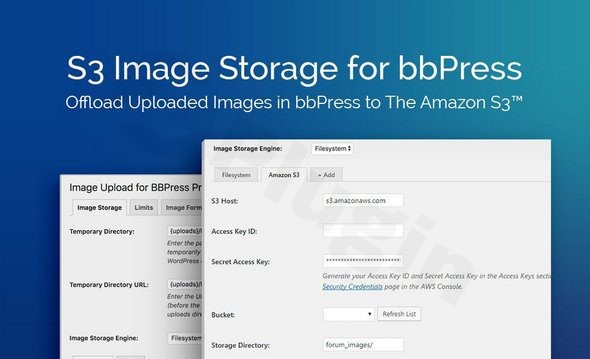
As a forum grows, so does the demand on your web server. High-traffic communities often struggle with slow page loads and ballooning disk usage due to thousands of user-uploaded images. S3 Image Storage For bbPress is a specialized WordPress plugin designed to solve these performance bottlenecks by offloading forum attachments directly to the cloud. By integrating bbPress Amazon S3 image storage, site owners can significantly reduce server load while ensuring their community remains fast and scalable.
Key Features & Benefits of Offloading Forum Media
The S3 Image Storage For bbPress plugin acts as a bridge between your forum and the Amazon Web Services (AWS) ecosystem. Unlike general media offloaders, this tool is precision-engineered for the bbPress environment.
1. Significant Server Space Savings
The most immediate benefit is the ability to save server space bbpress images s3. Instead of storing bulky image files on your local web server, every attachment uploaded to a forum post is sent directly to an Amazon S3™ bucket. This allows you to host a massive community even on modest hosting plans without worrying about running out of disk space.
2. Improved Forum Performance
When you optimize bbpress storage using S3, your web server no longer has to handle the “heavy lifting” of serving images. Amazon S3™ handles the delivery of media files, which reduces the number of requests hitting your server and results in faster page load times for your forum members.
3. Efficient Bandwidth Management
Serving high-resolution images can quickly consume your monthly bandwidth quota. By utilizing Amazon S3™ for image delivery, you shift the bandwidth consumption to AWS, which is often more cost-effective and built to handle sudden spikes in traffic without crashing your site.
4. Seamless Integration with Image Upload for bbPress Pro
It is important to note that this plugin is a dedicated add-on. It requires the Image Upload for bbPress Pro plugin to be active. Once installed, it adds a native “S3 Storage” tab directly into your existing forum settings, making the transition to the cloud feel like a natural part of the WordPress dashboard.
How to Install and Set Up S3 Image Storage for bbPress
Setting up a cloud-based storage system might sound technical, but the process is straightforward for non-developers. Follow these steps to connect bbpress image uploads to amazon s3.
Step 1: Prerequisites
Before beginning the installation, ensure you have the following:
- An active WordPress site with bbPress installed.
- The Image Upload for bbPress Pro plugin (required).
- An Amazon Web Services (AWS) account.
Step 2: Install the Add-on
- Download the S3 Image Storage For bbPress plugin from the official source.
- Go to your WordPress Dashboard > Plugins > Add New > Upload Plugin.
- Select the plugin file, click Install Now, and then Activate.
Step 3: Configure AWS Credentials
- Navigate to bbPress > Settings (or the specific Image Storage tab within the Image Upload for bbPress settings).
- Locate the S3 Storage tab.
- Enter your AWS Access Key ID and Secret Access Key.
- Note: These are generated within your AWS IAM console.
- Enter your Amazon S3 Bucket Name.
- (Optional) Specify a Storage Directory if you want to keep forum images in a specific sub-folder within your bucket.
Step 4: Test the Connection
Save your settings and create a test post in your forum. Upload an image, then check your Amazon S3 bucket to ensure the file has been successfully transferred.
Practical Usage & Best Practices
To get the most out of your bbpress image upload s3 setup, consider these real-world workflows:
- For High-Traffic Communities: Use a dedicated S3 bucket specifically for forum media. This keeps your forum assets separate from your site’s main media library, making backups and organization much easier.
- For Agencies & Developers: If you manage multiple client forums, using S3 storage allows you to migrate sites between hosts effortlessly. Since the images are hosted on S3, you won’t need to move gigabytes of media files during a server migration.
- Ideal for Visual Niches: If your forum is dedicated to photography, design, or DIY projects where users share high-quality photos, this plugin is essential to prevent your WordPress database and file system from becoming bloated.
FAQ & Troubleshooting
Does S3 Image Storage For bbpress work with the latest WordPress?
Yes, the plugin is designed to be compatible with the latest versions of WordPress and bbPress. Because it focuses on the backend handling of media files through API calls to AWS, it remains highly stable across core updates.
How to set up Amazon S3 for bbpress uploads?
You must create an S3 bucket in your AWS Console, generate IAM user credentials (Access Key and Secret Key) with “PutObject” permissions, and enter these details into the plugin’s “Image Storage” settings tab.
What are the benefits of using S3 for bbpress images?
The primary benefits include reduced server disk usage, faster forum loading speeds, and better scalability. It offloads the processing and delivery of images to Amazon’s global infrastructure, ensuring high availability for your forum media.
Can I use this plugin without the “Pro” version of Image Upload for bbPress?
No. S3 Image Storage For bbPress is an extension. It requires the Image Upload for bbPress Pro plugin to function, as it hooks into that plugin’s upload logic to redirect files to the cloud.
Does this affect images already uploaded to my forum?
Generally, this plugin handles new uploads. To move existing forum attachments to S3, you may need a separate migration tool or manually upload them to your bucket and update the file paths in your database.
Final Verdict
For any forum administrator looking to store bbpress attachments s3, this plugin is a powerful, niche-specific solution. While there are general WordPress S3 plugins available, the S3 Image Storage For bbPress add-on provides a streamlined experience specifically for BerryPress users. It is an essential investment for forums that prioritize performance, scalability, and long-term storage efficiency.If you are ready to take your community to the next level, offloading your media to Amazon S3 is one of the most effective technical upgrades you can make for your bbPress site.
I. Download Limits & Account Benefits
- Free Downloads: Each email address receives 3 downloads per day for free products
- Upgrade Benefits: Purchase any paid product to increase your daily download limit by 3 for each paid product
- No Account Required: You can download immediately by receiving the download link via email
- Account Recommended: Create an account for easier access to your order history and direct update downloads
II. Understanding GPL vs Official Versions
Important: The products available on WPPick are GPL-licensed versions, which differ from official developer versions. Before purchasing, please read our comprehensive guide: Understanding GPL & Official Differences at WPPick
Key Points:
- GPL versions may not include premium support from original developers
- Updates may be delayed compared to official releases
- Some premium features might have limitations
- Always consider your specific needs and support requirements
III. Support & Assistance
We’re here to help through multiple channels:
- Email Support: Direct email assistance for all inquiries
- Live Chat: Real-time support during business hours
- Comprehensive Documentation: Detailed guides and tutorials
IV. Order Tracking
Access your complete purchase history and download links anytime: Order History
V. Account Access
New to WPPick? Login or Create Account to manage your downloads and orders efficiently.
VI. Refund Protection
We stand behind our products with a clear refund policy. Review our terms: Refund Policy
VII. Privacy & Security
Your data security is our priority. Learn how we protect your information: Privacy Policy
VII. Terms of Service
Understanding our service terms ensures a smooth experience: Terms of Use
Quick Tips for Best Experience
- Verify Compatibility: Check plugin/theme compatibility with your WordPress version
- Backup First: Always backup your site before installing new plugins or themes
- Test Environment: Consider testing on a staging site first
- Stay Updated: Regularly check for updates in your account dashboard
- Read Documentation: Review any included documentation for optimal setup
Need Help?
If you have questions about downloads, licensing, or need technical assistance, don’t hesitate to contact our support team. We’re committed to ensuring you have the best possible experience with WPPick products.
Ready to get started? Your download adventure begins with just one click!