

Seoinux Wp Internal Link Creator
/Year
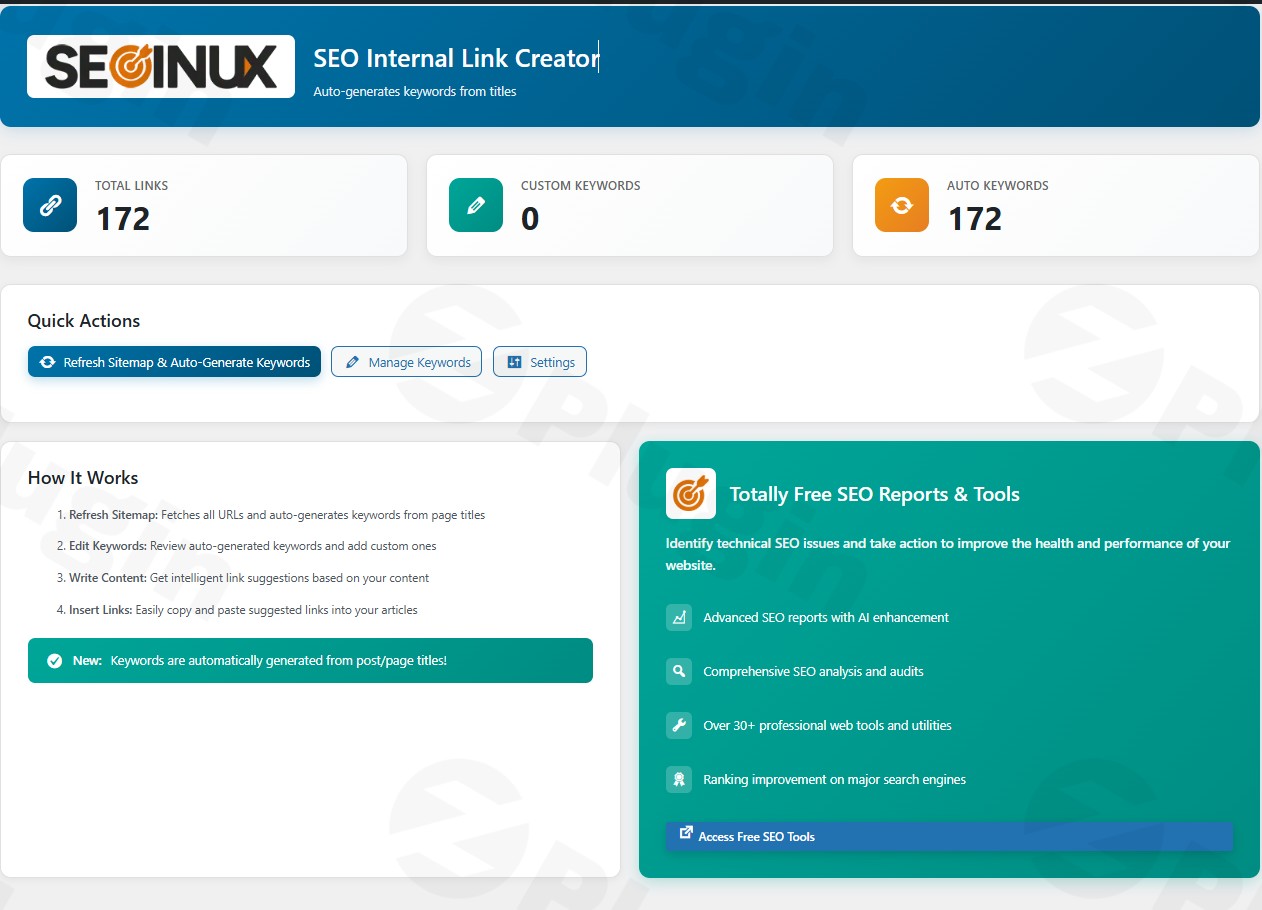
Internal linking is one of the most powerful, yet often neglected, pillars of On-Page SEO. Manually searching for relevant past articles to link to every time you publish new content is a time-consuming chore that most site owners eventually abandon. This leads to “orphan pages”—valuable content that search engines and users can’t find.
Seoinux WP Internal Link Creator is a comprehensive WordPress internal linking plugin designed to automate this process. It helps you build a robust site architecture, distribute “link juice” (SEO authority) effectively, and improve the user experience by guiding readers to related content. By using this tool, you can significantly reduce the manual workload while ensuring your site remains crawlable and competitive in search engine results pages (SERPs).
Key Features & Benefits of Seoinux WP Internal Link Creator
This plugin goes beyond simple keyword-to-link replacement. It offers a sophisticated suite of tools aimed at AI internal linking for WordPress, ensuring that every link added provides genuine value to both the reader and the search engine.
1. Automated Link Creation and Mapping
The core of the plugin is its ability to automate internal links in WordPress. You can define specific “Keywords” and assign them a “Target URL.” Whenever those keywords appear in your posts or pages, the plugin automatically converts them into clickable hyperlinks. This ensures that your most important “money pages” or pillar posts are consistently linked to across your entire site.
2. AI-Powered Link Suggestions
For those who prefer a more curated approach, the AI-driven suggestion engine analyzes your content in real-time. It understands the context of your writing and recommends relevant existing posts that you should link to. This feature helps maintain a natural flow while building a dense topical authority map.
3. Orphan Page Identification
An orphan page is a post or page with zero internal links pointing to it. Search engine crawlers (like Googlebot) find these pages difficult to index. Seoinux WP Internal Link Creator includes a dedicated dashboard to identify these hidden pages, allowing you to “rescue” them by adding links from authoritative content.
4. Smart Anchor Text Management
Over-optimizing your anchor text (using the exact same keyword for every link) can look suspicious to search engines. This plugin allows for anchor text diversification, letting you rotate between multiple phrases for a single URL. This maintains a natural link profile and improves the overall User Experience (UX).
5. Bulk Keyword Import & Export
For large-scale websites or SEO agencies managing multiple clients, the plugin supports CSV imports. You can map hundreds of keywords to their respective URLs in seconds, making it one of the most efficient internal link builders for WordPress.
How to Install and Configure Seoinux WP Internal Link Creator
Setting up the plugin is straightforward and requires no coding knowledge. Follow these steps to start optimizing your site structure.
Step 1: Installation
- Log in to your WordPress Admin Dashboard.
- Navigate to Plugins > Add New.
- Upload the plugin zip file or search for “Seoinux WP Internal Link Creator” (if available in the repository).
- Click Install Now and then Activate.
Step 2: Basic Configuration
Once activated, go to the Seoinux menu in your sidebar. Under the Settings tab, you can define global rules, such as:
- Max links per post: To avoid “link spam,” limit the number of automated links per article.
- Open in new tab: Choose whether internal links should open in the same or a new window.
- Heading Exclusions: Prevent the plugin from adding links inside H1 or H2 tags to maintain clean headers.
Step 3: Setting Up Your First Keyword Map
- Go to the Keyword Manager section.
- Enter a “Keyword” (e.g., “WordPress SEO”).
- Enter the “Target URL” (e.g.,
https://yourdomain.com/ultimate-guide-to-seo/). - Click Save. The plugin will now automatically link that keyword in all existing and future content.
Practical Usage & Best Practices
To get the most out of your WordPress internal linking plugin, you should integrate it into your regular content workflow. Here are the best ways to use Seoinux WP Internal Link Creator:
- For Bloggers & Content Marketers: Use the AI suggestions during the drafting phase. Linking to 2–4 relevant older posts per new article keeps readers on your site longer, reducing bounce rates.
- For E-commerce Store Managers: Automate links from your blog posts directly to product categories. For example, every time you mention “running shoes” in a blog post, the plugin can link to your shop’s Running Shoes category page.
- For SEO Agencies: Use the Orphan Page Report during your initial site audit. It’s the fastest way to show immediate value to a client by “re-indexing” lost content through strategic internal links.
- The “Pillar-Cluster” Strategy: Use the plugin to link all “cluster” (sub-topic) articles back to your “pillar” (main guide) page. This signals to Google that the pillar page is the ultimate authority on that topic.
FAQ: Frequently Asked Questions
Is Seoinux WP Internal Link Creator compatible with Elementor and Gutenberg?
Yes. The plugin is designed to work seamlessly with the native WordPress block editor (Gutenberg) as well as popular page builders like Elementor, Beaver Builder, and Divi. It processes links on the server side before the page is rendered, ensuring compatibility across different editors.
Will this plugin slow down my website?
No. Seoinux WP Internal Link Creator is built with performance in mind. It uses efficient database queries and caching mechanisms to ensure that link processing does not negatively impact your Core Web Vitals or page load speeds.
Does it support WooCommerce product pages?
Absolutely. You can set rules to automatically link keywords to WooCommerce products or categories. This is an excellent way to drive organic traffic from your informational blog content to your transactional product pages.
Can I prevent links from appearing on certain pages?
Yes. There is a “Blacklist” or “Exclude” feature in the settings. You can prevent automated linking on specific Post IDs, Categories, or even specific page types (like your Homepage or Contact page).
Final Verdict: Is It Worth It?
If you are serious about improving your site’s SEO and user engagement, Seoinux WP Internal Link Creator is an essential tool. It bridges the gap between manual SEO effort and total automation. By eliminating orphan pages and ensuring a logical link flow, you provide search engines with a clear map of your content.
For more WordPress tips and plugin reviews, visit wppick.com. We recommend this plugin for any site owner who wants to automate internal links in WordPress without sacrificing quality or control. The return on investment comes in the form of saved time and higher search rankings.
I. Download Limits & Account Benefits
- Free Downloads: Each email address receives 3 downloads per day for free products
- Upgrade Benefits: Purchase any paid product to increase your daily download limit by 3 for each paid product
- No Account Required: You can download immediately by receiving the download link via email
- Account Recommended: Create an account for easier access to your order history and direct update downloads
II. Understanding GPL vs Official Versions
Important: The products available on WPPick are GPL-licensed versions, which differ from official developer versions. Before purchasing, please read our comprehensive guide: Understanding GPL & Official Differences at WPPick
Key Points:
- GPL versions may not include premium support from original developers
- Updates may be delayed compared to official releases
- Some premium features might have limitations
- Always consider your specific needs and support requirements
III. Support & Assistance
We’re here to help through multiple channels:
- Email Support: Direct email assistance for all inquiries
- Live Chat: Real-time support during business hours
- Comprehensive Documentation: Detailed guides and tutorials
IV. Order Tracking
Access your complete purchase history and download links anytime: Order History
V. Account Access
New to WPPick? Login or Create Account to manage your downloads and orders efficiently.
VI. Refund Protection
We stand behind our products with a clear refund policy. Review our terms: Refund Policy
VII. Privacy & Security
Your data security is our priority. Learn how we protect your information: Privacy Policy
VII. Terms of Service
Understanding our service terms ensures a smooth experience: Terms of Use
Quick Tips for Best Experience
- Verify Compatibility: Check plugin/theme compatibility with your WordPress version
- Backup First: Always backup your site before installing new plugins or themes
- Test Environment: Consider testing on a staging site first
- Stay Updated: Regularly check for updates in your account dashboard
- Read Documentation: Review any included documentation for optimal setup
Need Help?
If you have questions about downloads, licensing, or need technical assistance, don’t hesitate to contact our support team. We’re committed to ensuring you have the best possible experience with WPPick products.
Ready to get started? Your download adventure begins with just one click!