

Sigma Media Manager
/Year
Streamline Your WordPress Asset Workflow
As websites scale, the default WordPress media library often becomes a cluttered, slow workspace where finding a single asset requires endless scrolling. Sigma Media Manager steps in to modernize your media experience by overlaying a highly performant, visual folder hierarchy on top of your existing files. Designed by BdThemes, this plugin enables you to systematically categorize images, videos, audio, and documents without altering physical database paths or breaking existing live links on your website.
What Sigma Media Manager Does
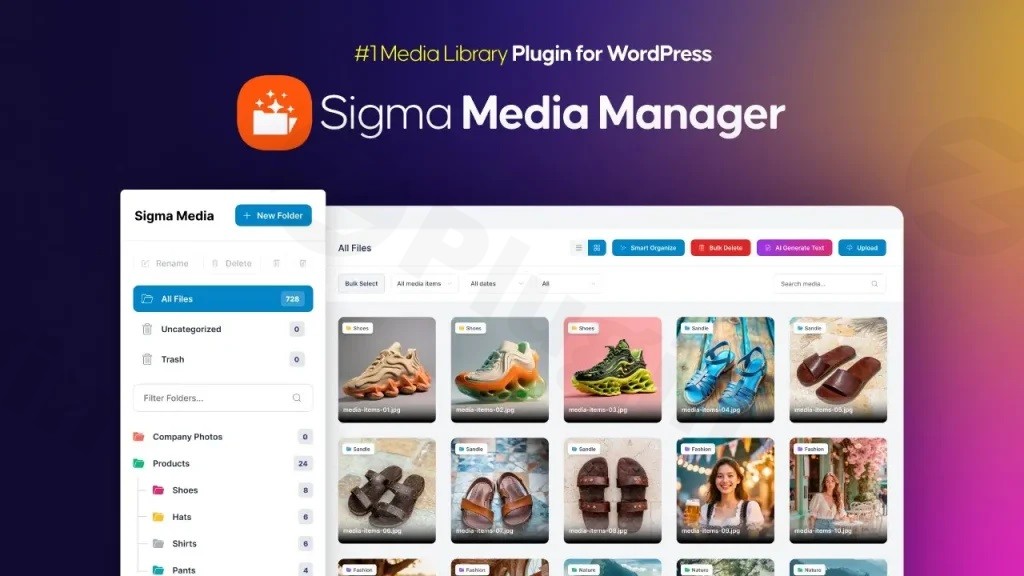
At its core, Sigma Media Manager introduces virtual folders. You can create, rename, recolor, and nest these folders to represent your site’s structure. Media files are sorted easily using intuitive drag-and-drop operations. Crucially, because these folders are virtual, you can move assets freely without worrying about broken image paths or 404 errors. Alongside folder organization, the plugin incorporates advanced bulk editing actions, granular filtering, and robust cloud offloading features that allow you to store physical files externally while keeping them fully accessible in your WordPress dashboard.
Who is This Plugin For?
- WooCommerce Store Managers: Organize massive product catalogs, lookbooks, and brand assets into clean, color-coded virtual folders.
- Digital Agencies and Developers: Deliver clean, white-labeled client sites where end-users can easily find their downloadable PDFs or localized marketing graphics.
- Content-Heavy Bloggers and Publishers: Maintain order across thousands of article images, audio podcasts, and video guides without suffering from administrative fatigue.
Key Capabilities and Features
- Virtual Folder Architecture: Create unlimited folders and nested subfolders. Assign custom colors to folder icons for rapid visual identification.
- Multi-Provider Cloud Offloading: Move your media footprint to major cloud storage providers like Amazon S3, DigitalOcean Spaces, Google Cloud Storage, Cloudflare R2, Bunny.net, or Cloudinary.
- Integrated Document Library: Set up public or password-protected document portals on your frontend using customizable grid or list layouts complete with download counters and sorting filters.
- Advanced Bulk Management: Select, move, duplicate, or delete large batches of media items simultaneously using chunked processes that prevent server timeouts.
- AI-Powered File Optimization: Generate smart titles, descriptions, and descriptive alt text automatically using your own API keys to boost accessibility and organic SEO.
Practical WordPress Use Cases
In practice, a web designer can use the document library function to host a downloadable client resource page. By selecting the custom shortcode output, you can render a professional grid of guides or templates directly on the frontend. E-commerce operators can leverage the cloud-offload capabilities to automatically push massive high-resolution product imagery to Cloudflare R2 or Bunny.net, dramatically lowering their web hosting storage costs and accelerating delivery speeds. Additionally, content managers can perform unused-media scans to identify and bulk-delete orphaned uploads that are bloating the hosting account.
Setup and Compatibility Notes
Sigma Media Manager integrates cleanly with the WordPress admin interface. Upon activation, a dedicated Media Manager submenu is created. It is fully compatible with major page builders like Elementor and Gutenberg, allowing you to access your structured folders when inserting images in templates. Under the settings menu, administrators can selectively toggle the main Media Manager or the Document Library screens on or off, updating the admin menu hover links dynamically without requiring a full page refresh.
Why Download Sigma Media Manager on WPPick?
Acquiring Sigma Media Manager through WPPick ensures you receive clean, fully scanned, and installable GPL-compliant files. This allows you to build neat visual file hierarchies and test cloud-offload capabilities across multiple staging, client, or local development environments without restriction. Benefit from efficient media management, fast delivery speeds, and clear asset structures across all your digital projects today.
Latest Version Context (v1.6.2)
The latest version 1.6.2 of Sigma Media Manager introduces a global toggle to turn the Media Manager interface on or off directly from the general settings, hiding submenu links immediately when disabled. It also optimizes cloud offloading by storing separate CDN URLs and path prefixes for individual object-storage providers. This ensures that switching between storage networks like Amazon S3, Bunny.net, or Cloudflare R2 will not break existing media delivery paths or overwrite your specific configuration values.
Frequently Asked Questions
Does moving an image into a folder change its URL?
No. Sigma Media Manager uses a virtual folder structure. This means your files remain exactly where they were physically uploaded inside your wp-content/uploads directory. You can organize, move, and nest your files in folders as many times as you like without breaking any live links on your posts, pages, or products.
Which cloud storage providers are supported for media offloading?
The plugin supports a wide range of external storage networks, including Amazon S3, DigitalOcean Spaces, Google Cloud Storage, Cloudflare R2, Bunny.net Storage, Cloudinary, and custom S3-compatible providers. It also integrates with OAuth-based cloud folders like Google Drive, Microsoft OneDrive, and pCloud.
Can I build a frontend folder structure for site visitors?
Yes. By enabling the Document Library feature, you can build visitor-facing download directories. You can organize these files, apply password protection for restricted access, and display them in elegant grid or list layouts on any page using a simple, automatically generated shortcode.
Will this plugin slow down my admin dashboard?
No. Sigma Media Manager is built for high-speed performance. It utilizes batch processing for bulk actions to avoid server execution limits, and incorporates performance caching to prevent repetitive database queries when checking cloud offload states, ensuring your admin panels remain snappy.
I. Download Limits & Account Benefits
- Free Downloads: Each email address receives 3 downloads per day for free products
- Upgrade Benefits: Purchase any paid product to increase your daily download limit by 3 for each paid product
- No Account Required: You can download immediately by receiving the download link via email
- Account Recommended: Create an account for easier access to your order history and direct update downloads
II. Understanding GPL vs Official Versions
Important: The products available on WPPick are GPL-licensed versions, which differ from official developer versions. Before purchasing, please read our comprehensive guide: Understanding GPL & Official Differences at WPPick
Key Points:
- GPL versions may not include premium support from original developers
- Updates may be delayed compared to official releases
- Some premium features might have limitations
- Always consider your specific needs and support requirements
III. Support & Assistance
We’re here to help through multiple channels:
- Email Support: Direct email assistance for all inquiries
- Live Chat: Real-time support during business hours
- Comprehensive Documentation: Detailed guides and tutorials
IV. Order Tracking
Access your complete purchase history and download links anytime: Order History
V. Account Access
New to WPPick? Login or Create Account to manage your downloads and orders efficiently.
VI. Refund Protection
We stand behind our products with a clear refund policy. Review our terms: Refund Policy
VII. Privacy & Security
Your data security is our priority. Learn how we protect your information: Privacy Policy
VII. Terms of Service
Understanding our service terms ensures a smooth experience: Terms of Use
Quick Tips for Best Experience
- Verify Compatibility: Check plugin/theme compatibility with your WordPress version
- Backup First: Always backup your site before installing new plugins or themes
- Test Environment: Consider testing on a staging site first
- Stay Updated: Regularly check for updates in your account dashboard
- Read Documentation: Review any included documentation for optimal setup
Need Help?
If you have questions about downloads, licensing, or need technical assistance, don’t hesitate to contact our support team. We’re committed to ensuring you have the best possible experience with WPPick products.
Ready to get started? Your download adventure begins with just one click!
- Settings > General: **Enable Media Manager** toggle at the top of the tab to turn the Media Manager screen on or off (enabled by default). When disabled, the **Media Manager** link is hidden from the Media submenu and the screen is inaccessible.
- Settings > Cloud: per-provider **CDN URL** and **Path Prefix** in Advanced Settings — each object-storage provider (S3, Spaces, GCS, R2, S3-compatible, Bunny) keeps its own values when switching providers
- Settings: saving **Enable Media Manager** or **Enable Document Library** now updates the Media submenu in wp-admin immediately (show/hide links on hover) without reloading the page
- Settings > Cloud: Advanced Settings shown only for object-storage providers; hidden for Cloudinary and OAuth providers (Google Drive, OneDrive, pCloud) that use their own folder/subfolder settings
- Settings > Cloud: offloaded media URLs now use the URL saved at upload time, so changing CDN or path settings for one provider no longer breaks live links for files already on another provider
- Settings > Cloud: **Test Connection** result message is cleared when switching providers and only shown for the provider that was tested
- Settings > Optimization: **Resize Options** remain under Image Compression; large-image resizing works when compression is enabled without requiring **Auto Compress on Upload**
- Bunny.net: fixed doubled path prefix in delivery URLs (404 on offloaded files when a path prefix was configured)
- Bunny.net: path prefix is applied on upload only; delete and file lookup use stored cloud paths correctly
- Fixed slow product pages caused by repeated database lookups when rewriting image URLs to cloud storage.
- Cloud offload status is now cached per page load (and via object cache when available), so each image is looked up once instead of many times.
- Recommended for WooCommerce stores with large variable products or heavy image galleries.
- Media library: toolbar **Cloud Offload** button now processes selected files in the same chunked batches as Settings bulk offload, preventing timeouts on large selections.
- Offload Media: Cloudinary provider (cloud name, API key/secret, optional upload folder, auto CDN delivery URLs).
- Offload Media: Custom S3-Compatible provider for MinIO, Wasabi, Backblaze B2, and other S3-compatible storage (custom endpoint, region, path-style addressing, and optional public URL base).
- Offload Media: Bunny.net Storage provider using Bunny Storage HTTP API (storage zone name/password, regional endpoint selection, and pull-zone delivery URL).
- Offload Media: cloud provider cards now use real brand icons/logos in settings UI.
- White Label: when enabled, settings header Help & Support button and About Sigma Media Manager panel are hidden for client-facing branding.