

Team Builder – Meet The Team WordPress Plugin
/Year
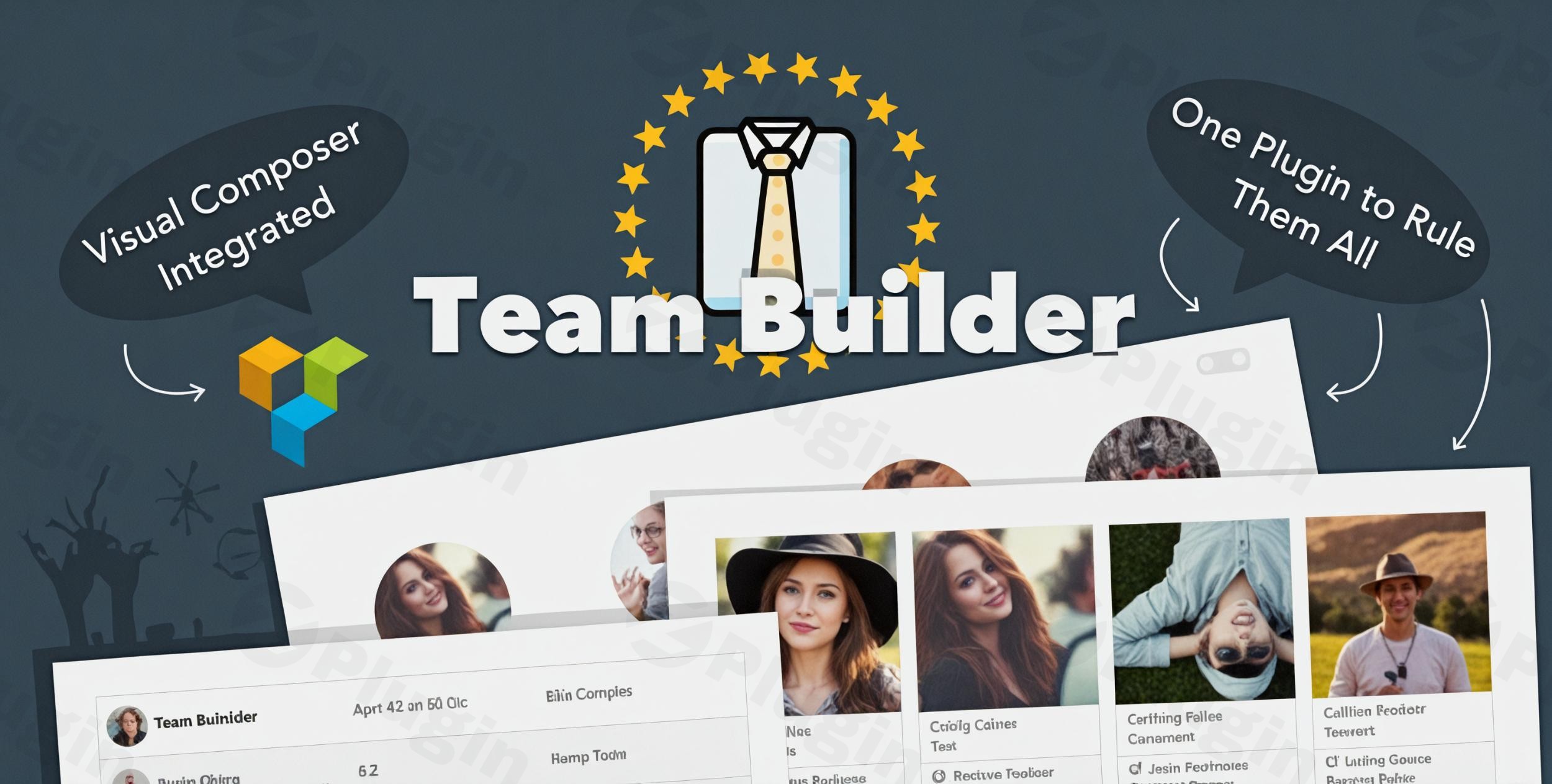
Creating a professional staff directory shouldn’t require a developer. The Team Builder – Meet The Team WordPress plugin is a premium solution designed to help businesses, agencies, and freelancers showcase their human capital through stunning, interactive displays. Whether you are building a simple “About Us” page or a complex departmental directory, this Meet the team WordPress plugin provides the visual tools necessary to create high-converting member showcases without touching a single line of code.By utilizing a powerful drag-and-drop interface, Team Builder solves the common problem of rigid, “cookie-cutter” staff layouts. It allows site owners to move beyond basic image grids to create truly interactive experiences that build trust with visitors—an essential component of modern E-E-A-T (Experience, Expertise, Authoritativeness, and Trustworthiness) principles.
Key Features of Team Builder – Meet The Team
The strength of this team showcase WordPress plugin lies in its versatility. It is not just a directory tool; it is a complete design framework for any image-and-text-based content.
1. Visual Drag-and-Drop Admin Builder
The standout feature is the intuitive admin interface. Unlike standard plugins that limit you to a few toggle switches, Team Builder offers a visual workspace. You can rearrange elements, adjust spacing, and style blocks in real-time. This “freedom of design” ensures your team page matches your brand’s unique identity perfectly.
2. Versatile Layout Options (Grid, Slider, Table)
One size does not fit all. Depending on your site’s design, you can choose from:
- Grid Layouts: Perfect for standard “Meet the Team” pages.
- Sliders: Ideal for homepage sections where space is limited.
- Table Views: Excellent for large corporate directories or faculty lists.
- Widgets: For sidebar or footer staff highlights.
3. Profile Sliding Panels
For teams that want to share more than just a name and title, the plugin features Profile Sliding Panels. When a visitor clicks a member’s card, a panel slides out to reveal a full bio, social media links, and custom details. This keeps the user on the page while providing a deep dive into each member’s expertise.
4. Skill Bars and Star Bars
Demonstrate your team’s proficiency visually. You can add modern skill bars (e.g., “Python – 95%”) or star ratings to individual profiles. This is particularly effective for creative agencies or technical consultancies where specific skill sets are a major selling point.
5. Multi-Use Functionality
While primarily a WordPress staff plugin, its architecture is flexible enough to handle:
- Testimonials: Create a beautiful grid of client feedback with headshots.
- Logo Showcases: Display partner or client logos in a clean, responsive grid.
* Portfolio Highlights: Use the member cards to showcase specific projects.
How to Install and Set Up the Team Builder Plugin
Setting up your team showcase is straightforward. Follow these steps to get your first directory live:
- Installation: Download the plugin files from CodeCanyon or Envato Elements. Log in to your WordPress dashboard, navigate to Plugins > Add New > Upload Plugin, and select the zip file. Activate the plugin upon completion.
- Create a New Team: Go to the “Team Builder” menu item in your sidebar and click Add New Team. Give your team a name (e.g., “Marketing Department”).
- Add Team Members: Click on Add Member. Here, you can upload a photo and fill in “Constructable Member Cards” with details like name, tagline, email, phone, and social media links.
- Design the Layout: Use the Drag-and-Drop Builder to choose your layout (Grid, Slider, etc.). You can apply “Predefined Style Presets” here to speed up the process.
5. Publish via Shortcode: Once you are satisfied with the design, copy the generated shortcode. Paste this shortcode into any page, post, or widget area using the Gutenberg block editor or your preferred page builder.
Practical Usage & Best Practices
To get the most out of this WordPress team member plugin, consider these professional workflows:
Use Case 1: The Corporate Directory
For large organizations, use the Filtering and Tagging feature. By categorizing members into departments (e.g., “Engineering,” “HR,” “Sales”), visitors can instantly filter the list to find exactly who they are looking for.
Use Case 2: The Creative Agency “Hook”
Use Fancy Hover Effects to add personality. When a user hovers over a team member’s photo, you can trigger an overlay that shows their “Fun Fact” or a secondary social icon. This adds a layer of engagement that makes your agency feel more approachable.
Best Practices for Performance:
- Image Optimization: While Team Builder is lightweight, always crop and compress member photos before uploading to maintain fast page speeds.
- Consistency is Key: Use the “Predefined Style Presets” to ensure every member card has the same font size, padding, and image aspect ratio.
* Mobile First: Periodically check the “Responsive Design” settings in the builder to ensure your team grid collapses elegantly into a single column on smartphones.
Technical Specifications & Compatibility
Team Builder is built to be a robust, “install-and-forget” solution.
- Page Builder Support: Fully compatible with Elementor, Gutenberg, and Visual Composer.
- Theme Compatibility: Designed to work with any well-coded WordPress theme without CSS conflicts.
- PHP Version: Optimized for modern environments, including PHP 8.x support.
* Speed: The plugin is performance-optimized, loading only necessary CSS and JS files to ensure it doesn’t bloat your site’s load time.
FAQ & Troubleshooting
What is the best WordPress team builder plugin for customization?
The Team Builder – Meet The Team plugin is widely considered one of the most customizable options due to its visual drag-and-drop admin builder. Unlike many competitors that offer fixed templates, it allows you to build custom member cards from scratch.
Can Team Builder plugin be used for testimonials?
Yes, the Team Builder plugin is a multi-use tool. Because you can customize fields and layouts, it is an excellent choice for creating professional testimonial grids or client logo showcases.
How to add a team members section in WordPress?
To add a team section, install the Team Builder plugin, create a “Team” in the plugin settings, add your member details, and then copy the provided shortcode. Paste that shortcode into any WordPress page or post to display the section.
Is the plugin compatible with Elementor?
Yes, Team Builder is fully compatible with Elementor. You can simply use the “Shortcode” widget within Elementor to drop your team showcase into any section of your layout.
What should I do if my team layout looks broken?
Most layout issues are caused by theme CSS overrides. Check the “Freedom of Design” settings in the plugin to ensure your custom colors and spacing are set correctly. If the issue persists, ensure your WordPress version and PHP version are up to date.
Final Verdict
The Team Builder – Meet The Team plugin is an essential tool for any WordPress site owner who values design flexibility and ease of use. It bridges the gap between simple list-making and high-end web design. By offering features like sliding profile panels and skill bars, it provides a level of depth that free plugins simply cannot match. If you need a customizable team page in WordPress that looks professional and performs flawlessly on mobile, this plugin is a top-tier investment for your site.Find more WordPress tips and reviews at wppick.com.
I. Download Limits & Account Benefits
- Free Downloads: Each email address receives 3 downloads per day for free products
- Upgrade Benefits: Purchase any paid product to increase your daily download limit by 3 for each paid product
- No Account Required: You can download immediately by receiving the download link via email
- Account Recommended: Create an account for easier access to your order history and direct update downloads
II. Understanding GPL vs Official Versions
Important: The products available on WPPick are GPL-licensed versions, which differ from official developer versions. Before purchasing, please read our comprehensive guide: Understanding GPL & Official Differences at WPPick
Key Points:
- GPL versions may not include premium support from original developers
- Updates may be delayed compared to official releases
- Some premium features might have limitations
- Always consider your specific needs and support requirements
III. Support & Assistance
We’re here to help through multiple channels:
- Email Support: Direct email assistance for all inquiries
- Live Chat: Real-time support during business hours
- Comprehensive Documentation: Detailed guides and tutorials
IV. Order Tracking
Access your complete purchase history and download links anytime: Order History
V. Account Access
New to WPPick? Login or Create Account to manage your downloads and orders efficiently.
VI. Refund Protection
We stand behind our products with a clear refund policy. Review our terms: Refund Policy
VII. Privacy & Security
Your data security is our priority. Learn how we protect your information: Privacy Policy
VII. Terms of Service
Understanding our service terms ensures a smooth experience: Terms of Use
Quick Tips for Best Experience
- Verify Compatibility: Check plugin/theme compatibility with your WordPress version
- Backup First: Always backup your site before installing new plugins or themes
- Test Environment: Consider testing on a staging site first
- Stay Updated: Regularly check for updates in your account dashboard
- Read Documentation: Review any included documentation for optimal setup
Need Help?
If you have questions about downloads, licensing, or need technical assistance, don’t hesitate to contact our support team. We’re committed to ensuring you have the best possible experience with WPPick products.
Ready to get started? Your download adventure begins with just one click!
- Compatibility with latest Revolution slider.