

Themify Post Type Builder (ptb)
/Year
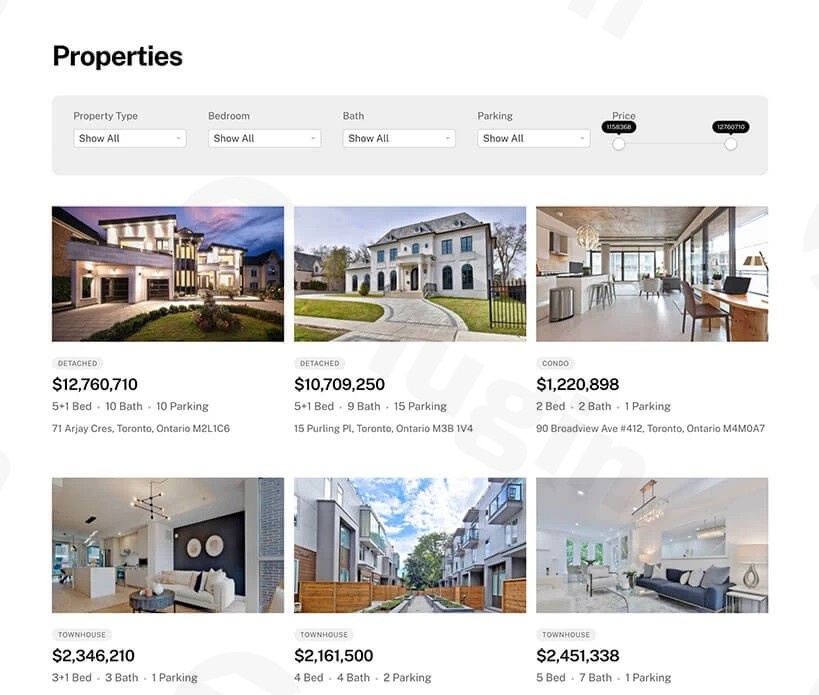
Managing a dynamic website often requires more than just standard posts and pages. If you need to organize specialized content like real estate listings, movie databases, or professional portfolios, you need WordPress Custom Post Types. The Themify Post Type Builder (PTB) is a powerful, all-in-one solution designed to help you create, manage, and display custom content structures without writing a single line of code.
By using the Themify PTB plugin, site owners can create custom fields in WordPress and design unique layouts using an intuitive drag-and-drop interface. This article provides a comprehensive walkthrough of the plugin’s features, setup process, and best practices for building a data-rich WordPress site.
Key Features of Themify Post Type Builder
Themify PTB stands out in the crowded market of CPT plugins because it doesn’t just create the data structure; it also provides the tools to design how that data looks on your website.
1. Unlimited Custom Post Type Creation
Beyond the default WordPress “Posts” and “Pages,” PTB allows you to register any number of custom post types. Whether you are building a directory for “Restaurants” or a catalog for “Products,” you can define singular and plural labels, custom slugs, and enable standard features like featured images, excerpts, and revisions.
2. Intuitive Meta Box Builder
To create custom fields in WordPress that capture specific data (like “Price,” “Release Date,” or “Location”), PTB features a built-in Meta Box Builder. You can drag and drop various field types into your post editor, including:
- Text and Textarea
- Numbers and Emails
- Images and File Uploads
- Checkboxes, Radio Buttons, and Select Menus
3. Visual Template Builder
While many plugins like CPT UI require you to code PHP files to display your data, Themify PTB includes a Custom Post Type Templates designer. You can visually arrange how your custom data appears in both “Archive” (listing) views and “Single” post views using a drag-and-drop grid system.
4. Seamless Integration and Addons
Themify PTB is designed to be lightweight but extensible. It integrates deeply with Themify Builder Pro, allowing for real-time visual editing. Additionally, specialized addons can expand your site’s functionality:
- PTB Search: Adds advanced filtering and search forms for your custom content.
- PTB Map View: Plots your posts onto a Google Map based on location fields.
- PTB Relation: Creates connections between different post types (e.g., linking “Actors” to “Movies”).
- Extra Fields: Adds advanced modules like Video, Sliders, Progress Bars, and Ratings.
How to Install and Set Up Themify PTB
Follow these steps to start building your custom content engine.
- Install the Plugin: Download the plugin zip file from Themify. In your WordPress dashboard, navigate to Plugins > Add New > Upload Plugin. Choose the file and click Install Now, then Activate.
- Create a New Post Type: Navigate to the new Post Type Builder menu in your sidebar and click Add New. Enter your Post Type Name (e.g., “Properties”) and set your labels.
- Configure Custom Fields: In the Meta Box section of the post type setup, drag the fields you need (e.g., “Price” as a Number field) into the active area. Save your changes.
- Design the Layout: Go to the Templates tab within the PTB menu. Use the drag-and-drop editor to decide where the “Price,” “Featured Image,” and “Description” should appear on the frontend.
- Add Content: You will now see your new post type in the WordPress sidebar. Click Properties > Add New to start entering your data just like a regular post.
Practical Usage & Best Practices
Themify PTB is the best WordPress plugin for custom post types and templates for users who want a balance between power and ease of use. Here is how to get the most out of it:
Use Case: Real Estate Listing Site
A marketer can use PTB to create a “Properties” post type. By using the PTB Map View addon, they can automatically display all property listings on a map. Combined with the PTB Search addon, visitors can filter properties by “Price” or “Neighborhood” without the site owner needing a developer.
Use Case: Professional Portfolio
Agencies can create a “Portfolio” post type with custom fields for “Client Name,” “Project Date,” and “Services Provided.” By using the Custom Post Type Templates feature, they can ensure every portfolio item follows a consistent, high-end brand design.
Best Practices:
- Keep Slugs Simple: When creating post types, use short, lowercase slugs (e.g.,
propertyinstead ofmy-real-estate-listing). - Use Import/Export: If you manage multiple sites, use PTB’s export feature to move your custom post type structures and templates from one site to another instantly.
- Optimize for Performance: PTB is built with a clean codebase, but avoid adding dozens of “Extra Fields” modules (like sliders or videos) on a single archive page to maintain fast loading speeds.
FAQ & Troubleshooting
What is Themify Post Type Builder?
Themify Post Type Builder (PTB) is a “no-code” WordPress plugin that allows users to create custom post types, taxonomies, and custom fields. It distinguishes itself by including a visual drag-and-drop template builder to design the frontend layout of your custom content.
Can Themify Post Type Builder work with any theme?
Yes, Themify PTB is compatible with any standard WordPress theme. While it is optimized for the Themify ecosystem (like the Ultra theme), it functions perfectly with Gutenberg, Elementor, and other popular frameworks. It requires WordPress 5.2+ and PHP 7.4+.
How do I design templates for custom post types in WordPress?
With PTB, you design templates by navigating to PTB > Templates. You can select the “Archive” or “Single” view and use the drag-and-drop interface to place your custom fields, images, and text into a column-based layout.
Is Themify Post Type Builder easy to use for beginners?
Yes, PTB is specifically designed for beginners and non-developers. Its step-by-step workflow and visual interface eliminate the need to edit functions.php or create PHP template files, making it a true no-code CPT WordPress solution.
How does Themify PTB compare to CPT UI?
While Themify Post Type Builder vs CPT UI is a common comparison, the main difference is that CPT UI only creates the post type; you still need to code the display. PTB handles both the creation of the post type and the visual design of the frontend display.
Conclusion: Final Verdict
The Themify Post Type Builder offers an impressive return on investment for site owners who need complex data structures but lack coding skills. By combining post type registration, custom field creation, and a visual template builder into one package, it streamlines the development process significantly.
Whether you are a freelancer building client sites or a business owner managing an inventory, this plugin provides the flexibility to transform WordPress into a full-scale Content Management System (CMS). For a robust, no-code CPT WordPress experience, Themify PTB is a top-tier choice.
To learn more or get started, visit the official plugin page at wppick.com.
I. Download Limits & Account Benefits
- Free Downloads: Each email address receives 3 downloads per day for free products
- Upgrade Benefits: Purchase any paid product to increase your daily download limit by 3 for each paid product
- No Account Required: You can download immediately by receiving the download link via email
- Account Recommended: Create an account for easier access to your order history and direct update downloads
II. Understanding GPL vs Official Versions
Important: The products available on WPPick are GPL-licensed versions, which differ from official developer versions. Before purchasing, please read our comprehensive guide: Understanding GPL & Official Differences at WPPick
Key Points:
- GPL versions may not include premium support from original developers
- Updates may be delayed compared to official releases
- Some premium features might have limitations
- Always consider your specific needs and support requirements
III. Support & Assistance
We’re here to help through multiple channels:
- Email Support: Direct email assistance for all inquiries
- Live Chat: Real-time support during business hours
- Comprehensive Documentation: Detailed guides and tutorials
IV. Order Tracking
Access your complete purchase history and download links anytime: Order History
V. Account Access
New to WPPick? Login or Create Account to manage your downloads and orders efficiently.
VI. Refund Protection
We stand behind our products with a clear refund policy. Review our terms: Refund Policy
VII. Privacy & Security
Your data security is our priority. Learn how we protect your information: Privacy Policy
VII. Terms of Service
Understanding our service terms ensures a smooth experience: Terms of Use
Quick Tips for Best Experience
- Verify Compatibility: Check plugin/theme compatibility with your WordPress version
- Backup First: Always backup your site before installing new plugins or themes
- Test Environment: Consider testing on a staging site first
- Stay Updated: Regularly check for updates in your account dashboard
- Read Documentation: Review any included documentation for optimal setup
Need Help?
If you have questions about downloads, licensing, or need technical assistance, don’t hesitate to contact our support team. We’re committed to ensuring you have the best possible experience with WPPick products.
Ready to get started? Your download adventure begins with just one click!