

Twist – Product Gallery Slider For Woocommerce
/Year
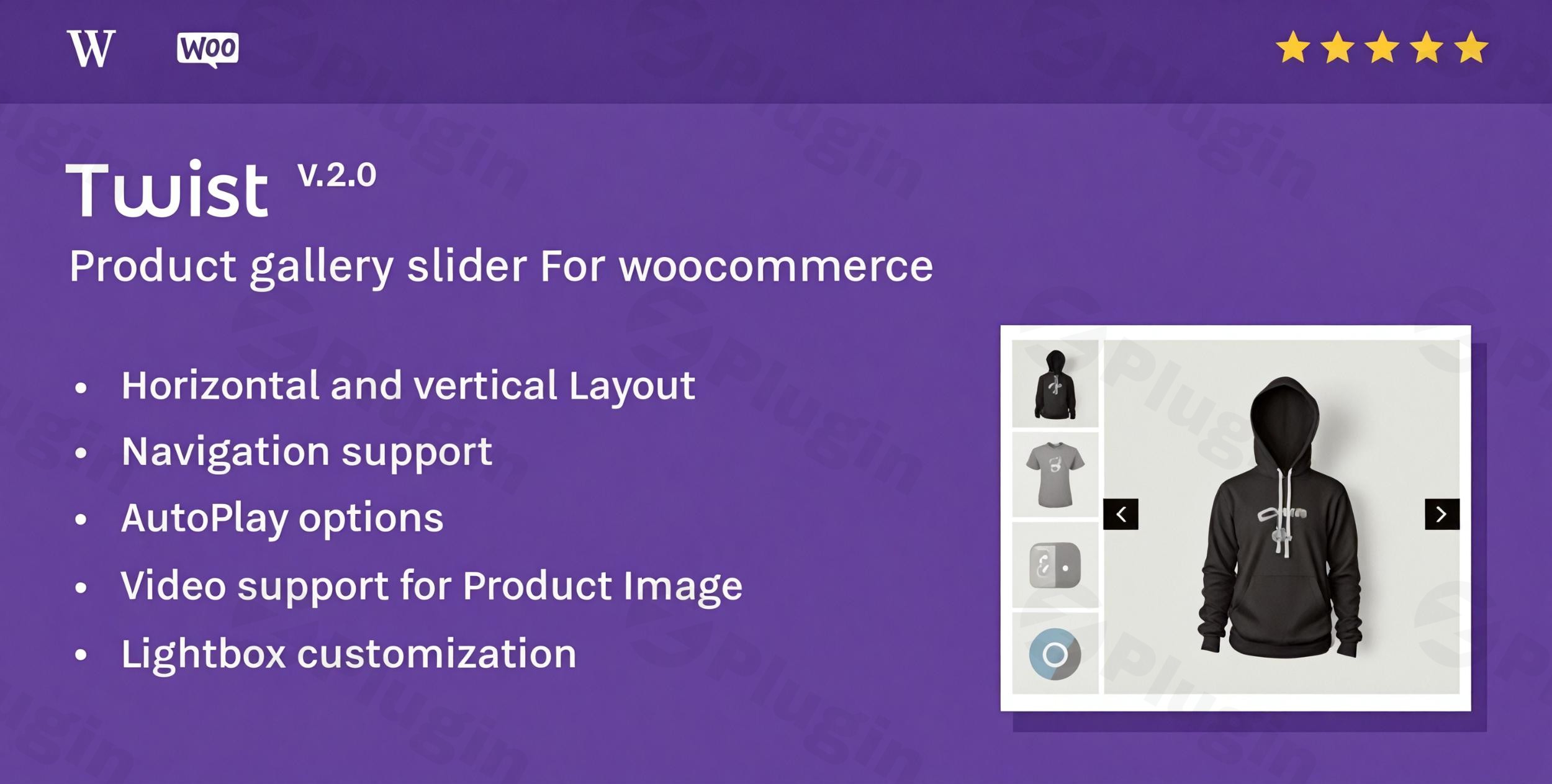
In the competitive world of e-commerce, first impressions are everything. The default WooCommerce gallery often feels static and limited, which can lead to high bounce rates and lost sales. Twist – Product Gallery Slider for WooCommerce is a premium WordPress plugin designed to solve this by transforming your product images into a dynamic, high-conversion showcase. By implementing a product gallery slider for WooCommerce, you provide customers with an intuitive, mobile-friendly way to explore your products, leading to higher engagement and improved trust.
Whether you are a store owner looking to boost conversions or a developer building a custom site, Twist offers the flexibility needed to create a professional shopping experience without writing a single line of code.
Key Features: Why Twist is the Best WooCommerce Product Image Slider
Twist goes beyond a simple carousel. It is a comprehensive tool built for modern e-commerce needs. Here are the core features that make Twist WooCommerce gallery a top-tier choice:
1. Versatile Layouts (Vertical & Horizontal)
Not every product looks best in a standard horizontal grid. Twist allows you to choose between horizontal carousels or vertical sliders (thumbnails on the left or right). This flexibility is essential for matching your site’s specific design aesthetic and branding.
2. Seamless Video Integration
Modern shoppers want to see products in action. Twist functions as a powerful WooCommerce video gallery plugin, allowing you to embed videos from YouTube and Vimeo directly into your image slider. This is one of the most effective ways to demonstrate product functionality and build buyer confidence.
3. Advanced Zoom and Lightbox Magnification
For products where detail matters—like jewelry, clothing, or electronics—Twist provides high-resolution zoom functionality. Users can hover to see fine details or click to open a Lightbox magnification view, ensuring they see exactly what they are buying.
4. Smart Product Variation Support
A common frustration for shoppers is selecting a “Blue” shirt and still seeing the “Red” shirt in the gallery. Twist intelligently handles WooCommerce product variations, automatically updating the gallery slider to show the correct image when a customer selects a specific option.
5. Mobile-Responsive & Touch-Ready
With more than half of all web traffic coming from mobile devices, Twist is built with a responsive product slider architecture. It supports touch-swipe gestures on smartphones and tablets, ensuring a smooth navigation experience for every visitor.
Installation & Setup: How to Add a Product Gallery Slider to WooCommerce
Setting up Twist is straightforward, even for non-developers. Follow these steps to get your gallery up and running:
- Install the Plugin: Navigate to your WordPress Dashboard, go to Plugins > Add New, and upload the Twist plugin zip file. Click Activate.
- Configure General Settings: Go to the “Twist” menu in your dashboard. Here, you can enable the slider for all products or specific categories.
- Choose Your Layout: Under the “Gallery Settings,” select whether you want a horizontal or vertical layout and set the position of your thumbnails.
- Enable Zoom & Lightbox: Toggle the options for “Zoom” and “Lightbox” to give your customers the ability to inspect high-quality images.
5. Save and Preview: Click Save Changes and visit one of your product pages to see the new product gallery slider for WooCommerce in action.
Practical Usage & Best Practices
To get the most out of Twist, consider these real-world workflows used by successful agencies and store managers:
- For Fashion & Apparel: Use the Vertical Slider layout with the thumbnails on the left. This mimics high-end luxury brands and keeps the focus on the main product image while allowing easy scrolling through different angles.
- For Tech & Gadgets: Integrate a YouTube video in the second slot of the gallery. A 30-second “unboxing” or “features overview” video can significantly reduce the pre-purchase anxiety of customers.
- For Art & Photography: Enable the Lightbox and high-intensity zoom. Art buyers need to see brushstrokes or texture, and Twist’s magnification ensures those details are crystal clear.
* Performance Tip: While Twist is lightweight, always ensure your product images are optimized (using WebP format or a compression plugin) to maintain lightning-fast page load speeds.
FAQ & Troubleshooting
Does the Twist plugin support product variations?
Yes, Twist – Product Gallery Slider for WooCommerce fully supports product variations. When a customer selects a specific attribute (like color or size), the slider automatically updates to display the corresponding image assigned to that variation.
How do I integrate videos into my WooCommerce product gallery?
To add a video, go to the “Product Data” section on your WooCommerce product edit page. Twist adds a specific field where you can paste a YouTube or Vimeo link. The video will then appear as a slide within your product gallery.
Is Twist compatible with page builders like Elementor or Divi?
Yes, Twist is highly compatible with popular page builders including Elementor, Divi, and WPBakery. It integrates seamlessly into custom single product templates, replacing the default gallery widget with the enhanced Twist slider.
What should I do if the slider is not appearing after activation?
First, ensure that your theme is not overriding the WooCommerce gallery hooks. Most modern themes are compatible, but if you face issues, check the Twist settings to ensure the “Enable Slider” checkbox is marked. You may also need to clear your site cache (via plugins like WP Rocket or your hosting panel).
Final Verdict: Is Twist Right for Your Store?
If you are looking for the best WordPress plugin for WooCommerce product images, Twist is a top contender. It successfully bridges the gap between basic functionality and a premium shopping experience. By offering responsive sliders, video support, and variation-friendly logic, it provides a significant ROI by improving user engagement and reducing “gallery friction.”For store owners who value performance and ease of use, Twist is a robust, lightweight solution that ensures your products look their best on every device. Ready to transform your store? Visit wppick.com for more insights and tools to optimize your WordPress journey.
I. Download Limits & Account Benefits
- Free Downloads: Each email address receives 3 downloads per day for free products
- Upgrade Benefits: Purchase any paid product to increase your daily download limit by 3 for each paid product
- No Account Required: You can download immediately by receiving the download link via email
- Account Recommended: Create an account for easier access to your order history and direct update downloads
II. Understanding GPL vs Official Versions
Important: The products available on WPPick are GPL-licensed versions, which differ from official developer versions. Before purchasing, please read our comprehensive guide: Understanding GPL & Official Differences at WPPick
Key Points:
- GPL versions may not include premium support from original developers
- Updates may be delayed compared to official releases
- Some premium features might have limitations
- Always consider your specific needs and support requirements
III. Support & Assistance
We’re here to help through multiple channels:
- Email Support: Direct email assistance for all inquiries
- Live Chat: Real-time support during business hours
- Comprehensive Documentation: Detailed guides and tutorials
IV. Order Tracking
Access your complete purchase history and download links anytime: Order History
V. Account Access
New to WPPick? Login or Create Account to manage your downloads and orders efficiently.
VI. Refund Protection
We stand behind our products with a clear refund policy. Review our terms: Refund Policy
VII. Privacy & Security
Your data security is our priority. Learn how we protect your information: Privacy Policy
VII. Terms of Service
Understanding our service terms ensures a smooth experience: Terms of Use
Quick Tips for Best Experience
- Verify Compatibility: Check plugin/theme compatibility with your WordPress version
- Backup First: Always backup your site before installing new plugins or themes
- Test Environment: Consider testing on a staging site first
- Stay Updated: Regularly check for updates in your account dashboard
- Read Documentation: Review any included documentation for optimal setup
Need Help?
If you have questions about downloads, licensing, or need technical assistance, don’t hesitate to contact our support team. We’re committed to ensuring you have the best possible experience with WPPick products.
Ready to get started? Your download adventure begins with just one click!