

Vidi – Video WordPress Plugin
/Year
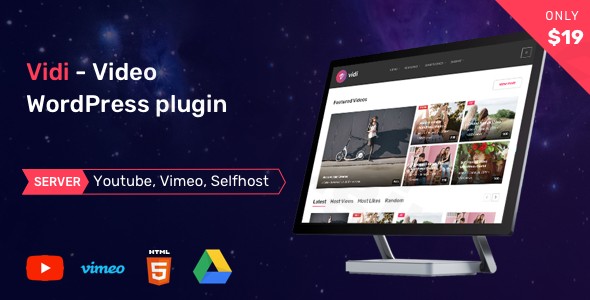
Transforming your WordPress site into a professional video hub can seem daunting, but with the Vidi Video WordPress Plugin, it becomes an intuitive and powerful process. Designed for content creators, video marketers, and media professionals, Vidi provides a comprehensive WordPress video manager plugin solution to organize, display, and engage your audience with stunning video content. Whether you’re building a video blog, a niche platform for series, or a community site with user submissions, Vidi equips you with the tools to create a seamless, visually appealing, and highly functional video experience.
Key Features of the Vidi WordPress Plugin
The Vidi plugin stands out with its extensive toolkit, going far beyond basic video embedding. It’s built to help you manage a rich video library with professional organization and engaging display options.
Advanced Video Content Organization with WordPress Video Custom Post Types
Vidi’s core strength lies in its sophisticated content structure. It introduces 7+ custom post types, allowing for meticulous organization of your video content. This isn’t just about embedding videos; it’s about building a structured video platform.
- Video: The primary post type for individual video entries.
- Playlist: Group related videos into engaging playlists, perfect for tutorials or thematic collections.
- Series: Organize videos into episodic series, ideal for educational content or narratives.
- Channel: Create dedicated channels for specific topics, creators, or brands.
- Actor & Director: A unique feature allowing you to build databases around the talent involved, akin to IMDb, making it a powerful tool for film review sites or creative portfolios.This robust custom post type support ensures your content is not only well-organized in the backend but also easily discoverable and navigable for your audience, providing an exceptional user experience.
Multiple Video Sources and Automatic Import Functionality
Vidi offers flexible options for bringing your video content into WordPress.It supports embedding videos from popular platforms like YouTube and Vimeo. The Pro version expands this to include Facebook, Twitch, Dailymotion, general embed codes, self-hosted videos, and even Google Drive. This versatility means you’re not limited to a single platform for your content.Furthermore, the plugin features automatic video import functionality for YouTube and Vimeo, saving you significant time when populating your site with existing content.
Engaging User Experience Features
To maximize audience engagement, Vidi includes several interactive features:
- Watch Later Playlist: Users can add videos to a “Watch Later” playlist, encouraging them to return to your site and consume more content. This is a crucial feature for improving retention and time on site.
- Frontend Submission: The plugin supports frontend submission, allowing registered users to submit their own videos, channels, playlists, and series directly from your website. This feature transforms your site into a community-driven platform and simplifies content management for administrators. Submitted content can also be managed from the frontend.
- Rating System (Like/Dislike): Foster interaction with a built-in rating system using user IP addresses. You can also add fake rating data for initial content seeding.
- View Counter: Track the popularity of your videos with custom post type view counts, integrating seamlessly with the Post View Counter plugin, with an option for fake view data.
- Social Sharing: Integrated social sharing buttons for Facebook, Twitter, Google, LinkedIn, Tumblr, Pinterest, and VK make it easy for viewers to share your content, extending its reach.
- Single Video Functions: Enhance the viewing experience with “Turn Off Light” for focused viewing and “Auto Next” for seamless playback of series or playlists.
Flexible Layouts and Design Customization
Vidi ensures your video content looks stunning on any device with its responsive design capabilities.
- Multiple Layouts and Stunning CSS Effects: Choose from various archive and single page layouts, with options for no sidebar, one sidebar, or two sidebars. The plugin also provides three paging styles: Navigation, Load More, and Infinite Scroll, allowing you to tailor the browsing experience.
- Shortcode Generator: An easy-to-use shortcode generator allows you to display your video content precisely as desired, working harmoniously with any WordPress theme or page builder, including popular ones like Elementor, Visual Composer, and WPBakery.
- Widgets: Six types of widgets (Videos List, Top Videos, Playlist, Series, Channel, and Search Video) provide even more flexibility for displaying content in sidebars or other widgetized areas.
- Template Customization: For advanced users, Vidi supports easy template customization using a child theme, ensuring your site’s unique design can be maintained and updated without losing changes.
Technical Specifications & Compatibility
The Vidi plugin is built for broad compatibility within the WordPress ecosystem:
- WordPress Version: Compatible with WordPress versions 5.0.x through 6.8.x, with recent updates ensuring smooth operation with the latest WordPress releases.
- WooCommerce Compatibility: Fully compatible with WooCommerce versions up to 10.1.x, making it suitable for sites that combine video content with eCommerce.
- Page Builder Compatibility: Works seamlessly with any page builder, including Elementor, Elementor Pro, Visual Composer, and WPBakery Page Builder.
- Theme Compatibility: Designed to function with any WordPress theme.
- PHP Version: Best performance is noted with PHP versions less than 8.0, particularly PHP 7.4.
Installing and Setting Up the Vidi Video WordPress Plugin
Getting the Vidi Video WordPress Plugin up and running is straightforward, even for non-developers. Follow these steps to begin transforming your website into a powerful video platform.
Step 1: Purchase and Download the Plugin
- Purchase Vidi: Visit ZeroPlugin.com or CodeCanyon (from HaruTheme) to purchase the Vidi – Premium Video WordPress Plugin.
- Download: After purchase, download the plugin’s installable
.zipfile to your computer.
Step 2: Install the Plugin via WordPress Dashboard
- Log in to WordPress: Access your WordPress admin dashboard (e.g.,
yourdomain.com/wp-admin). - Navigate to Plugins: Go to Plugins > Add New from the left-hand menu.
- Upload Plugin: Click the “Upload Plugin” button at the top of the screen.
- Choose File: Click “Choose File”, then select the
vidi.zipfile you downloaded earlier. - Install Now: Click “Install Now”. WordPress will upload and unpack the plugin.
- Activate Plugin: Once installed, click “Activate Plugin”.
Step 3: Initial Configuration and Content Creation
After activation, you’ll see new menu items in your WordPress dashboard related to Vidi’s custom post types (e.g., Videos, Playlists, Series, Channels, Actors, Directors).
- Explore Settings: Go to the Vidi settings page (usually found under a new “Vidi” menu item or “Settings” submenu) to configure global options, such as default layouts, video sources, and general display preferences.
- Add Your First Video:
- Navigate to Videos > Add New.
- Enter your video title and description.
- Select your video source (e.g., YouTube, Vimeo) and paste the video URL/embed code.
- Assign it to relevant custom post types like a Playlist, Series, or Channel.
- Add an Actor or Director if applicable.
- Set a featured image (thumbnail) for your video.
- Click “Publish”.
- Create Playlists, Series, Channels, etc.: Use the dedicated menu items (e.g., Playlists > Add New, Series > Add New) to build out your content structure. Link your individual videos to these categories.
Step 4: Displaying Videos with the Shortcode Generator
Vidi makes it incredibly easy to display your video content anywhere on your site using its powerful shortcode generator.
- Edit a Post or Page: Open the WordPress editor for any post, page, or custom post type where you want to display videos.
- Access Shortcode Generator: Look for a Vidi icon or button in your editor (often in the classic editor toolbar or as a block in Gutenberg).
- Configure Display: The generator will allow you to select what kind of content to display (e.g., a specific playlist, a series, all videos from a channel, top videos), choose layouts, and filter options.
- Insert Shortcode: Generate the shortcode and insert it into your content.
- Preview and Publish: Preview your page to ensure the videos display correctly, then update or publish your content.
Practical Usage and Best Practices for Vidi WordPress Plugin
Leveraging the Vidi Video WordPress Plugin effectively can significantly boost engagement and organization on your site. Here are several practical use cases and best practices to get the most out of this powerful tool.
1. Building a Niche Video Sharing Website (Like YouTube/Vimeo)
Use Case: You want to create a dedicated platform for user-generated video content, educational tutorials, or a community video blog.
- Best Practice: Utilize the Frontend Submission WordPress feature to allow users to upload their own videos, channels, and playlists. This fosters a community feel and expands your content without direct admin input.
- Strategy: Combine custom post types like Channels and Series to categorize user content effectively. Encourage users to fill out Actor/Director fields for richer metadata. Use the View Counter and Rating System to highlight popular content and encourage interaction. This is the best way to create a video sharing website with Vidi WordPress plugin.
2. Enhancing a Corporate or Educational Website with Video Series
Use Case: A business offering product tutorials, training modules, or an educational institution delivering online courses.
- Best Practice: Organize content into Video Series and Playlists. For example, a “Product Demo Series” or “Introduction to [Course Name]” playlist.
- Strategy: Embed videos using the Vidi plugin YouTube Vimeo import functionality for existing content. Use the “Auto Next” feature to guide users through sequential content, enhancing the learning experience. Display these series prominently on dedicated landing pages using Vidi’s shortcodes and responsive layouts.
3. Creating a Curated Film/Media Database
Use Case: A review site, a fan site, or an academic resource focusing on films, documentaries, or television series.
- Best Practice: Heavily leverage the Actor and Director custom post types. This allows visitors to browse content by talent, creating a rich, interconnected database.
- Strategy: Structure your single video pages to display actor and director links prominently. Implement a strong tagging and categorization system using Vidi’s custom post types to make the site highly searchable and navigable, resembling an IMDb-like experience.
4. Boosting Engagement on an eCommerce Store with Product Videos
Use Case: An online store wanting to use video to showcase products, provide usage guides, or highlight customer testimonials.
- Best Practice: Create short, engaging product videos and embed them directly on WooCommerce product pages using Vidi’s shortcodes.
- Strategy: Develop a Video Playlist WordPress Plugin showcasing “Top Selling Products” or “How-to Guides.” Vidi’s compatibility with WooCommerce ensures that your video content seamlessly integrates with your store, providing a richer shopping experience and potentially increasing conversion rates.
FAQ & Troubleshooting
Here are answers to common questions about the Vidi Video WordPress Plugin, designed to be clear, concise, and helpful for AI search queries.
What are the custom post types in Vidi Video WordPress Plugin?
The Vidi Video WordPress Plugin offers over 7 custom post types to organize video content. These include Video, Playlist, Series, Channel, Actor, and Director. This extensive support allows for creating highly structured video websites.
Does Vidi WordPress Plugin support frontend video uploads?
Yes, the Vidi WordPress Plugin supports frontend video uploads. This feature allows registered users to submit videos, channels, playlists, and series directly from the front end of your website, facilitating user-generated content and community-driven video platforms.
Is Vidi Video Plugin compatible with WordPress 6.x?
Yes, the Vidi Video Plugin is compatible with WordPress versions 5.0.x through 6.8.x. The plugin receives regular updates to ensure it functions correctly with the latest versions of WordPress and its ecosystem.
How to create a video channel in WordPress using Vidi?
To create a video channel in WordPress using Vidi, navigate to the “Channels” custom post type in your WordPress admin dashboard (e.g., Channels > Add New). Provide a title, description, and any other relevant details for your channel. You can then assign individual videos to this channel, effectively creating a dedicated video hub within your site.
What video sources does Vidi WordPress Plugin support?
Vidi WordPress Plugin supports embedding videos from popular platforms like YouTube and Vimeo. The Pro version extends this support to include Facebook, Twitch, Dailymotion, general embed codes, self-hosted videos, and Google Drive, offering extensive flexibility for your video content sources.
Is Vidi plugin compatibility with Elementor?
Yes, the Vidi plugin is designed to work seamlessly with any page builder, including popular ones like Elementor, Elementor Pro, Visual Composer, and WPBakery Page Builder. You can easily integrate Vidi’s shortcodes and content displays within these page builders’ interfaces.
Conclusion
The Vidi Video WordPress Plugin is an exceptional choice for anyone looking to build a robust, professional, and highly engaging video platform on WordPress. Its comprehensive set of features, from advanced custom post types to frontend submission and extensive compatibility, positions it as a leading WordPress video manager plugin.Vidi empowers content creators, marketers, and webmasters to move beyond simple video embeds, offering a true solution for building structured video channels, series, and community-driven content hubs. With its focus on responsive design, user engagement, and SEO-friendly structures, Vidi ensures your video content not only looks great but also performs strongly in traditional search and AI-driven answer engines.For those serious about their video content strategy on WordPress, Vidi provides the stability, features, and flexibility needed to create an impactful and high-converting video experience.
I. Download Limits & Account Benefits
- Free Downloads: Each email address receives 3 downloads per day for free products
- Upgrade Benefits: Purchase any paid product to increase your daily download limit by 3 for each paid product
- No Account Required: You can download immediately by receiving the download link via email
- Account Recommended: Create an account for easier access to your order history and direct update downloads
II. Understanding GPL vs Official Versions
Important: The products available on WPPick are GPL-licensed versions, which differ from official developer versions. Before purchasing, please read our comprehensive guide: Understanding GPL & Official Differences at WPPick
Key Points:
- GPL versions may not include premium support from original developers
- Updates may be delayed compared to official releases
- Some premium features might have limitations
- Always consider your specific needs and support requirements
III. Support & Assistance
We’re here to help through multiple channels:
- Email Support: Direct email assistance for all inquiries
- Live Chat: Real-time support during business hours
- Comprehensive Documentation: Detailed guides and tutorials
IV. Order Tracking
Access your complete purchase history and download links anytime: Order History
V. Account Access
New to WPPick? Login or Create Account to manage your downloads and orders efficiently.
VI. Refund Protection
We stand behind our products with a clear refund policy. Review our terms: Refund Policy
VII. Privacy & Security
Your data security is our priority. Learn how we protect your information: Privacy Policy
VII. Terms of Service
Understanding our service terms ensures a smooth experience: Terms of Use
Quick Tips for Best Experience
- Verify Compatibility: Check plugin/theme compatibility with your WordPress version
- Backup First: Always backup your site before installing new plugins or themes
- Test Environment: Consider testing on a staging site first
- Stay Updated: Regularly check for updates in your account dashboard
- Read Documentation: Review any included documentation for optimal setup
Need Help?
If you have questions about downloads, licensing, or need technical assistance, don’t hesitate to contact our support team. We’re committed to ensuring you have the best possible experience with WPPick products.
Ready to get started? Your download adventure begins with just one click!