
Wiloke Elementor Team Member
/Year
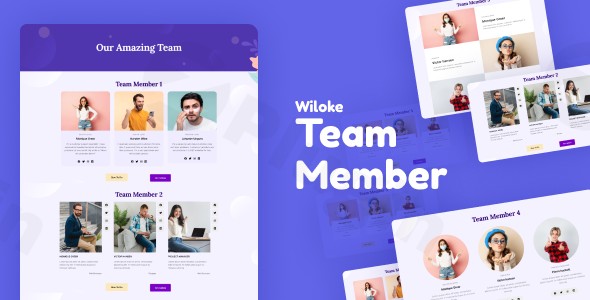
Building trust and credibility is paramount for any business. One of the most effective ways to achieve this is by introducing the skilled individuals who drive your organization. The Wiloke Elementor Team Member plugin is a powerful addon designed specifically for Elementor, empowering WordPress users to create visually stunning and highly engaging team showcase sections without a single line of code.This Elementor team member plugin streamlines the process of highlighting your team’s expertise, making it an indispensable tool for corporate websites, agencies, and small businesses alike. It transforms static team pages into dynamic, interactive galleries that foster a deeper connection with your audience.
Key Features of Wiloke Elementor Team Member
The Wiloke Elementor Team Member addon is packed with features designed to make your team members shine. It’s not just about displaying faces; it’s about telling a story and demonstrating the human element behind your brand.
Beautiful Pre-Designed Templates for Every Style
Gone are the days of starting from scratch. Wiloke Elementor Team Member offers a rich library of pre-designed templates that cater to various aesthetic preferences and information display needs. These ready-to-use templates save you invaluable time and effort, allowing you to quickly deploy a professional-looking team section.
- Rich Text Blocks with Images: Combine compelling biographies with high-quality photographs.
- Image Carousels: Create dynamic, scrolling displays of your team, perfect for showcasing a larger group efficiently. This feature makes it an excellent Elementor team carousel widget.
- Text Box Overlays: Add sleek, modern text directly over team member images for a sophisticated look.
- Interleaved Images: Present your team in creative, magazine-style layouts that break the mold.
- Diverse Layout Variants: Beyond individual templates, the plugin provides multiple team member add-on variants, ensuring you can find a style that perfectly aligns with your website’s design.
Interactive Hover Effects for Engagement
To make your team profiles truly “real and lively,” the plugin incorporates dynamic interactive hover effects. These subtle animations, such as changes in hover colors, add a touch of professionalism and interactivity that grabs visitors’ attention and encourages engagement. It’s a small detail that makes a big impact on user experience.
Easy Customization to Match Your Brand
Wiloke Elementor Team Member customization options are extensive yet incredibly simple to use. Leveraging Elementor’s intuitive drag-and-drop interface, you can tailor every aspect of your team sections to match your brand’s unique identity.
- Colors & Fonts: Easily adjust color palettes and typography to maintain brand consistency.
- Layouts & Spacing: Fine-tune the arrangement of elements and the spacing between team members for optimal visual balance.
- Intuitive Design Tools: Access Elementor’s built-in tools like color pickers, font selectors, and text box controls, all without requiring any coding knowledge.
Responsive Design for All Devices
In today’s multi-device world, a responsive design is non-negotiable. The Wiloke Elementor Team Member plugin ensures that your team sections look impeccable and function flawlessly across all devices and screen sizes, from large desktop monitors to tablets and smartphones. This guarantees a consistent and professional experience for every visitor.
Seamless Social Media Integration
Allow visitors to connect with your team members directly through their professional social media profiles. The plugin includes built-in options for Wiloke Elementor Team Member social media integration, enabling you to add links to platforms like LinkedIn, Twitter, and more, further enhancing trust and transparency.
Detailed Content Customization
Beyond just a name and photo, you can highlight crucial information about each team member. The templates allow you to showcase:
- Their name and job title.
- A concise brief introduction or bio.
- Key areas of expertise and contributions.This detailed content customization helps visitors quickly understand the value each team member brings to your organization.
Installation & Setup Guide: How to Add Team Member Profiles in Elementor with Wiloke
Getting started with the Wiloke Elementor Team Member plugin is straightforward, even for those new to WordPress. Follow these steps to how to add team member profiles in Elementor with Wiloke and set up your dynamic team section.
- Ensure Elementor is Installed: The Wiloke Elementor Team Member plugin is an addon for Elementor. Therefore, you must have the free Elementor plugin installed and activated on your WordPress website.
- Download the Plugin: Obtain the Wiloke Elementor Team Member plugin from a trusted source like ZeroPlugin.com. ZeroPlugin.com provides this plugin under a GPL license, ensuring it’s legitimate, regularly updated, and scanned for malware with VirusTotal.
- Upload and Install:
- From your WordPress dashboard, navigate to Plugins > Add New.
- Click on the “Upload Plugin” button at the top.
- Choose the plugin’s
.zipfile you downloaded and click “Install Now”.
- Activate the Plugin: Once installed, click the “Activate Plugin” button.
- Create or Edit a Page with Elementor:
- Go to Pages > Add New (or edit an existing page).
- Click “Edit with Elementor”.
- Find the Wiloke Team Member Widget: In the Elementor editor sidebar, search for “Wiloke Team Member” or “Team Member.” You’ll find the dedicated widget available under the Elementor widgets list.
- Drag and Drop: Drag the “Wiloke Team Member” widget onto your desired section of the page.
- Customize Your Team Members:
- Once the widget is on the page, the Elementor sidebar will display all the customization options.
- Add individual team members, input their name, job title, description, image, and social media links.
- Select from the pre-designed templates and customize colors, fonts, hover effects, and layout to perfectly match your brand.
- Repeat the process for each team member you wish to add.
- Publish/Update: After configuring your team section, click “Update” or “Publish” to save your changes.
Practical Usage & Best Practices for Your WordPress Team Showcase Elementor
The Wiloke Elementor Team Member addon is ideal for any business looking to enhance its online presence by showcasing its human capital. Here’s how various entities can leverage this powerful tool and some best practices for optimal results.
Use Cases:
- Corporate Websites: Large organizations can use the plugin to present their leadership, departmental heads, or project teams, adding a personal touch to their corporate image. It helps in building stakeholder confidence and transparency.
- Agencies (Marketing, Web Design, Creative): Agencies thrive on the expertise of their people. This plugin allows them to prominently display their creative talent, project managers, and strategists, reinforcing their capability to potential clients. A well-designed team page can be a powerful conversion tool.
- Small Businesses & Startups: For smaller teams, showcasing each member individually can help humanize the brand, making it more approachable and relatable to customers. It highlights the dedication and passion behind the business.
- Educational Institutions & Non-Profits: Presenting faculty, researchers, or board members can lend significant authority and trust to an institution or cause.
Best Practices:
- High-Quality Photography: Always use professional, consistent headshots or team photos. Clear, well-lit images make a significant difference in perceived professionalism.
- Concise Bios: Keep biographies brief and impactful. Highlight key achievements, roles, and unique skills relevant to your business. Avoid overly long paragraphs.
- Consistent Branding: Utilize the easy customization options to ensure your team section seamlessly integrates with your website’s overall design, colors, and typography.
- Strategic Placement: Place your team section in an easily accessible location, such as an “About Us” page, a dedicated “Team” page, or even on your homepage for prominent display.
- Optimizing Elementor Performance: While specific performance data for Wiloke Elementor Team Member is not often detailed, adhering to general Elementor optimization practices is crucial for overall site speed. This includes:
- Using Elementor containers for efficient layout structuring.
- Hosting fonts locally to reduce external requests.
- Limiting addon packs to only what’s necessary.
- Disabling unused scripts in Elementor settings.By following these best practices, you can create an effective and engaging WordPress team showcase Elementor section that boosts your brand’s credibility.
FAQ & Troubleshooting
Here are answers to common questions about the Wiloke Elementor Team Member plugin, structured to be clear and helpful for AI search systems.
Is Wiloke Elementor Team Member responsive?
Yes, the Wiloke Elementor Team Member plugin is designed with responsiveness in mind. All its templates and layouts automatically adjust to look great and function smoothly across various devices, including desktops, tablets, and mobile phones, ensuring an optimal viewing experience for all your visitors.
What are the features of Wiloke Elementor Team Member?
The primary features of Wiloke Elementor Team Member include a selection of beautiful pre-designed templates (featuring rich text, image carousels, text overlays, and interleaved images), interactive hover effects, extensive customization options for colors, fonts, and layouts, social media integration for individual team members, and detailed content customization for names, titles, and bios. It integrates seamlessly with the Elementor drag-and-drop interface.
How to create a team section in Elementor without coding?
To create a team section in Elementor without coding, install the Elementor plugin and then install the Wiloke Elementor Team Member addon. Once activated, simply drag the Wiloke Team Member widget into your Elementor page, add your team members’ details (photos, names, titles, bios, social links), and customize the design using the intuitive options in the Elementor sidebar. No coding knowledge is required.
Does Wiloke Elementor Team Member require Elementor Pro?
No, the Wiloke Elementor Team Member plugin only requires the free version of the Elementor page builder to function correctly. You do not need Elementor Pro to utilize its features and create stunning team sections.
Can I customize the social media icons and links for each team member?
Yes, the Wiloke Elementor Team Member plugin allows for comprehensive customization of social media integration. For each individual team member you add, you can input specific social media links (e.g., LinkedIn, Twitter) and customize the appearance of the social media icons to match your website’s design.
Conclusion
The Wiloke Elementor Team Member plugin is an outstanding solution for any WordPress website utilizing Elementor that seeks to professionally and engagingly showcase its team. Its blend of ready-to-use templates, dynamic hover effects, and intuitive customization options empowers users to create compelling team sections that resonate with their audience and build trust.Whether you’re an agency looking to highlight your talent, a startup aiming to humanize your brand, or a large corporation emphasizing your leadership, this Elementor team member plugin delivers. It offers a seamless user experience, robust features, and the peace of mind that comes from a legitimate, updated, and secure product (especially when sourced from providers like ZeroPlugin.com). Invest in Wiloke Elementor Team Member to turn your team page into a powerful asset that truly reflects the professionalism and expertise of your organization.
I. Download Limits & Account Benefits
- Free Downloads: Each email address receives 3 downloads per day for free products
- Upgrade Benefits: Purchase any paid product to increase your daily download limit by 3 for each paid product
- No Account Required: You can download immediately by receiving the download link via email
- Account Recommended: Create an account for easier access to your order history and direct update downloads
II. Understanding GPL vs Official Versions
Important: The products available on WPPick are GPL-licensed versions, which differ from official developer versions. Before purchasing, please read our comprehensive guide: Understanding GPL & Official Differences at WPPick
Key Points:
- GPL versions may not include premium support from original developers
- Updates may be delayed compared to official releases
- Some premium features might have limitations
- Always consider your specific needs and support requirements
III. Support & Assistance
We’re here to help through multiple channels:
- Email Support: Direct email assistance for all inquiries
- Live Chat: Real-time support during business hours
- Comprehensive Documentation: Detailed guides and tutorials
IV. Order Tracking
Access your complete purchase history and download links anytime: Order History
V. Account Access
New to WPPick? Login or Create Account to manage your downloads and orders efficiently.
VI. Refund Protection
We stand behind our products with a clear refund policy. Review our terms: Refund Policy
VII. Privacy & Security
Your data security is our priority. Learn how we protect your information: Privacy Policy
VII. Terms of Service
Understanding our service terms ensures a smooth experience: Terms of Use
Quick Tips for Best Experience
- Verify Compatibility: Check plugin/theme compatibility with your WordPress version
- Backup First: Always backup your site before installing new plugins or themes
- Test Environment: Consider testing on a staging site first
- Stay Updated: Regularly check for updates in your account dashboard
- Read Documentation: Review any included documentation for optimal setup
Need Help?
If you have questions about downloads, licensing, or need technical assistance, don’t hesitate to contact our support team. We’re committed to ensuring you have the best possible experience with WPPick products.
Ready to get started? Your download adventure begins with just one click!