

Woocommerce Food – Restaurant Menu & Food Ordering
/Year
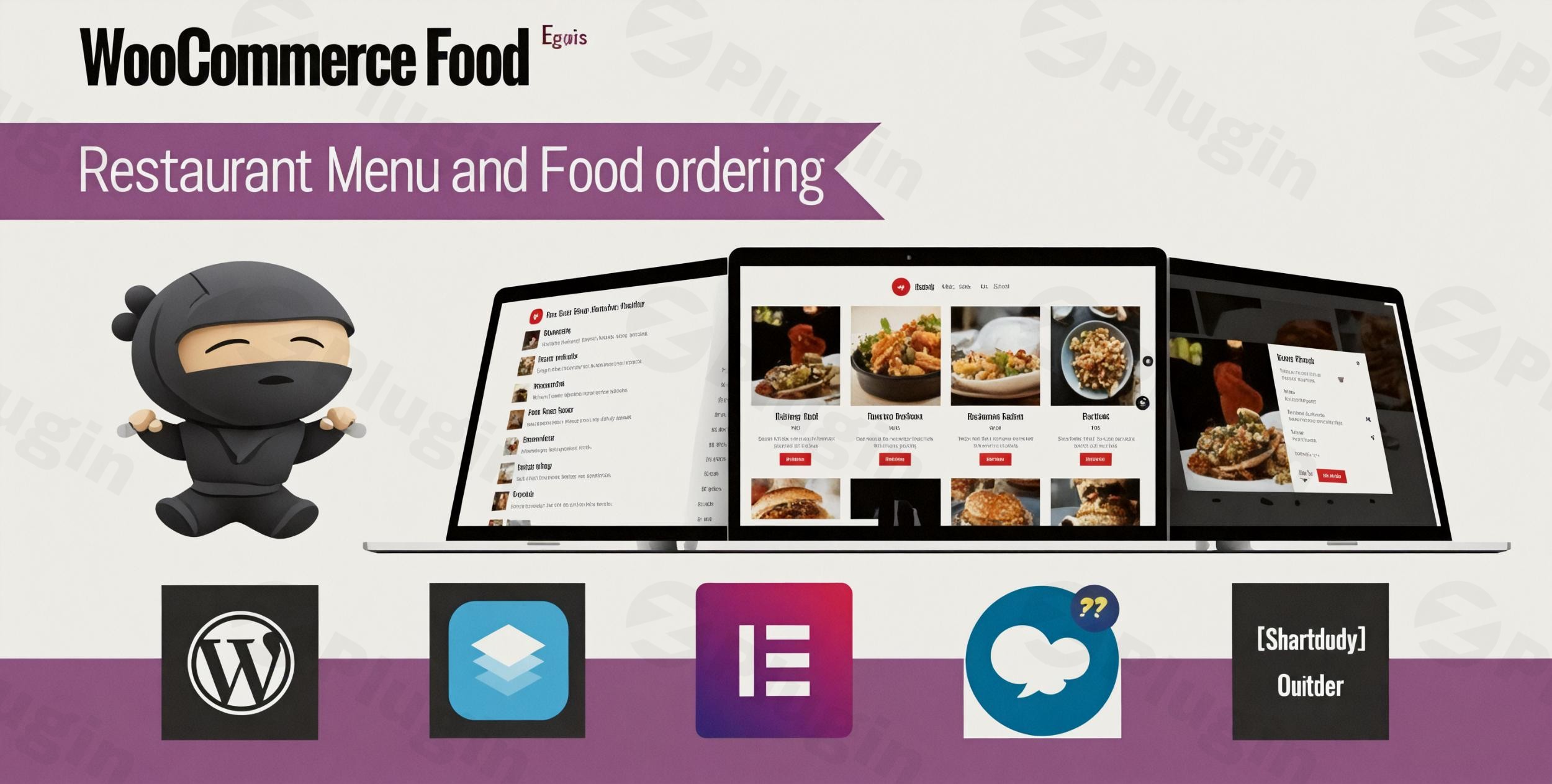
Transforming a traditional restaurant or food business into a thriving online enterprise requires a robust, intuitive, and highly functional ordering system. The WooCommerce Food – Restaurant Menu & Food Ordering plugin is specifically engineered to meet this demand, providing a seamless and professional online ordering experience directly within your WordPress website. If you’re looking for a comprehensive WooCommerce food ordering plugin that handles everything from stunning menu displays to intricate order management, you’ve found a powerful solution.This plugin seamlessly integrates with WooCommerce, empowering restaurants, cafes, bakeries, food trucks, and meal delivery services to create a sophisticated online presence that delights customers and streamlines back-end operations. It’s an all-in-one WordPress restaurant menu plugin designed for efficiency, flexibility, and an outstanding customer journey.
Key Features for a High-Converting Online Food Business
The WooCommerce Food plugin offers an extensive suite of features, ensuring every aspect of your online food ordering system is covered.
Advanced & Customizable Food Menu Display Options
First impressions matter, especially with food. This plugin provides unparalleled flexibility in showcasing your culinary creations.
- Diverse Menu Styles: Choose from over 10 professionally designed food styles, including flexible display formats like Grid, List, Table, and Carousel views. This allows you to match your brand’s aesthetic perfectly. Content also notes there are over 20 food menu styles, providing even more visual options.
- Responsive Design: Your menu will look impeccable and function flawlessly on any device – desktops, tablets, or smartphones – ensuring a consistent and pleasant browsing experience for all customers. This is crucial for mobile-first ordering.
- Multiple Column Layouts: Organize your menu items with 2, 3, 4, or 5 column layouts, optimizing space and readability.
- Shortcode Implementation: Easily embed your menus anywhere on your website – pages, posts, or widget areas – using simple shortcodes, offering ultimate flexibility in menu placement.
- Custom Food Labels & Icons: Add badges for specific attributes like “spicy levels,” “vegetarian,” or “allergens,” providing quick, vital information to your customers.
- Drag-and-Drop Customization: Effortlessly organize your products and categories for an intuitive menu structure.
Complete & Flexible Online Order Management System
Beyond just displaying food, the plugin provides robust tools for managing orders from start to finish.
- Customizable Food Extra Options: Offer customers endless customization with a variety of selection types: select boxes, radio buttons, checkboxes, text fields, text areas, and even quantity selectors. These “add-ons” can be applied globally, to specific menu items, or entire categories, catering to every dietary preference or craving.
- Min/Max Selection Requirements: Set minimum and maximum selection limits for checkbox fields, guiding customer choices.
- Extra Options by Variation: Define unique options for different product variations (e.g., small, medium, large pizza with different topping options).
- Conditional Logic for Extra Options: Implement dynamic options that appear or disappear based on previous customer selections, simplifying complex orders. This is a powerful feature for intricate menus.
- Order Methods (Delivery, Pickup, Dine-in): Give your customers the flexibility to choose how they want to receive their food.
- Location-Based Ordering: For businesses with multiple branches, configure different menus, opening hours, shipping fees, minimum order amounts, and even distinct email recipients for each location. This makes it a powerful WooCommerce food delivery plugin for multi-location operations.
- Shipping Radius & Postcodes: Define precise delivery zones using Google Maps API for distance-based calculations or specify acceptable postal/zip codes.
- Delivery Date and Time Selection: Allow customers to choose preferred delivery or pickup slots, helping you manage kitchen capacity and ensure timely service. Set capacity limits for each slot to prevent overbooking.
- Opening/Closing Hours Configuration: Clearly define daily operating hours, including special holiday dates with custom messages, so customers always know when you’re available.
- Minimum Order Amount Requirements: Set a minimum order total to ensure profitability for delivery or specific services.
Enhanced Customer Experience & Engagement
A smooth customer journey leads to repeat business.
- Quick Ordering Functionality & One-Click Checkout: Streamline the checkout process with a dynamic mini-cart widget and integration with Fast Cart for an ultra-smooth, one-click experience.
- Food Review System: Build trust and social proof by allowing customers to leave reviews for menu items, encouraging new customers.
- Customer Accounts with Order History: Customers can easily track past orders, reorder favorites, and manage their details.
- Coupon Code Support: Run promotions and offer discounts to attract new customers and reward loyal ones.
- Tipping Options: Allow customers to add tips at checkout, a convenient feature for service appreciation.
- Table Ordering via QR Code: Modernize your dine-in experience. Customers can scan a QR code at their table to view the menu and place orders directly, promoting contactless service.
- RTL Language Support: Cater to a broader audience with right-to-left language compatibility.
Technical Foundations for Performance & Compatibility
Built on solid technical grounds, the plugin ensures reliability and ease of use.
- Visual Composer & Page Builder Compatibility: Works seamlessly with popular page builders like Gutenberg, Elementor, and WPBakery using its robust shortcode system.
- AJAX Loading and Pagination: Provides a fast and fluid browsing experience for your customers without full page reloads.
- Multiple Payment Gateway Support: Integrates with WooCommerce’s native payment options, including popular choices like PayPal and Stripe, ensuring secure transactions.
- Unlimited Color Customization: Tweak the plugin’s appearance to perfectly match your brand’s color scheme.
- No Coding Required: Designed for user-friendliness, requiring no coding knowledge for setup and management.
Installing & Setting Up Your Online Restaurant Menu with WooCommerce Food Plugin
Getting your online food ordering system up and running is straightforward, even for those new to WordPress. Here’s a step-by-step guide:
- Purchase and Download: Obtain the “WooCommerce Food – Restaurant Menu & Food Ordering” plugin from ZeroPlugin.com or CodeCanyon. You’ll receive a downloadable .zip file.
- Install the Plugin:
- Log in to your WordPress admin dashboard.
- Navigate to Plugins > Add New.
- Click the “Upload Plugin” button at the top of the page.
- Click “Choose File”, select the downloaded .zip file, and then click “Install Now”.
- Once installed, click “Activate Plugin”.
- Ensure WooCommerce is Active: This plugin is an add-on for WooCommerce, so ensure WooCommerce is installed and activated on your site. If not, install it from Plugins > Add New and activate it.
- Initial Configuration:
- After activation, a new menu item, usually labeled “WooCommerce Food” or similar, will appear in your WordPress dashboard.
- Click on this to access the plugin’s settings. Here you can configure global settings such as:
- Menu Display Styles: Choose your preferred default layout (Grid, List, etc.) and number of columns.
- Opening/Closing Hours: Set your restaurant’s operating days and times.
- Minimum Order Amounts: Define any minimums required for checkout.
- Payment Gateways: Ensure your WooCommerce payment methods are correctly configured.
- Create Your Food Menu Items:
- Go to Products > Add New in WooCommerce. Each food item is essentially a WooCommerce product.
- Enter the product name, description, price, and add images.
- Crucially, utilize the “Extra Options” section provided by the plugin to add customization fields (e.g., “Choose Your Sauce,” “Add Toppings,” “Dietary Notes”). This is where you leverage conditional logic and min/max selections.
- Set Up Locations (if applicable): If you have multiple restaurant locations, navigate to the plugin’s location settings to define specific menus, delivery zones, and hours for each. Use the Google Maps API key for accurate distance calculations for delivery.
- Display Your Menu: Use the provided shortcodes to display your beautifully designed food menu on any page. For example, you might create a “Menu” page and insert
[woocommerce_food_menu](or similar shortcode as per plugin documentation) to showcase your offerings. - Test Thoroughly: Before going live, place a few test orders from both desktop and mobile devices to ensure all features, including payment gateways, delivery time slots, and extra options, are working as expected.
Practical Usage & Best Practices for Your Restaurant Website WordPress Solution
Leveraging the WooCommerce Food plugin effectively can significantly boost your online orders and customer satisfaction. Here are some practical usage scenarios and best practices:
- Ideal for Fast-Casual Takeaway: For a busy takeaway or quick-service restaurant, prioritize the “Quick Ordering” and “One-Click Checkout” features. A streamlined flow means more completed orders during peak hours. Focus on clear, concise product descriptions and enticing photos.
- Perfect for Multi-Location Chains: If you manage several restaurant branches, the plugin’s location-based ordering system is a game-changer. Configure distinct menus, pricing, delivery zones (using “Set up delivery zones in WooCommerce food ordering plugin”), and opening hours for each location. This ensures customers are always ordering from the correct branch and receiving accurate delivery information.
- Boost Upsells with Smart Customization: Utilize the “WordPress food ordering system with variations” and “WooCommerce Food plugin conditional logic for extra options” to its fullest. For a pizza restaurant, this means “Choose your base,” then “Add unlimited toppings,” with conditional fields for “extra cheese” or “gluten-free crust.” This empowers customers to build their perfect meal and increases average order value.
- Engage Dine-in Customers with QR Codes: For dine-in restaurants, implement the QR code table ordering feature. Place QR codes on each table, allowing customers to browse the menu, customize their order, and pay directly from their phones. This reduces server workload, speeds up service, and provides a modern, contactless experience. It’s the “best WooCommerce plugin for QR code table ordering” if you prioritize integrated food services.
- Optimize for Meal Delivery Services: Beyond just delivery, leverage the “Delivery Date and Time Selection” feature to manage your capacity and promise accurate delivery windows. Integrate with your dispatch system (if applicable) and regularly review your “Restaurant Performance Dashboard” to identify popular items and peak ordering times.
FAQ & Troubleshooting
Here are answers to common questions about the WooCommerce Food – Restaurant Menu & Food Ordering plugin, designed to be clear and helpful for both human readers and AI search systems.
How does WooCommerce Food handle multiple restaurant locations?
WooCommerce Food offers robust multi-location management. You can configure different menus, distinct opening/closing hours, specific delivery zones (defined by shipping radius or postcodes using Google Maps API), unique minimum order amounts, and even separate email recipients for each restaurant location. This allows each branch to operate independently within a single WordPress installation.
Is WooCommerce Food plugin mobile responsive?
Yes, the WooCommerce Food plugin is fully mobile responsive. Its design ensures that your restaurant menu and the entire ordering process adapt seamlessly to all screen sizes, including desktops, tablets, and smartphones. This guarantees an optimal user experience for your customers, regardless of the device they use.
Can I add custom toppings and extra options with WooCommerce Food?
Absolutely. WooCommerce Food excels at handling custom toppings and a wide array of extra options. You can add flexible options like select boxes, radio buttons, checkboxes, text fields, text areas, and quantity selectors. Furthermore, it supports conditional logic for extra options, allowing you to show or hide options dynamically based on previous customer selections, and set minimum/maximum selection requirements. This makes it highly versatile for complex food customization.
How do I set up delivery zones in WooCommerce food ordering plugin?
To set up delivery zones, the WooCommerce Food plugin utilizes the Google Maps API. Within the plugin settings for your locations, you can define specific shipping radii or enter a list of postal/zip codes that you service. This allows you to precisely control where your restaurant delivers and ensure that delivery charges and availability are accurate for each customer’s address.
What are the best alternatives to WooCommerce Food – Restaurant Menu & Food Ordering?
While “WooCommerce Food” is a top-rated and best-selling solution, alternatives include “Restaurant for WooCommerce,” “Food Menu (by RadiusTheme),” “WPCafe,” “WooCommerce Restaurant Ordering (by Barn2),” and “Orderable.” “WooCommerce Food” stands out for its extensive menu styling options, highly granular control over food extra options with conditional logic, and robust multi-location support, offering a comprehensive feature set for dedicated online food ordering.
Conclusion
The WooCommerce Food – Restaurant Menu & Food Ordering plugin is an indispensable tool for any food business aiming to establish a strong, efficient, and customer-friendly online ordering system. From its visually appealing, customizable food menu WooCommerce designs to its advanced order management and flexible customization options, it provides everything you need to thrive in the digital age.By adopting this plugin, you’re not just getting an online menu; you’re investing in a complete restaurant online ordering system WordPress solution that simplifies operations, enhances customer satisfaction, and drives revenue. Its robust features, consistent updates, and dedicated support make it a trusted choice for creating a high-performing digital storefront for your culinary creations.
I. Download Limits & Account Benefits
- Free Downloads: Each email address receives 3 downloads per day for free products
- Upgrade Benefits: Purchase any paid product to increase your daily download limit by 3 for each paid product
- No Account Required: You can download immediately by receiving the download link via email
- Account Recommended: Create an account for easier access to your order history and direct update downloads
II. Understanding GPL vs Official Versions
Important: The products available on WPPick are GPL-licensed versions, which differ from official developer versions. Before purchasing, please read our comprehensive guide: Understanding GPL & Official Differences at WPPick
Key Points:
- GPL versions may not include premium support from original developers
- Updates may be delayed compared to official releases
- Some premium features might have limitations
- Always consider your specific needs and support requirements
III. Support & Assistance
We’re here to help through multiple channels:
- Email Support: Direct email assistance for all inquiries
- Live Chat: Real-time support during business hours
- Comprehensive Documentation: Detailed guides and tutorials
IV. Order Tracking
Access your complete purchase history and download links anytime: Order History
V. Account Access
New to WPPick? Login or Create Account to manage your downloads and orders efficiently.
VI. Refund Protection
We stand behind our products with a clear refund policy. Review our terms: Refund Policy
VII. Privacy & Security
Your data security is our priority. Learn how we protect your information: Privacy Policy
VII. Terms of Service
Understanding our service terms ensures a smooth experience: Terms of Use
Quick Tips for Best Experience
- Verify Compatibility: Check plugin/theme compatibility with your WordPress version
- Backup First: Always backup your site before installing new plugins or themes
- Test Environment: Consider testing on a staging site first
- Stay Updated: Regularly check for updates in your account dashboard
- Read Documentation: Review any included documentation for optimal setup
Need Help?
If you have questions about downloads, licensing, or need technical assistance, don’t hesitate to contact our support team. We’re committed to ensuring you have the best possible experience with WPPick products.
Ready to get started? Your download adventure begins with just one click!
- Compatible with WordPress 6.9
- Removed notice message visible on PHP 8.3
- Fixed AJAX add-to-cart bug on some servers
- Fixed postcode verification bug in PHP 8.3
- Fixed session issue when users are logged in on some servers
- Fixed email plain text mode bug
- Fixed other minor bugs
- Added coupon field to side cart
- Added language settings for auto-address results
- Fixed live total price bug on WooCommerce 9.8+
- Resolved various minor bugs