
Woocommerce Vehicle Parts Finder
/Year
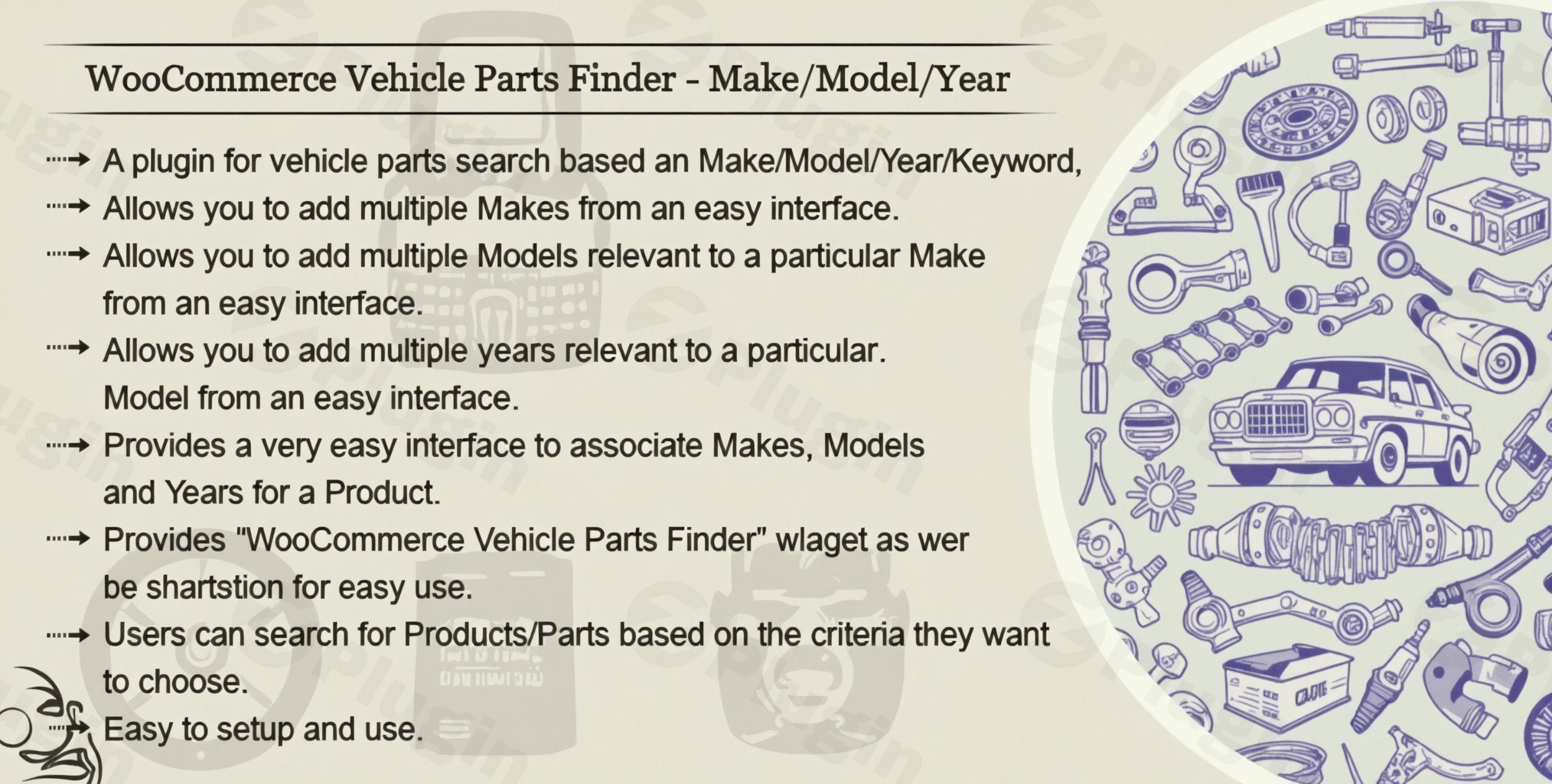
Running an online automotive parts store on WordPress can be challenging, especially when customers need to find exact parts for their specific vehicles. The core problem? Generic product filters just don’t cut it when compatibility is paramount. This is where the WooCommerce Vehicle Parts Finder plugin steps in. Designed to transform how customers search for compatible parts, this powerful Year Make Model plugin WooCommerce solution empowers your store with precise search functionality, enhancing user experience and significantly boosting conversion rates.Whether you’re selling tires, accessories, engine components, or any other vehicle-specific products, this WordPress auto parts filter ensures your customers can quickly and accurately pinpoint what they need, eliminating frustration and reducing returns.
Why Your Auto Parts Store Needs a WooCommerce Vehicle Parts Finder
For any auto parts store WordPress setup, an accurate vehicle fitment system is non-negotiable. Without it, customers are forced to manually sift through countless products, often leading to incorrect purchases and a poor shopping experience. The WooCommerce Vehicle Parts Finder plugin addresses this directly by providing a seamless, intuitive search mechanism that filters products based on specific vehicle attributes like Make, Model, and Year.Purchasing this plugin through ZeroPlugin.com also guarantees you genuine GPL-licensed software with regular updates and thorough VirusTotal scans, ensuring your store remains secure, functional, and performs optimally.
Key Features for Precision Vehicle Part Filtering
The WooCommerce Vehicle Parts Finder is packed with features designed to create an unparalleled shopping experience for automotive enthusiasts and professionals alike.
Advanced Vehicle Search Capabilities
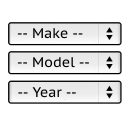
This plugin empowers your customers with highly precise search options. They can easily narrow down products using multiple criteria including Make, Model, Year, Engine type, Category, and Keywords. The intuitive, sequential dropdown interface, often enhanced with jQuery Chosen support for better usability, ensures visitors find exactly what they need without frustration. This advanced filtering is key to a smooth WooCommerce vehicle fitment process.
Comprehensive Management Dashboard
Managing your extensive vehicle database has never been easier. The plugin provides a user-friendly admin interface to effortlessly handle vehicle makes, models, years, and engine options. For stores with large inventories, the bulk import functionality via CSV allows for quick setup and updates of vast fitment data, making it an ideal automotive parts database WooCommerce solution. You can create, delete, and customize labels for each dropdown (e.g., “Select Year,” “Select Make”).
Enhanced User Experience (UX) Features
Optimized for modern web browsing, the plugin boasts a fully responsive design ensuring seamless functionality across all devices—desktops, tablets, and smartphones. Beyond just filtering, it offers:
- AJAX-Powered Search: Results often load dynamically without full page reloads, providing a faster, smoother experience.
- Persistent Search Memory: The system can remember a user’s selected vehicle criteria across different pages, maintaining context throughout their shopping journey.
- WPML Support: For stores serving a global audience, full WPML support ensures your vehicle search experience is multilingual.
My Vehicles Functionality
Boost customer loyalty and convenience by allowing users to save their vehicle searches for future reference. Both logged-in customers and guests can benefit from this search history feature, with registered users enjoying permanently saved vehicles for quick access to their preferred parts.
Flexible Implementation Options
The power of the WooCommerce make model year filter can be displayed exactly where you need it most. Add the search widget anywhere on your site using either the standard widget area or through shortcode functionality. You can customize which filters appear to create the perfect search experience tailored to your product catalog. For complex setups, administrators can even create and manage multiple distinct part finders, each with custom dropdowns and assigned categories, suitable for different vehicle types (cars, motorcycles, trucks).
Streamlined Product Compatibility Management
Easily associate products with specific vehicle makes, models, years, and engines through a streamlined product edit interface within WooCommerce. This allows for granular control over product compatibility. On the frontend, compatibility information can be clearly displayed on product pages through additional tabs, assuring customers of a perfect fit. The plugin also supports marking certain products as “universal” so they appear regardless of selected vehicle criteria, a handy feature for general accessories.
Technical Specifications and Performance
Built with clean code architecture, this plugin ensures fast loading times and compatibility with most WordPress themes and hosting environments. It’s designed for performance and is cache-friendly, making it suitable for even large catalogs. Furthermore, many versions explicitly state compatibility with popular page builders like Elementor, simplifying integration into visually designed pages. It works seamlessly with various WooCommerce product types, including simple, variable, and grouped products.
Installation & Setup: How to Add Year Make Model Filter to WooCommerce
Implementing the WooCommerce Vehicle Parts Finder is straightforward, even for non-developers. Follow these steps to get your WooCommerce vehicle part compatibility checker up and running:
- Download the Plugin: After purchasing, download the plugin .zip file from your ZeroPlugin.com account.
- Upload to WordPress:
- Log in to your WordPress admin dashboard.
- Navigate to Plugins > Add New.
- Click on the “Upload Plugin” button at the top.
- Choose the downloaded .zip file and click “Install Now”.
- Activate the Plugin: Once installed, click “Activate Plugin”.
- Initial Configuration:
- Upon activation, a new menu item, usually labeled “Vehicle Parts Finder” or similar, will appear in your WordPress admin sidebar.
- Navigate to this new menu to begin setting up your Makes, Models, Years, and Engine types.
- You’ll typically find options to add these one by one or utilize the CSV Import/Export feature for bulk data entry, which is highly recommended for larger inventories.
- Assign Products to Vehicles:
- Go to Products > All Products.
- Edit an individual product. You will find a new section or tab (e.g., “Vehicle Fitment” or “Compatibility”) where you can associate the product with specific Years, Makes, Models, and Engines.
- For bulk assignments, the CSV import feature is invaluable.
- Display the Search Filter:
- To display the search filter on your site, navigate to Appearance > Widgets. Drag and drop the “Vehicle Parts Finder” widget into your desired sidebar or widget area.
- Alternatively, use the provided shortcode (e.g.,
[vehicle_parts_finder]) within any page, post, or even a page builder module to embed the search interface.
Practical Usage & Best Practices for Your Automotive E-commerce Store
The WooCommerce Vehicle Parts Finder is ideal for a wide range of automotive businesses. Here’s how to maximize its potential:
- For Automotive Parts Retailers: Use the plugin to categorize tens of thousands of products by specific vehicle models. The precise filtering ensures customers never accidentally purchase an incompatible part, reducing returns and enhancing trust. For instance, a customer can easily find “brake pads for a 2015 Honda Civic Si” with just a few clicks.
- For Tire & Wheel Shops: Enable customers to filter tires and wheels directly by their vehicle’s make, model, and year, ensuring perfect fitment. You can also leverage the “My Vehicles” feature so returning customers can quickly re-order or browse compatible options.
- For Customization & Accessory Stores: If you sell aftermarket parts like lift kits, exhaust systems, or interior accessories, this plugin allows customers to verify compatibility before purchase, even for complex modifications.
- For Motorcycle or Marine Part Stores: While primarily designed for cars, the flexible “Make/Model/Year” structure can be adapted for motorcycles, boats, or other vehicle types, providing tailored search experiences.Best Practices:
- Prioritize Data Accuracy: Ensure your vehicle fitment data is meticulously accurate, especially if importing via CSV. Incorrect data will lead to customer frustration.
- Strategically Place the Widget/Shortcode: Place the WooCommerce YMM Search filter prominently, such as on the homepage, shop page, or a dedicated “Find Your Part” page, for maximum visibility and ease of access.
- Leverage Universal Parts: Clearly mark products that fit all vehicles (e.g., universal cleaners, certain tools) as “universal” to avoid unnecessary filtering for those items.
- Regularly Update Data: Keep your vehicle database updated with new models and parts as your inventory evolves.
FAQ & Troubleshooting
Here are answers to common questions about implementing a WooCommerce vehicle parts finder.
Q: What is a Year Make Model filter for WooCommerce?
A: A Year Make Model (YMM) filter for WooCommerce is a specialized search tool that allows customers to precisely filter automotive products (like parts, accessories, or tires) based on their vehicle’s year, make, and model. It’s crucial for auto parts stores because it ensures customers find only compatible items, preventing incorrect purchases and improving the shopping experience.
Q: How does a WooCommerce vehicle parts finder work?
A: A WooCommerce vehicle parts finder works by allowing the store owner to associate specific products with various vehicle configurations (e.g., Product X fits a 2020 Toyota Camry). On the frontend, customers use dropdown menus (or similar selectors) to input their vehicle’s Year, Make, and Model. The plugin then dynamically filters the product catalog, displaying only those products that are compatible with the selected vehicle, often using AJAX for a smooth user experience.
Q: Can I import vehicle data into WooCommerce?
A: Yes, most comprehensive WooCommerce Vehicle Parts Finder plugins, including this one, support the bulk import and export of vehicle fitment data. This is typically done via CSV (Comma Separated Values) files, allowing you to efficiently upload extensive lists of Years, Makes, Models, Engines, and their associated product IDs, saving significant manual input time.
Q: Which WooCommerce plugin is best for auto parts fitment?
A: The “WooCommerce Vehicle Parts Finder” plugin, especially when acquired through reputable sources like ZeroPlugin.com, is considered among the best for auto parts fitment due to its advanced search capabilities, comprehensive management dashboard, user-friendly experience features like “My Vehicles,” and flexible implementation. Its focus on accurate compatibility and ease of use makes it highly effective for dedicated automotive e-commerce stores.
Q: Is this plugin compatible with Elementor or other page builders?
A: Yes, the WooCommerce Vehicle Parts Finder is designed with broad compatibility in mind. It is explicitly compatible with popular page builders like Elementor, allowing you to seamlessly integrate the search widget or shortcode into visually designed pages without conflicts. It also works well with most standard WooCommerce themes and WordPress installations.
Conclusion: Your Essential Tool for Automotive E-commerce Success
The WooCommerce Vehicle Parts Finder is more than just a plugin; it’s a fundamental solution for any automotive e-commerce store looking to provide an accurate, efficient, and user-friendly shopping experience. By simplifying the complex process of finding compatible vehicle parts, it directly contributes to increased customer satisfaction, reduced returns, and ultimately, higher conversion rates.If you’re running an online store selling vehicle parts, accessories, or tires, this Year Make Model Plugin WooCommerce is an indispensable investment. It transforms your website into a powerful, precise sales machine, ensuring your customers always find the right part for the right vehicle. Empower your customers and streamline your operations with the ultimate WooCommerce Vehicle Parts Finder.
I. Download Limits & Account Benefits
- Free Downloads: Each email address receives 3 downloads per day for free products
- Upgrade Benefits: Purchase any paid product to increase your daily download limit by 3 for each paid product
- No Account Required: You can download immediately by receiving the download link via email
- Account Recommended: Create an account for easier access to your order history and direct update downloads
II. Understanding GPL vs Official Versions
Important: The products available on WPPick are GPL-licensed versions, which differ from official developer versions. Before purchasing, please read our comprehensive guide: Understanding GPL & Official Differences at WPPick
Key Points:
- GPL versions may not include premium support from original developers
- Updates may be delayed compared to official releases
- Some premium features might have limitations
- Always consider your specific needs and support requirements
III. Support & Assistance
We’re here to help through multiple channels:
- Email Support: Direct email assistance for all inquiries
- Live Chat: Real-time support during business hours
- Comprehensive Documentation: Detailed guides and tutorials
IV. Order Tracking
Access your complete purchase history and download links anytime: Order History
V. Account Access
New to WPPick? Login or Create Account to manage your downloads and orders efficiently.
VI. Refund Protection
We stand behind our products with a clear refund policy. Review our terms: Refund Policy
VII. Privacy & Security
Your data security is our priority. Learn how we protect your information: Privacy Policy
VII. Terms of Service
Understanding our service terms ensures a smooth experience: Terms of Use
Quick Tips for Best Experience
- Verify Compatibility: Check plugin/theme compatibility with your WordPress version
- Backup First: Always backup your site before installing new plugins or themes
- Test Environment: Consider testing on a staging site first
- Stay Updated: Regularly check for updates in your account dashboard
- Read Documentation: Review any included documentation for optimal setup
Need Help?
If you have questions about downloads, licensing, or need technical assistance, don’t hesitate to contact our support team. We’re committed to ensuring you have the best possible experience with WPPick products.
Ready to get started? Your download adventure begins with just one click!
- Last Update - 14 August 2024