

WordPress Real Category Management – Custom Category Term Order / Tree View
/Year
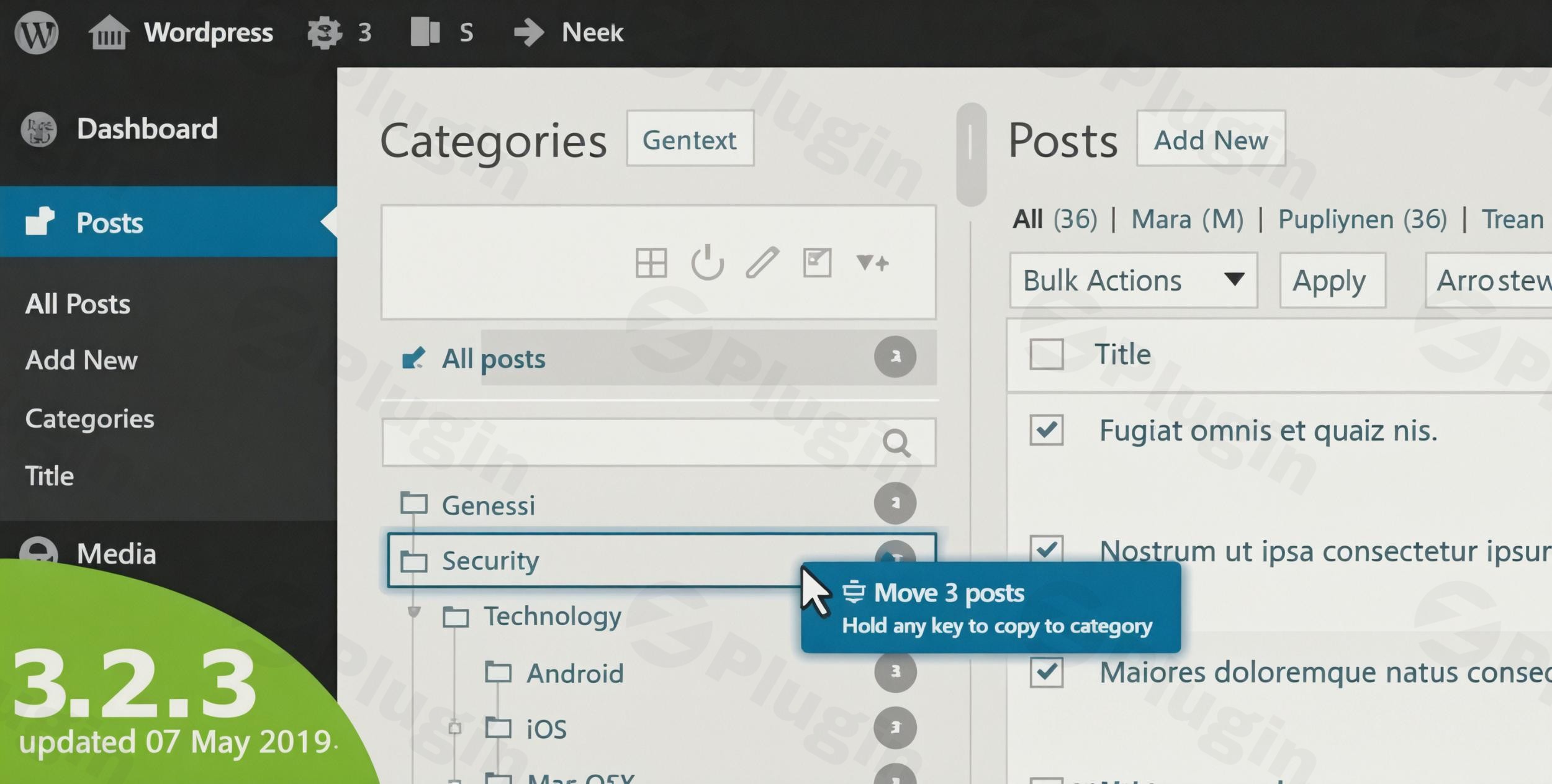
Managing a growing website often leads to a messy back-end. As your content expands, navigating hundreds of categories in the standard WordPress list becomes a chore. Real Category Management (RCM) is a powerful WordPress category management plugin designed to solve this exact problem by transforming your taxonomy into an intuitive, visual tree view.
Developed by devowl.io, this plugin provides a “folder-like” experience for your posts, products, and custom post types. Whether you need to set a custom category order in WordPress or move thousands of items via drag-and-drop, RCM offers a professional-grade interface that feels like a native file explorer.
Key Features: Why Use Real Category Management?
The primary value of Real Category Management lies in its ability to simplify complex site structures. Instead of clicking through multiple screens, you manage everything from a single, unified view.
1. Intuitive Tree View Display
The hallmark of this plugin is the WordPress category tree view. It replaces the flat, cumbersome list with a hierarchical structure. This allows you to see parent-child relationships at a glance, making it ideal for large blogs or documentation sites with deeply nested topics.
2. Drag-and-Drop Content & Category Management
Assigning posts to categories is traditionally a slow process. With RCM, you can simply grab a post and drop it into a folder (category). You can also use drag and drop categories in WordPress to reorganize your entire taxonomy structure in seconds, rather than editing each category manually.
3. Custom Category Term Ordering
WordPress defaults to alphabetical or ID-based sorting. RCM allows for custom category order, meaning you can prioritize specific categories that are most important to your users or your SEO strategy. This order is reflected both in the back-end and (optionally) the front-end.
4. Seamless WooCommerce & Custom Post Type Support
For e-commerce owners, WooCommerce category management is a game-changer. You can organize thousands of products and attributes within the RCM interface. It also supports custom post types like LearnPress courses or bbPress forums, ensuring your entire site stays organized.
5. High Performance & Clean Code
Unlike many bloated plugins, RCM is built for speed. It has a minimal impact on page load times and memory usage. It is fully compatible with PHP 8.1+ and the latest versions of WordPress and Gutenberg.
How to Install and Setup Real Category Management
Setting up the plugin is straightforward and requires no coding knowledge. Follow these steps to get started:
- Install the Plugin: Log in to your WordPress dashboard. Navigate to Plugins > Add New. Search for “Real Category Management.” Click Install Now and then Activate.
- Access the Interface: Once activated, go to Posts > Real Category Management (or the equivalent section for your custom post types).
- Initialize Your Tree: The plugin will automatically detect your existing categories and display them in the folder-style tree view on the left sidebar.
- Create Folders/Categories: Click the “plus” icon within the RCM sidebar to create new categories or sub-categories instantly without leaving the page.
- Organize Content: Simply select your posts from the list and drag them into the desired folder in the tree view.
Practical Usage & Best Practices
To get the most out of this WordPress taxonomy management tool, consider these real-world workflows:
For Large Blogs and News Sites
When managing hundreds of articles, use the tree view to create a “Content Silo” structure. This makes it easier for editors to find specific topics and ensures that every post is filed under the correct niche hierarchy, improving internal linking and SEO.
For WooCommerce Store Managers
Use RCM to handle seasonal product shifts. If you need to move “Summer Collection” products into an “Archive” category, you can do it via bulk drag-and-drop, saving hours of manual editing.
For Digital Agencies
If you manage client sites, installing RCM provides a more “user-friendly” experience for clients who are intimidated by the standard WordPress interface. The familiar folder structure (similar to Windows Explorer or Mac Finder) reduces the learning curve for non-technical users.
FAQ & Troubleshooting
How do I change the order of categories in WordPress manually with this plugin?
Simply navigate to the Real Category Management interface in your dashboard. Click and hold the category you wish to move, then drag it to your preferred position in the tree view. The plugin will save the custom category order automatically.
Does Real Category Management work with WooCommerce?
Yes, RCM fully supports WooCommerce. You can manage product categories and attributes using the same drag-and-drop tree view interface used for standard posts.
Is the plugin compatible with Gutenberg and Elementor?
Absolutely. Real Category Management is designed to work seamlessly with the Gutenberg editor and is compatible with major page builders like Elementor, WPBakery, and Divi, as it operates on the WordPress taxonomy level.
What happens to my categories if I deactivate the plugin?
Your categories and post assignments will remain intact. RCM works with native WordPress taxonomies; it simply provides a better interface to manage them. If you deactivate it, you will revert to the standard WordPress category list.
Does it support WordPress Multisite?
Yes, the plugin is fully compatible with WordPress Multisite installations, allowing you to manage taxonomies across your entire network efficiently.
Final Verdict: Is It Worth It?
If you are looking for the best plugin for WordPress category tree view, Real Category Management is a top-tier choice. It provides a massive ROI in terms of time saved for site administrators and editors. By providing a familiar WordPress folder structure for content, it removes the friction of managing complex taxonomies.
Whether you are running a simple blog or a massive WooCommerce store, RCM offers the reliability, speed, and ease of use necessary to keep your backend organized and professional. For more WordPress tips and plugin reviews, visit wppick.com.
I. Download Limits & Account Benefits
- Free Downloads: Each email address receives 3 downloads per day for free products
- Upgrade Benefits: Purchase any paid product to increase your daily download limit by 3 for each paid product
- No Account Required: You can download immediately by receiving the download link via email
- Account Recommended: Create an account for easier access to your order history and direct update downloads
II. Understanding GPL vs Official Versions
Important: The products available on WPPick are GPL-licensed versions, which differ from official developer versions. Before purchasing, please read our comprehensive guide: Understanding GPL & Official Differences at WPPick
Key Points:
- GPL versions may not include premium support from original developers
- Updates may be delayed compared to official releases
- Some premium features might have limitations
- Always consider your specific needs and support requirements
III. Support & Assistance
We’re here to help through multiple channels:
- Email Support: Direct email assistance for all inquiries
- Live Chat: Real-time support during business hours
- Comprehensive Documentation: Detailed guides and tutorials
IV. Order Tracking
Access your complete purchase history and download links anytime: Order History
V. Account Access
New to WPPick? Login or Create Account to manage your downloads and orders efficiently.
VI. Refund Protection
We stand behind our products with a clear refund policy. Review our terms: Refund Policy
VII. Privacy & Security
Your data security is our priority. Learn how we protect your information: Privacy Policy
VII. Terms of Service
Understanding our service terms ensures a smooth experience: Terms of Use
Quick Tips for Best Experience
- Verify Compatibility: Check plugin/theme compatibility with your WordPress version
- Backup First: Always backup your site before installing new plugins or themes
- Test Environment: Consider testing on a staging site first
- Stay Updated: Regularly check for updates in your account dashboard
- Read Documentation: Review any included documentation for optimal setup
Need Help?
If you have questions about downloads, licensing, or need technical assistance, don’t hesitate to contact our support team. We’re committed to ensuring you have the best possible experience with WPPick products.
Ready to get started? Your download adventure begins with just one click!
- compatibility with WooCommerce attributes (CU-869c1arhc)
- compatibility with Hostinger and services could not be created (CU-869c14a9d)