

Wp Food – Restaurant Menu & Food Ordering
/Year
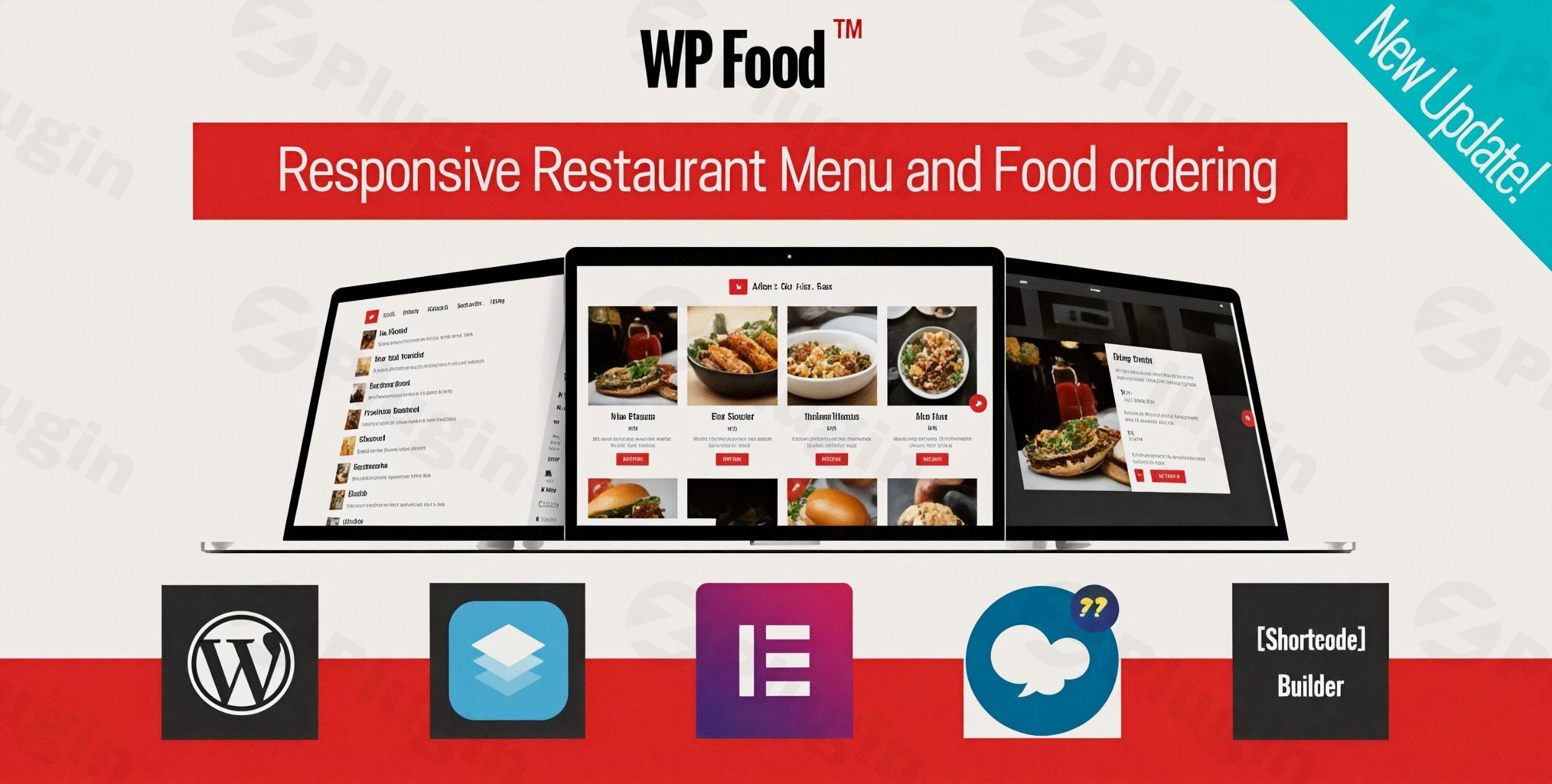
In the modern digital landscape, a static PDF menu is no longer enough to satisfy hungry customers. To stay competitive, restaurants need an interactive, mobile-friendly way to showcase their dishes and accept orders directly through their website. WP Food is a powerful restaurant menu plugin for WordPress designed to bridge the gap between your kitchen and your customers’ screens.
Whether you run a small coffee shop or a multi-location restaurant chain, this food ordering plugin for WordPress provides a seamless interface for managing menus and processing orders without needing a developer. In this guide, we will explore the features, setup process, and best practices for using the WP Food plugin to grow your food business.
Key Features of WP Food
The WP Food plugin by Ex-Themes stands out because it balances high-end aesthetics with functional administrative tools. Here is why it is considered a top restaurant menu builder for WordPress:
1. Dynamic Layouts and Customization
You are not stuck with a single design. WP Food offers over ten different food styles and multiple display modes:
- Grid, List, and Table Views: Choose the layout that best fits your brand’s vibe.
- Carousel/Slider View: Perfect for highlighting daily specials or “Chef’s Recommendations” on your homepage.
- Ajax “Load More” & Pagination: Ensures your site remains fast even if you have an extensive menu with hundreds of items.
- Unlimited Styling: Customize colors and fonts to match your existing brand identity.
2. Streamlined Order Management
The plugin simplifies the “behind-the-counter” work:
- Email Notifications: Both the admin and the customer receive instant confirmation once an order is placed.
- Location-Based Availability: If you have multiple branches, you can set specific food items to be available only at certain locations.
- Print Support: Easily print incoming orders to hand them straight to the kitchen staff.
3. Secure Checkout and Payments
Even in the free version, WP Food focuses on conversion. It includes a built-in cart and checkout system with PayPal integration. For those looking for more complex setups, the Pro version allows for online food order WordPress workflows integrated with WooCommerce.
4. Developer-Friendly but Beginner-Ready
While it works out of the box with a simple shortcode, it is also fully compatible with popular page builders like WPBakery, Elementor, and SiteOrigin.
How to Set Up WP Food Restaurant Menu Plugin
Follow these steps to get your online menu up and running in minutes.
Step 1: Installation
- Log in to your WordPress Dashboard.
- Navigate to Plugins > Add New.
- Search for “WP Food.”
- Click Install Now and then Activate.
Step 2: Creating Food Categories
Before adding individual dishes, organize them into categories (e.g., Appetizers, Main Course, Desserts).
- Go to the Food Items menu in your sidebar.
- Click on Food Category.
- Add your category names and descriptions.
Step 3: Adding Food Items
- Navigate to Food Items > Add New.
- Enter the dish name, description, and upload a high-quality image.
- Set the price and assign it to a category.
- (Optional) Set location availability or dietary tags.
Step 4: Displaying the Menu on Your Site
The easiest way to display your menu is via shortcode.
- Create a new page (e.g., “Our Menu”).
- Paste the
[wp-food]shortcode (or use the WP Food widget in Elementor/WPBakery). - Publish the page to see your new wordpress restaurant theme menu in action.
Practical Usage & Best Practices
To get the most out of your online food order WordPress setup, consider these professional tips:
- Optimize for Mobile: Most customers order food from their phones. WP Food is fully responsive, but always test your menu on a mobile device to ensure your images aren’t too large, slowing down the load time.
- Use “Pop-up” Info for Detail: Instead of cluttering the main menu page, enable the “Popup food info” feature. This allows customers to see ingredients and allergens without leaving the main list.
- Implement Security: Enable the Recaptcha option in the plugin settings to prevent bot-generated fake orders at checkout.
- Upsell with Styles: Use the “Grid” view with 3–5 columns for standard items, but use a “Carousel” at the top of the page for high-margin specials to draw immediate attention.
FAQ & Troubleshooting
What are the main features of WP Food?
WP Food provides a comprehensive system for creating food menus and taking orders. Key features include 10+ menu styles, location-based food availability, a built-in shopping cart, PayPal integration, and email notifications for both owners and customers.
Is WP Food compatible with WooCommerce?
The free version of WP Food uses its own built-in checkout system. However, the Pro version offers full WooCommerce integration, allowing you to use any WooCommerce-supported payment gateway (like Stripe, Square, or Authorize.net).
Can I customize the menu layout without coding?
Yes. The plugin includes various settings to change colors, fonts, and column counts (up to 5 columns). It also integrates directly with WPBakery and Elementor, allowing you to drag and drop menu elements into your design.
Does the plugin support multiple restaurant locations?
Yes. You can create different locations and assign specific menu items to them, ensuring customers only see what is available at their nearest branch.
What should I do if my images look blurry?
Ensure your “Thumbnail” settings in WordPress match the display size of the food style you chose. You can adjust image sizes in the plugin’s display settings to ensure high-definition visuals.
Final Verdict: Is WP Food Right for You?
If you are looking for a restaurant menu plugin for WordPress that is easy to manage but looks professional, WP Food is an excellent choice. It excels by providing a non-WooCommerce ordering path in its base version, making it the best wordpress plugin for restaurant online ordering no woo commerce for users who want to avoid the bulk of a full e-commerce suite.
For growing businesses, the upgrade path to Pro offers the scalability of WooCommerce and more advanced layout filters. Overall, it is a reliable, high-ROI tool for any food service business looking to digitize their operations on wppick.com.
I. Download Limits & Account Benefits
- Free Downloads: Each email address receives 3 downloads per day for free products
- Upgrade Benefits: Purchase any paid product to increase your daily download limit by 3 for each paid product
- No Account Required: You can download immediately by receiving the download link via email
- Account Recommended: Create an account for easier access to your order history and direct update downloads
II. Understanding GPL vs Official Versions
Important: The products available on WPPick are GPL-licensed versions, which differ from official developer versions. Before purchasing, please read our comprehensive guide: Understanding GPL & Official Differences at WPPick
Key Points:
- GPL versions may not include premium support from original developers
- Updates may be delayed compared to official releases
- Some premium features might have limitations
- Always consider your specific needs and support requirements
III. Support & Assistance
We’re here to help through multiple channels:
- Email Support: Direct email assistance for all inquiries
- Live Chat: Real-time support during business hours
- Comprehensive Documentation: Detailed guides and tutorials
IV. Order Tracking
Access your complete purchase history and download links anytime: Order History
V. Account Access
New to WPPick? Login or Create Account to manage your downloads and orders efficiently.
VI. Refund Protection
We stand behind our products with a clear refund policy. Review our terms: Refund Policy
VII. Privacy & Security
Your data security is our priority. Learn how we protect your information: Privacy Policy
VII. Terms of Service
Understanding our service terms ensures a smooth experience: Terms of Use
Quick Tips for Best Experience
- Verify Compatibility: Check plugin/theme compatibility with your WordPress version
- Backup First: Always backup your site before installing new plugins or themes
- Test Environment: Consider testing on a staging site first
- Stay Updated: Regularly check for updates in your account dashboard
- Read Documentation: Review any included documentation for optimal setup
Need Help?
If you have questions about downloads, licensing, or need technical assistance, don’t hesitate to contact our support team. We’re committed to ensuring you have the best possible experience with WPPick products.
Ready to get started? Your download adventure begins with just one click!
- Security hardening to prevent LFI
- Removed notice message
- Added menu filter with icon styling
- Compatibility with WordPress 6.9 and PHP 8.3
- Security hardening to prevent broken access control