

Wp Glossary – Encyclopedia / Lexicon / Knowledge Base / Wiki / Dictionary
/Year
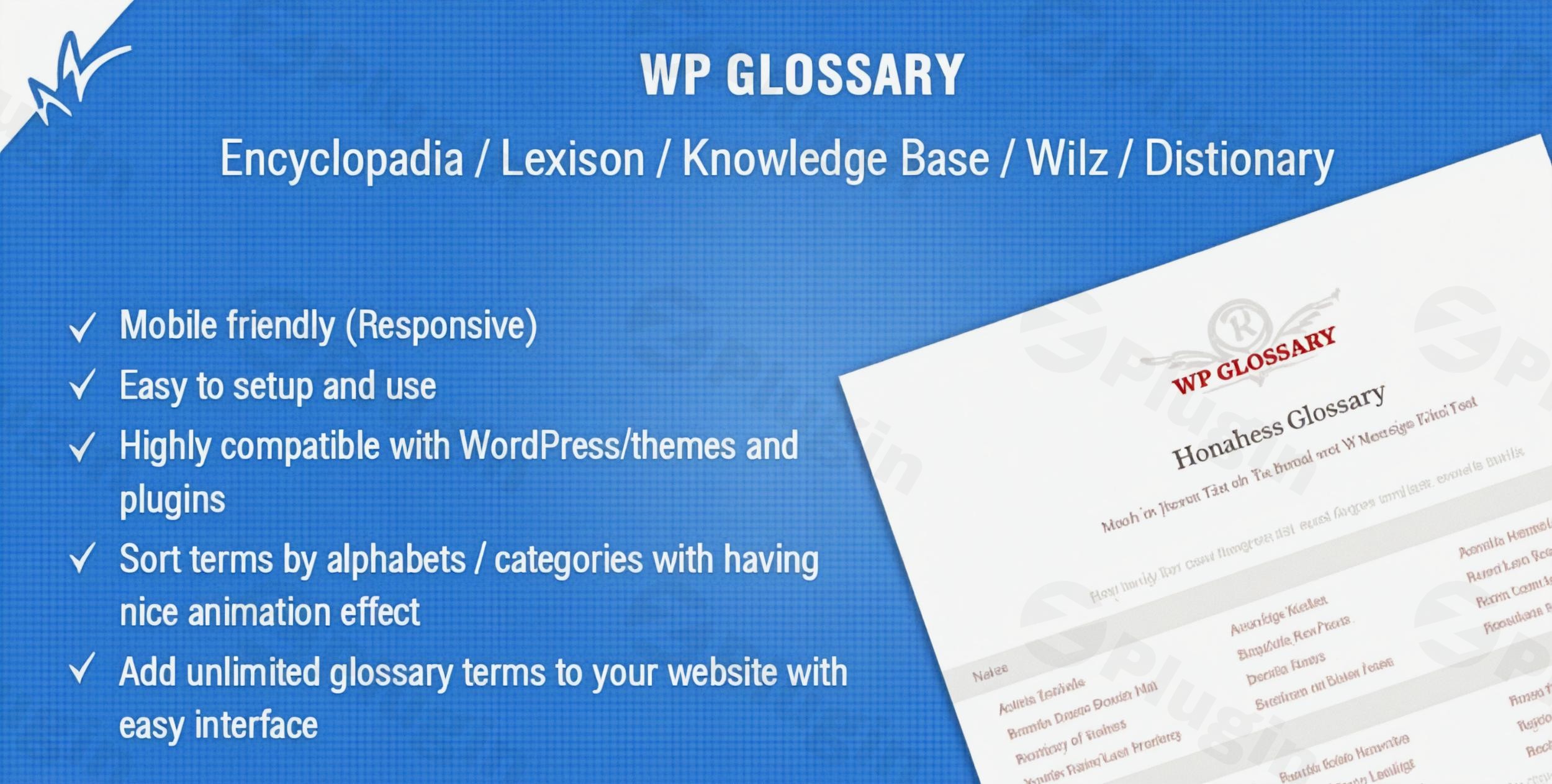
Managing technical jargon, complex terminology, or extensive documentation can be a challenge for any website owner. Whether you are running a SaaS platform, a medical blog, or an online academy, ensuring your readers understand your content is vital for engagement and retention. This is where a dedicated WordPress glossary plugin becomes an essential tool for your tech stack.
The WP Glossary plugin (officially known as Wp Glossary – Encyclopedia / Lexicon / Knowledge Base / Wiki / Dictionary) is a comprehensive solution designed to transform how your site handles definitions. Instead of forcing users to leave your page to search for a term, this plugin brings the information directly to them through interactive tooltips and dedicated lexicon pages. In this guide, we will explore how to use this plugin to improve user experience and boost your site’s SEO.
Key Features of the WP Glossary Plugin
The WP Glossary plugin is more than just a list of words; it is a versatile engine for building a WordPress knowledge base plugin or a full-scale WordPress wiki plugin. Here are the features that provide the most real-world value:
1. Dedicated Custom Post Types
Unlike simple list plugins, WP Glossary creates a dedicated Custom Post Type (CPT) for your terms. This means every glossary entry acts like a real page on your site, allowing for deep content, images, and even videos within a definition.
2. Automatic Term Linking (Glossary Linkify)
One of the strongest features for SEO is the “Linkify” function. Once you define a term, the plugin can automatically hyperlink that term whenever it appears in your blog posts or pages. This creates a dense network of internal links, which search engines like Google use to understand your site’s hierarchy and topical authority.
3. Interactive Tooltips
Improve your site’s UX by enabling glossary tooltips in WordPress. When a user hovers over a linked term, a small window appears with a brief definition. This keeps readers on your page longer, reducing bounce rates and improving the overall reading experience.
4. Custom Alphabets and Global Support
If you are building a WordPress dictionary plugin for languages like Hebrew, Greek, or Arabic, WP Glossary has you covered. You can create custom sets of alphabets and filters to ensure your glossary is navigated intuitively regardless of the language.
5. Instant Search and Filtering
For sites with hundreds of terms, the instant search feature allows users to find exactly what they need without refreshing the page. This is ideal for high-traffic encyclopedias or technical wikis.
Installation and Setup: Step-by-Step
Setting up your lexicon doesn’t require a developer. Follow these steps to get your WP Glossary plugin running:
- Install the Plugin: Upload the plugin files via
Plugins > Add New > Uploadin your WordPress dashboard or install it directly if purchased from a marketplace like CodeCanyon. - Activate & Initial Config: Click “Activate.” You will see a new “Glossary” menu item in your sidebar.
- Configure Linkify Settings: Navigate to the plugin settings and enable “Linkify.” This ensures that your existing content automatically connects to your new glossary terms.
- Choose Your Layout: Select your preferred layout for the main Glossary Index page. You can choose from various styles (list, grid, or columns) and pick a tooltip theme that matches your website’s branding.
- Add Your First Term: Go to
Glossary > Add New. Enter the term as the title and provide the definition in the content area. Hit “Publish.”
Practical Usage & Best Practices
To get the most ROI out of your investment, consider these real-world workflows:
Best Way to Improve Internal Linking
Use WP Glossary as a WordPress plugin for internal linking with glossary terms. By setting the “Linkify” feature to only link the first occurrence of a word in a post, you avoid “over-optimization” while still guiding users toward your foundational content.
Ideal for Technical Documentation
If you are managing a SaaS or a developer-centric site, use the plugin as a WordPress knowledge base plugin. Group terms into categories (e.g., “API Terms,” “Billing Jargon”) to help users navigate complex documentation more efficiently.
Performance Tip: Caching
Because WP Glossary dynamically scans your content to add links and tooltips, it is a best practice to use a caching plugin (like WP Rocket or W3 Total Cache). If you update your glossary settings and don’t see changes immediately, remember to clear your frontend cache to see the updates.
FAQ & Troubleshooting
What is the best WordPress plugin for a glossary?
The WP Glossary plugin is widely considered one of the best options due to its balance of SEO features (auto-linking) and user experience (tooltips). It is particularly powerful for users who need a dedicated post type for each term rather than a simple text list.
How does WP Glossary improve SEO?
WP Glossary improves SEO by automating internal linking. By linking keywords in your blog posts to dedicated “term pages,” you distribute “link equity” across your site. Additionally, dedicated pages for specific terms allow you to rank for long-tail “What is [Term]?” queries in search engines.
Can I use WP Glossary on multiple WordPress sites?
WP Glossary supports WordPress Multisite installations. However, you generally need a separate license for each domain or subdomain, and a shared database is required for the terms to sync across the network.
Is WP Glossary compatible with page builders like Elementor?
Yes, WP Glossary is designed to be highly compatible with major themes and page builders like Elementor, Gutenberg, and WPBakery. Since it uses standard WordPress hooks to “Linkify” content, it works seamlessly with most content editors.
Final Verdict
The WP Glossary plugin is a robust, professional-grade tool for anyone looking to build a WordPress glossary plugin-driven encyclopedia or wiki. Its ability to automate internal linking provides a measurable SEO boost, while the tooltip functionality significantly enhances the user experience for content-heavy websites.
If you want to establish authority in your niche and keep your readers informed without them having to leave your site, WP Glossary is a reliable and high-performing choice. For more WordPress plugin reviews and tutorials, visit us at wppick.com.
I. Download Limits & Account Benefits
- Free Downloads: Each email address receives 3 downloads per day for free products
- Upgrade Benefits: Purchase any paid product to increase your daily download limit by 3 for each paid product
- No Account Required: You can download immediately by receiving the download link via email
- Account Recommended: Create an account for easier access to your order history and direct update downloads
II. Understanding GPL vs Official Versions
Important: The products available on WPPick are GPL-licensed versions, which differ from official developer versions. Before purchasing, please read our comprehensive guide: Understanding GPL & Official Differences at WPPick
Key Points:
- GPL versions may not include premium support from original developers
- Updates may be delayed compared to official releases
- Some premium features might have limitations
- Always consider your specific needs and support requirements
III. Support & Assistance
We’re here to help through multiple channels:
- Email Support: Direct email assistance for all inquiries
- Live Chat: Real-time support during business hours
- Comprehensive Documentation: Detailed guides and tutorials
IV. Order Tracking
Access your complete purchase history and download links anytime: Order History
V. Account Access
New to WPPick? Login or Create Account to manage your downloads and orders efficiently.
VI. Refund Protection
We stand behind our products with a clear refund policy. Review our terms: Refund Policy
VII. Privacy & Security
Your data security is our priority. Learn how we protect your information: Privacy Policy
VII. Terms of Service
Understanding our service terms ensures a smooth experience: Terms of Use
Quick Tips for Best Experience
- Verify Compatibility: Check plugin/theme compatibility with your WordPress version
- Backup First: Always backup your site before installing new plugins or themes
- Test Environment: Consider testing on a staging site first
- Stay Updated: Regularly check for updates in your account dashboard
- Read Documentation: Review any included documentation for optimal setup
Need Help?
If you have questions about downloads, licensing, or need technical assistance, don’t hesitate to contact our support team. We’re committed to ensuring you have the best possible experience with WPPick products.
Ready to get started? Your download adventure begins with just one click!
- Tested and Fixed compatibility issues with latest version of WordPress, WooCommerce and PHP
- Fixed some tweaks with linkify module to work with widgets also