

WP Media Folder – Media Manager with Folders
/Year
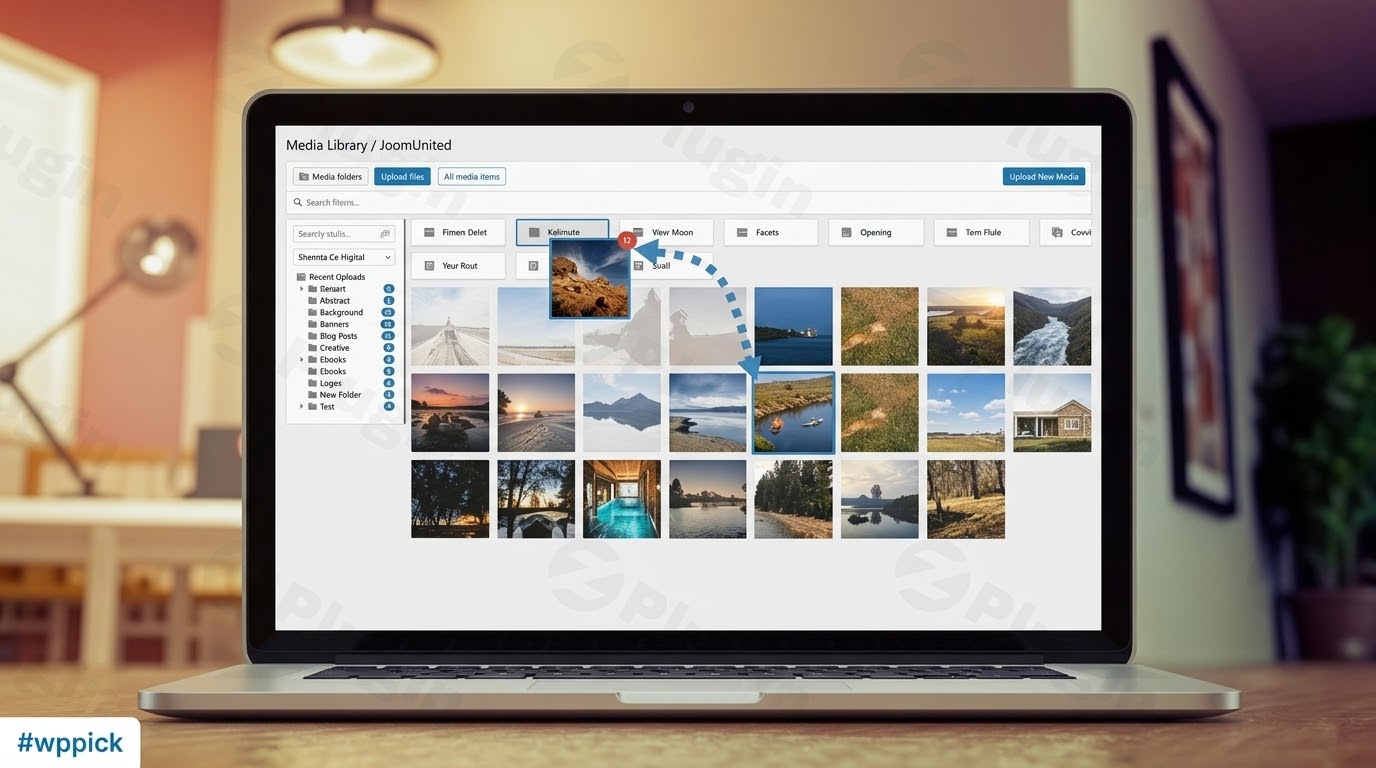
What is WP Media Folder?
WP Media Folder is an advanced WordPress plugin designed to solve the clutter of the native WordPress media library by introducing a traditional, folder-based organization structure. Instead of sorting through an endless grid of unorganized files, website administrators can create custom folders, subfolders, and category trees using familiar drag-and-drop actions.
What Does WP Media Folder Do?
The plugin transforms how media is stored, sorted, and retrieved within WordPress. Key capabilities include organizing uploads into hierarchical folder structures, moving multiple files simultaneously, filtering media by file type or weight, and synchronizing server folders directly with the WordPress database. It also integrates smoothly with popular cloud storage services like Google Drive, Dropbox, Amazon S3, and pCloud.
Who Is This Plugin For?
WP Media Folder is built for content creators, digital agencies, e-commerce store owners, photographers, and multi-author websites that manage thousands of images, PDFs, and media assets. It is particularly beneficial for web professionals seeking an efficient asset management workflow without modifying core WordPress behaviors.
Key Capabilities and Features
- Intuitive drag-and-drop folder creation, nested subfolders, and file relocation
- Cloud storage integration supporting Google Drive, Dropbox, OneDrive, Amazon S3, and pCloud
- Media library access restriction by user role or specific user account
- Advanced filtering options by file type, size, date, and title
- Media replacement tool to update files across all posts and pages automatically
- Automatic folder export and import features for easy migration
Practical WordPress Use Cases
Website administrators use WP Media Folder to categorize product images for online stores, separate client assets in multi-user environments, and organize downloadable PDFs for membership sites. Photographers can showcase portfolios structured by client or shoot date, while enterprise blogs can maintain clean departmental archives.
Setup and Compatibility
Installation follows the standard WordPress plugin upload process. Once activated, the folder tree appears directly inside the native media modal and library view. The plugin is compatible with standard WordPress themes, major page builders, and multilingual plugins without requiring complex configuration.
Reasons to Choose WP Media Folder on WPPick
Choosing WP Media Folder provides a streamlined asset management workflow that saves valuable administration time. It eliminates the friction of searching for misplaced uploads and brings order to chaotic media libraries with minimal learning curve.
Latest Version Context
Version 6.2.7 introduces support for pCloud integration within the cloud addon and resolves an issue regarding file renaming during folder upload, ensuring smoother cloud synchronization and media organization workflows.
Frequently Asked Questions
Does WP Media Folder replace the default WordPress media library?
No, it enhances the native media library by adding a folder management interface on top of your existing files and database entries.
Can I restrict access to specific folders for different users?
Yes, the plugin includes user and role-based folder permission controls so you can limit who views or edits specific media directories.
Is it possible to sync local folders with cloud storage?
Yes, WP Media Folder supports bidirectional synchronization with external cloud providers like Google Drive, Dropbox, and pCloud.
Will my existing images be broken if I install the plugin?
No, your existing media attachments remain intact. The plugin simply categorizes them into virtual or physical folders.
Does the plugin support drag-and-drop file organization?
Yes, you can move single files or bulk selections between folders using standard drag-and-drop actions in the WordPress dashboard.
I. Download Limits & Account Benefits
- Free Downloads: Each email address receives 3 downloads per day for free products
- Upgrade Benefits: Purchase any paid product to increase your daily download limit by 3 for each paid product
- No Account Required: You can download immediately by receiving the download link via email
- Account Recommended: Create an account for easier access to your order history and direct update downloads
II. Understanding GPL vs Official Versions
Important: The products available on WPPick are GPL-licensed versions, which differ from official developer versions. Before purchasing, please read our comprehensive guide: Understanding GPL & Official Differences at WPPick
Key Points:
- GPL versions may not include premium support from original developers
- Updates may be delayed compared to official releases
- Some premium features might have limitations
- Always consider your specific needs and support requirements
III. Support & Assistance
We’re here to help through multiple channels:
- Email Support: Direct email assistance for all inquiries
- Live Chat: Real-time support during business hours
- Comprehensive Documentation: Detailed guides and tutorials
IV. Order Tracking
Access your complete purchase history and download links anytime: Order History
V. Account Access
New to WPPick? Login or Create Account to manage your downloads and orders efficiently.
VI. Refund Protection
We stand behind our products with a clear refund policy. Review our terms: Refund Policy
VII. Privacy & Security
Your data security is our priority. Learn how we protect your information: Privacy Policy
VII. Terms of Service
Understanding our service terms ensures a smooth experience: Terms of Use
Quick Tips for Best Experience
- Verify Compatibility: Check plugin/theme compatibility with your WordPress version
- Backup First: Always backup your site before installing new plugins or themes
- Test Environment: Consider testing on a staging site first
- Stay Updated: Regularly check for updates in your account dashboard
- Read Documentation: Review any included documentation for optimal setup
Need Help?
If you have questions about downloads, licensing, or need technical assistance, don’t hesitate to contact our support team. We’re committed to ensuring you have the best possible experience with WPPick products.
Ready to get started? Your download adventure begins with just one click!
- Support for pCloud integration in cloud addon
- Fix: File renaming during folder upload
- Improved plugin settings search functionality
- Fix : JS error on folder permissions setting
- Lightbox popup issue in gallery
- Folder export improvement to include root folder
- Improve slider dots display on mobile devices
- The issue where extra images are loaded in the gallery
- Option to show image detail info when hovering over image thumbnail in the media library
- Filler media that attached to a specify post/page
- AI Optimizer: support for intranet or non-publicly accessible images
- Style conflict on frontend