
Aveo – Cv/resume WordPress Theme
/Year
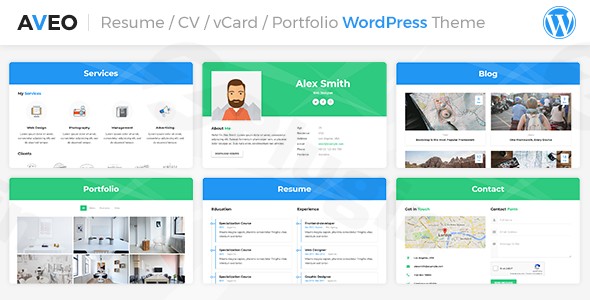
Building a standout online presence is crucial for professionals today, and the Aveo WordPress theme offers a premium, visually stunning solution for crafting your personal portfolio, resume, or CV. Designed with a keen eye for modern aesthetics and user experience, Aveo empowers individuals across various industries—from developers and designers to photographers and freelancers—to showcase their skills and achievements effectively. This comprehensive review delves into Aveo’s features, guides you through its setup, and explores why it could be the ideal WordPress resume theme for your digital identity.
Elevate Your Online Presence with Aveo: Design, Layout & Performance
Aveo is more than just a template; it’s a dynamic platform engineered to make a lasting impression. Its design philosophy centers on sleek, creative layouts with engaging visual elements, ensuring your professional profile captivates visitors.
Dynamic Design & Versatile Layout Options
Aveo offers impressive flexibility to tailor your online persona. You can choose between animated and multi-page versions or opt for a traditional one-page vCard design, adapting to your content and preferred navigation style. The theme includes 4 unique demos that can be installed with a single click, providing an excellent starting point for your website.A key differentiator for Aveo is its collection of 67 unique and impressive page transition effects, which add a modern, fluid feel to user navigation. Beyond transitions, the theme boasts:
- Powerful Portfolio System: Showcase your work with filters, solid AJAX portfolio details, navigation, sliders, and a mobile-optimized lightbox that supports images, videos (YouTube, Vimeo), and audio (SoundCloud). This makes it an ideal WordPress portfolio theme for freelancers and creatives.
- Integrated Blog System: Share insights and expertise with a complete blogging platform.
- Unique Sections: Features like a pricing section, an availability calendar, two-level main menus, social share links, Google Maps integration, and an Instagram Feed further enhance functionality.
Extensive Customization Capabilities
Personalizing your professional brand is straightforward with Aveo:
- Unlimited Color Schemes: Match your brand perfectly with a vast array of color options.
- Rich Typography: Access over 800 Google Fonts to fine-tune your site’s readability and aesthetic.
- Vast Icon Library: Enhance visual communication with over 1000 included icons.
- Intuitive Theme Settings Panel: A powerful and user-friendly panel provides comprehensive control over your site’s design and functionality, often working seamlessly with the native WordPress Customizer for real-time previews.
Optimized Performance & SEO Readiness
Aveo is built to perform. It features a fully responsive design, ensuring your CV or portfolio looks impeccable on any device, from widescreen monitors to smartphones. The theme is engineered for smooth animations and fast-loading performance, contributing to an exceptional user experience. Furthermore, Aveo boasts an SEO-optimized structure, helping your professional profile rank higher in search engine results. It’s compatible with a wide range of WordPress versions, from 4.9.x up to the latest WordPress 6.8.x, demonstrating its ongoing commitment to modern web standards.
Installation & One-Click Demo Import
Getting started with Aveo is designed to be user-friendly, even for those without extensive coding knowledge.
- Download & Install: After purchasing Aveo (or obtaining a GPL-licensed version from a reputable source like ZeroPlugin.com), download the theme files. Then, navigate to your WordPress dashboard, go to
Appearance > Themes > Add New > Upload Theme, and upload the Aveo.zipfile. Click “Install Now” and then “Activate.” - Install Required Plugins: Aveo relies on several companion plugins for its full functionality. Upon activation, you’ll typically see a notification to install and activate these. Essential plugins include AVEO Contact Form, AVEO Portfolio, AVEO Share Buttons, AVEO Shortcodes, and AVEO Tracking.
- One-Click Demo Import: To quickly set up your site like one of the beautiful pre-designed examples, go to the theme options or an integrated “Demo Importer” section in your WordPress dashboard. Aveo provides a “1 Click Demo Installer” for its 4 unique demos. Select your preferred demo and initiate the import process.
- Post-Import Setup: After the demo import, your site will have sample content, pages, and settings. You’ll then need to adjust menus (Appearance > Menus) and potentially set your homepage (Settings > Reading > Your homepage displays) to fully replicate the demo’s structure. Be aware that larger demo imports might require sufficient server memory and execution time, so a reliable hosting environment is beneficial.
Customization Guide: Personalizing Your Professional Brand
Aveo offers robust tools to personalize your website and align it with your unique professional brand.
- WordPress Customizer & Theme Settings: Most global styling and basic layout adjustments can be made through the native WordPress Customizer (
Appearance > Customize) or Aveo’s dedicated theme settings panel. Here, you can easily change colors, select from over 800 Google Fonts for your typography, upload your logo, and fine-tune global styles. - Drag-and-Drop Page Building with Unyson: Aveo is primarily built on the Unyson Framework, which provides a powerful drag-and-drop page builder. This allows you to create and arrange content layouts for your pages without writing any code. You can visually add sections for your services, portfolio, testimonials, contact forms, and more.
- Leveraging Shortcodes: The theme comes with 38 shortcodes that provide quick ways to insert various elements and functionalities into your posts and pages, simplifying content creation.
- Child Theme for Safe Customizations: An included child theme is crucial for making advanced customizations safely. By activating the child theme, any modifications you make to its files will be preserved even when the parent Aveo theme receives updates, preventing your custom code from being overwritten.
- Setting Up Navigation: Define your main navigation menus under
Appearance > Menus. Aveo supports a two-level main menu system.The customization experience with Aveo is designed to be intuitive. Its blend of a dedicated theme options panel, the WordPress Customizer, and the Unyson page builder provides a comprehensive toolkit for users to achieve their desired look and functionality without needing developer skills.
FAQ & Troubleshooting
Here are answers to common questions about the Aveo WordPress theme:
Is Aveo compatible with Elementor / WPBakery / Gutenberg?
Aveo is primarily built around the Unyson Framework’s built-in drag-and-drop page builder. It has activated and is generally compatible with the native Gutenberg Editor (Block Editor) since version 1.2.2. While Aveo’s core builder is Unyson, some third-party sources inconsistently mention Elementor compatibility; however, it’s not explicitly listed as a core feature. If you prefer Elementor or WPBakery, you might need to test compatibility carefully or look for themes specifically built with those page builders.
Does Aveo support WooCommerce for online stores?
Aveo is a specialized CV/Resume and portfolio theme. Its official feature list does not explicitly include WooCommerce compatibility as a core feature. While you might be able to install WooCommerce, its integration with Aveo’s design and layouts might be limited, as the theme is not primarily designed for e-commerce functionality.
Does Aveo support child themes?
Yes, a child theme is included with Aveo. Using a child theme is highly recommended for any customizations, as it allows you to modify the theme’s code, styles, or templates without directly altering the parent theme files. This ensures that your changes are preserved when you update the main Aveo theme.
How can I update the Aveo theme without losing my customizations?
To update Aveo safely, always ensure you are using the provided child theme for any custom code or styling. Before updating, it’s a good practice to back up your entire WordPress website. You can then update the parent Aveo theme through your WordPress dashboard (Appearance > Themes) or by manually uploading the new version. Your customizations in the child theme will remain intact.
What should I do if the Aveo demo import fails or looks different from the demo site?
If the Aveo demo import fails, first ensure your server meets the minimum requirements for WordPress (especially PHP memory limit and execution time, typically 256MB+ and 300+ seconds, respectively). Insufficient resources can cause timeouts. If it imports but looks different, verify that all required companion plugins were installed and activated before importing the demo content. Also, check your WordPress Settings > Reading to ensure the correct homepage is set, and Appearance > Menus to verify the menu assignments. Refer to the theme’s official documentation for specific troubleshooting steps.
Conclusion: Is Aveo the Right Choice for Your Professional Brand?
The Aveo WordPress theme is a compelling choice for professionals, freelancers, and creatives who need a modern, visually striking, and easy-to-manage online CV or portfolio. Its strengths lie in its exceptional design flexibility, offering animated transitions, a robust portfolio system, and extensive customization options for colors, fonts, and layouts. The inclusion of a drag-and-drop page builder (Unyson Framework) and a one-click demo importer makes it highly accessible for users without coding expertise, embodying a true drag and drop CV builder WordPress theme.Aveo stands out for its commitment to both aesthetics and functionality, ensuring your professional identity is presented with flair and performance. Its SEO-optimized structure and responsiveness further solidify its position as a strong contender for anyone looking to make a memorable impact online. While it focuses on personal branding rather than e-commerce (lacking explicit WooCommerce support), for designers, developers, photographers, and consultants seeking to highlight their skills, experience, and projects in a dynamic, impressive manner, Aveo is an excellent investment. For those valuing ease of use, visual appeal, and a dedicated platform to showcase their professional journey, Aveo is a confident recommendation.
I. Download Limits & Account Benefits
- Free Downloads: Each email address receives 3 downloads per day for free products
- Upgrade Benefits: Purchase any paid product to increase your daily download limit by 3 for each paid product
- No Account Required: You can download immediately by receiving the download link via email
- Account Recommended: Create an account for easier access to your order history and direct update downloads
II. Understanding GPL vs Official Versions
Important: The products available on WPPick are GPL-licensed versions, which differ from official developer versions. Before purchasing, please read our comprehensive guide: Understanding GPL & Official Differences at WPPick
Key Points:
- GPL versions may not include premium support from original developers
- Updates may be delayed compared to official releases
- Some premium features might have limitations
- Always consider your specific needs and support requirements
III. Support & Assistance
We’re here to help through multiple channels:
- Email Support: Direct email assistance for all inquiries
- Live Chat: Real-time support during business hours
- Comprehensive Documentation: Detailed guides and tutorials
IV. Order Tracking
Access your complete purchase history and download links anytime: Order History
V. Account Access
New to WPPick? Login or Create Account to manage your downloads and orders efficiently.
VI. Refund Protection
We stand behind our products with a clear refund policy. Review our terms: Refund Policy
VII. Privacy & Security
Your data security is our priority. Learn how we protect your information: Privacy Policy
VII. Terms of Service
Understanding our service terms ensures a smooth experience: Terms of Use
Quick Tips for Best Experience
- Verify Compatibility: Check plugin/theme compatibility with your WordPress version
- Backup First: Always backup your site before installing new plugins or themes
- Test Environment: Consider testing on a staging site first
- Stay Updated: Regularly check for updates in your account dashboard
- Read Documentation: Review any included documentation for optimal setup
Need Help?
If you have questions about downloads, licensing, or need technical assistance, don’t hesitate to contact our support team. We’re committed to ensuring you have the best possible experience with WPPick products.
Ready to get started? Your download adventure begins with just one click!