

Doctean – Medical And Healthcare WordPress Theme
/Year
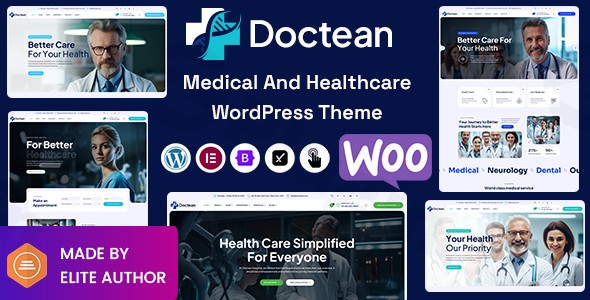
Establishing a credible and professional online presence is paramount for any medical or healthcare practice. The Doctean WordPress theme emerges as a purpose-built solution, meticulously engineered to cater to the unique demands of the healthcare industry. This comprehensive review and setup guide will explore how Doctean empowers medical professionals, from solo practitioners to large hospitals, to create high-performing, visually appealing, and SEO-optimized websites without extensive coding knowledge.Doctean is specifically designed for a wide array of healthcare entities, including general practitioners, dental clinics, dermatologists, surgeons, pediatricians, psychiatrists, chiropractors, veterinary clinics, and gynecologists. Its design philosophy centers on delivering a stunning, professional, and flexible online experience that instills trust and facilitates patient engagement.
Key Features: Design, Layout & Performance for Healthcare Websites
Doctean is not just another multipurpose theme; it’s a specialized toolkit built from extensive research into healthcare industry requirements. Its features are crafted to enhance patient interaction and streamline practice management.
Purpose-Driven Design & Intuitive Layouts
Doctean offers an array of specialized layouts and components specifically for medical practice essentials. You’ll find dedicated sections for:
- Patient Appointment Scheduling Systems: Crucial for modern healthcare practices.
- Medical Service Presentations: Clearly showcase your offerings.
- Doctor Profile Management: Professional profiles for your team.
- Healthcare Service Showcases: Highlight specialized treatments and facilities.
- Medical Facility Information: Essential details for clinics and hospitals.The theme includes several creative, unique, and aesthetically pleasing prebuilt website demos (sources mention 5, 6, or 7 variations) and practical inner pages. This means you can kickstart your website development with a professional foundation. Doctean features a responsive layout design, ensuring your site looks impeccable and functions flawlessly across all devices, from desktops to smartphones and tablets.
Flexible Customization Capabilities
Personalizing your medical website with Doctean is designed to be intuitive and powerful:
- Extensive Color Schemes: Control your website’s color palette to match your branding.
- Advanced Typography: Integrate Google Fonts, offering a vast selection for enhancing readability and aesthetic appeal. It also includes Bootstrap Icon and Special Flat Icon sets for visual elements.
- Elementor Page Builder Integration: Doctean is primarily built with and fully compatible with Elementor, the popular drag-and-drop page builder. This allows for intuitive content creation and layout customization without touching a single line of code. It comes with 30+ custom Elementor elements tailored for medical use.
- Redux Framework Theme Options: A powerful theme options panel provides centralized control over global styles, settings, and design elements, giving you immense flexibility over spacing, containers, sections, and backgrounds.
Performance & SEO Readiness
For healthcare providers, online visibility and a smooth user experience are non-negotiable. Doctean is engineered with these priorities in mind:
- High-Speed Performance: The theme aims for rapid load times, even with image-heavy content, through clean, developer-friendly code and optimized asset enqueuing. Features like adaptive image scaling and lazy loading contribute to its speed.
- Gutenberg Optimized: Doctean is optimized for the native WordPress block editor, offering flexibility for content creation.
- SEO-Conscious Structure: Built with SEO best practices, including structured headings and potentially schema markup for practitioners and locations (a crucial feature for local SEO in healthcare).
- GDPR Compliance: The theme incorporates GDPR-focused privacy modules and cookie consents, helping medical practices meet important data protection regulations.
- Cross-Browser Compatibility: Tested across all major modern browsers, ensuring a consistent experience for all your patients.
Installation & Demo Import: Getting Started with Doctean
Setting up your professional medical website with Doctean is designed to be straightforward, even for those with minimal technical expertise.
- Install & Activate the Theme:
- First, ensure your WordPress installation meets the recommended requirements (WordPress 5.5.x up to 6.4.x, and the latest PHP versions for optimal security and performance).
- Navigate to your WordPress dashboard, go to Appearance > Themes, and click “Add New.”
- Upload the Doctean theme file (a
.zipfile you received upon purchase) and click “Install Now.” - Once installed, click “Activate.”
- Install Required Companion Plugins:
- Upon activation, Doctean will likely prompt you to install essential plugins, such as Elementor Page Builder and any theme-specific plugins (e.g., for custom post types, appointment functionalities).
- Follow the on-screen instructions to install and activate all recommended plugins. This is crucial for the theme’s full functionality and for the demo import process.
- One-Click Demo Import:
- Doctean provides a One-Click Demo Import feature, a significant time-saver.
- Look for an option like “Demo Import,” “Import Demo Data,” or “Starter Sites” usually found under Appearance or a dedicated Doctean menu in your dashboard.
- Select the demo that best suits your medical practice and initiate the import.
- Expectation: The demo import will bring in pages, posts, sample images (often placeholders), widgets, and theme settings from the chosen demo. This process can take several minutes, especially for larger demos, and requires stable server resources. If you encounter issues, ensure your server’s PHP memory limit and execution time are sufficiently high (your web host can assist with this).
- Post-Import Adjustments:
- After the import, navigate to Appearance > Menus to set up your primary navigation.
- Go to Appearance > Widgets to arrange your sidebars and footer areas.
- Check Settings > Reading to ensure your desired homepage is set.
- Review all imported content, replacing placeholder images and text with your actual practice details, doctor profiles, service descriptions, and patient testimonials.
Customization Guide: Branding Your Medical Practice with Doctean
Doctean’s robust customization options, powered by Elementor and the Redux Framework, make it easy to align your website with your practice’s unique brand identity.
- WordPress Customizer & Global Styles:
- While Elementor offers page-level control, the Redux Framework-powered theme options panel (often accessible via Appearance > Customize or a dedicated Doctean Options menu) allows you to manage global settings.
- Here, you can typically set your site’s Logo and Favicon, define global Color Schemes (primary, secondary, accent colors), and set default Typography for headings and body text.
- These global settings ensure consistency across your entire website.
- Customizing with Elementor:
- For page-specific layouts and content, Elementor Page Builder is your primary tool.
- Edit any page or post with Elementor to drag and drop elements, customize sections, adjust spacing, and apply unique styles.
- Doctean’s custom Elementor widgets are particularly useful for showcasing medical services, doctor profiles, testimonials, and appointment forms.
- Header & Footer Layouts:
- Doctean offers flexibility for customizing your header and footer areas, essential for branding and navigation.
- Options for header styles (e.g., sticky header, transparent header) and content (contact info, social media icons, secondary menus) are usually found in the theme options or editable directly with Elementor (if the theme includes Elementor Pro’s Theme Builder features, which is highly likely given the integration).
- Footer content, including copyright information, address, and legal links, can be managed via widgets or Elementor templates.
- Setting Up Key Pages & Menus:
- Homepage: After demo import, verify your homepage under Settings > Reading. Customize its content using Elementor to highlight your most important services, doctors, and patient resources.
- Services/Departments: Use the theme’s pre-built templates or create new pages with Elementor to detail your medical services, departments, and specializations.
- Doctor Profiles: Populate the dedicated “Doctor Single” or “Team Member” sections with professional photos, bios, and contact information for your medical staff.
- Blog/News: Set up a blog page under Settings > Reading to share health tips, practice updates, and industry news, which is great for SEO and patient education.
- Menus: Navigate to Appearance > Menus to create and assign menus to your primary navigation areas (e.g., main menu, footer menu).
FAQ & Troubleshooting for Doctean Theme Users
Here are answers to some common questions about the Doctean WordPress theme, designed to be clear and helpful for both new and experienced users.
Is Doctean compatible with popular page builders like Elementor and with Gutenberg?
Yes, Doctean is primarily built with and fully compatible with the Elementor Page Builder, allowing for intuitive drag-and-drop customization without coding. It also comes with 30+ custom Elementor elements. Additionally, Doctean is Gutenberg Optimized, meaning it works seamlessly with the native WordPress block editor for content creation.
Does Doctean support WooCommerce for online stores or medical product sales?
Yes, Doctean is fully compatible with WooCommerce versions 5.x.x through 9.x.x. This makes it an excellent choice if your medical practice needs to sell medical products, supplements, or even offer paid online consultations.
What WordPress and PHP versions does Doctean support?
Doctean is compatible with WordPress versions from 5.5.x up to 6.4.x, and sources also mention support for WordPress 6.8. While a specific minimum PHP version isn’t stated, the theme is developed with the latest PHP versions in mind for secure and up-to-date code. It’s always recommended to use the latest stable PHP version (currently PHP 7.4 or higher) for optimal performance and security.
How can I get support and updates for the Doctean theme?
Doctean benefits from regular update frequency and its source code is thoroughly verified, ensuring safety and reliability. For support, the team behind Doctean emphasizes ensuring the highest quality and security standards. It’s advisable to check the specific support and update policies of your vendor, especially if acquired from a third-party marketplace, as terms can vary.
What should I do if the demo import fails or looks different from the demo site?
If your demo import encounters issues, first check your server’s PHP configuration, specifically the memory_limit (e.g., 256M or 512M) and max_execution_time (e.g., 300 seconds). Large demo imports require sufficient resources. If it looks different, ensure all recommended plugins were installed and activated before the import. Sometimes, images are placeholders and need manual replacement. If problems persist, consult the theme’s documentation or support channel.
Conclusion: Why Doctean is a Strong Choice for Healthcare Websites
Doctean stands out as a highly specialized and robust WordPress theme for anyone in the medical and healthcare sector. Its purpose-driven design ensures that every element, from patient appointment systems to doctor profiles, is tailored to the industry’s unique needs.With its deep integration with Elementor Page Builder and comprehensive customization options via the Redux Framework, Doctean offers exceptional design flexibility. This allows both beginners and experienced developers to craft a unique online presence that aligns perfectly with their brand. The theme’s focus on high-speed performance, mobile responsiveness, Gutenberg optimization, and SEO-conscious structure ensures your website will not only look great but also perform effectively in search engines and provide a seamless user experience across all devices. The inclusion of GDPR compliance features further strengthens its value for healthcare providers.For individual doctors, dental clinics, specialized medical practices, hospitals, or even veterinary clinics looking for a professional, easy-to-manage, and highly functional website that emphasizes patient trust and engagement, Doctean is an excellent choice. It’s a comprehensive solution designed to elevate your medical practice’s online presence and connect effectively with your patients.
I. Download Limits & Account Benefits
- Free Downloads: Each email address receives 3 downloads per day for free products
- Upgrade Benefits: Purchase any paid product to increase your daily download limit by 3 for each paid product
- No Account Required: You can download immediately by receiving the download link via email
- Account Recommended: Create an account for easier access to your order history and direct update downloads
II. Understanding GPL vs Official Versions
Important: The products available on WPPick are GPL-licensed versions, which differ from official developer versions. Before purchasing, please read our comprehensive guide: Understanding GPL & Official Differences at WPPick
Key Points:
- GPL versions may not include premium support from original developers
- Updates may be delayed compared to official releases
- Some premium features might have limitations
- Always consider your specific needs and support requirements
III. Support & Assistance
We’re here to help through multiple channels:
- Email Support: Direct email assistance for all inquiries
- Live Chat: Real-time support during business hours
- Comprehensive Documentation: Detailed guides and tutorials
IV. Order Tracking
Access your complete purchase history and download links anytime: Order History
V. Account Access
New to WPPick? Login or Create Account to manage your downloads and orders efficiently.
VI. Refund Protection
We stand behind our products with a clear refund policy. Review our terms: Refund Policy
VII. Privacy & Security
Your data security is our priority. Learn how we protect your information: Privacy Policy
VII. Terms of Service
Understanding our service terms ensures a smooth experience: Terms of Use
Quick Tips for Best Experience
- Verify Compatibility: Check plugin/theme compatibility with your WordPress version
- Backup First: Always backup your site before installing new plugins or themes
- Test Environment: Consider testing on a staging site first
- Stay Updated: Regularly check for updates in your account dashboard
- Read Documentation: Review any included documentation for optimal setup
Need Help?
If you have questions about downloads, licensing, or need technical assistance, don’t hesitate to contact our support team. We’re committed to ensuring you have the best possible experience with WPPick products.
Ready to get started? Your download adventure begins with just one click!
- Update: functions.php
- Update: header.php
- Update: footer.php
- Update: functions.php
- Update: theme-style.css
- Update: base.css
- Update: Demo Import File In INC Folder
- Update: Doctean Core Plugin (Required)
- Update: All PHP File (Required)
- Update: Add Feature For Page Title Image For Each Page
- Update: theme-style.css (Required)
- Update: breadcrumb-title.php in INC Folder (Required)
- Update: metaboxes.php in doctean-options Folder (Required)
- Update: functions.php (Required)
- Update: team-content.php (Required)
- Update: Child Theme (Required)
- Update: Demo Import File In INC Folder