

Hostie – Web Hosting & Whmcs WordPress Theme
/Year
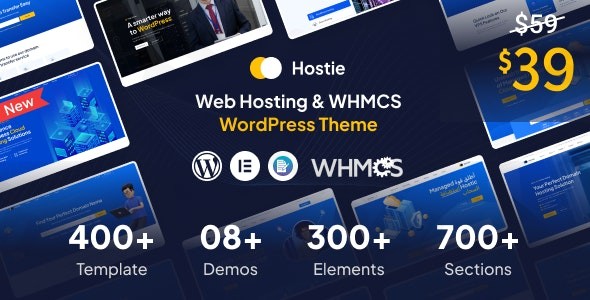
Building a high-performance website for a hosting business requires more than just a pretty layout; it demands deep technical integration and a conversion-focused user experience. Hostie is a premium Web Hosting WordPress theme specifically engineered for domain registrars, cloud service providers, and hosting companies that need a professional, reliable edge in a competitive market. By combining modern aesthetics with a robust backend, Hostie simplifies the complex task of launching a hosting brand.
Why Hostie is the Go-To Choice for Hosting Businesses
Hostie stands out by moving beyond the “one-size-fits-all” approach of multipurpose themes. It is designed with a core focus on the web hosting niche, ensuring that every element—from the domain search bars to the pricing tables—serves a functional purpose.
Professional Design & Layout Options
Hostie provides a massive library of pre-designed assets that cater to various hosting niches:
- Diverse Homepages: Choose from unique demos tailored for Shared Hosting, VPS, Dedicated Servers, WordPress Hosting, and Cloud services.
- Extensive Inner Pages: With 50+ pre-built inner pages, you don’t have to build your “About Us,” “Contact,” or “Terms of Service” pages from scratch.
- Service & Project Styles: Showcase your infrastructure and portfolio using 4+ distinct service styles and 5+ project layouts.
- Modern Framework: Built on Bootstrap v5.2, the theme ensures a rigid yet flexible grid system that looks stunning on any screen size.
Seamless WHMCS Integration
The standout feature of this WHMCS WordPress theme is its deep integration with the WHMCS platform. Hostie includes a specialized WHMCS template that matches the theme’s design, providing a unified experience for your clients from the moment they browse your plans to the moment they log into their billing portal. (Note: A separate WHMCS license is required).
Customization and Performance
- Elementor Page Builder: Experience total creative freedom with drag-and-drop editing. Hostie is fully optimized for Elementor, making it accessible for beginners while remaining powerful for developers.
- Advanced Theme Options: The “Fluxi” option panel allows you to control global settings like logos, headers, footers, and typography (supporting over 1,000+ Google Fonts) without touching a line of code.
* SEO & Speed: Hostie features clean, W3C-validated HTML code and an SEO-optimized structure to help your services rank higher on search engines.
How to Set Up the Hostie WordPress Theme
Setting up Hostie is designed to be a frictionless process, even if you are not a seasoned web developer. Follow these steps to get your hosting site live:
1. Installation and Activation
After purchasing Hostie, download the theme files. In your WordPress dashboard, navigate to Appearance > Themes > Add New > Upload Theme. Once uploaded, click Activate.
2. Required Plugin Setup
Upon activation, Hostie will prompt you to install several required plugins, including Elementor, MetForm, and the Hostie Core plugin. Follow the on-screen prompts to “Bulk Install” and “Activate” these tools.
3. One-Click Demo Import
To get your site looking exactly like the professional preview:
- Navigate to the theme’s Demo Import section in the dashboard.
- Select your preferred layout (e.g., VPS Hosting or Main Demo).
- Click Import.
- Tip: Ensure your server’s memory limit and execution time are set appropriately to prevent timeouts during the import of high-quality assets.
4. Integrating WHMCS
If you are using WHMCS for billing, upload the included WHMCS template to your WHMCS directory. This ensures that your client area retains the same visual branding as your main WordPress site.
Customizing Your Hosting Brand
Once the demo content is imported, personalizing your site is intuitive.
- Global Styles: Use the Theme Options panel to set your brand colors and choose typography that reflects your company’s identity.
- Header & Footer Builder: Choose from multiple pre-built layouts. You can toggle sticky headers or customize the call-to-action buttons for “Client Login” or “Support.”
3. Visual Editing: Open any page with Elementor to swap out images, edit text, and adjust the layout of your hosting plan tables.
FAQ: Common Questions About Hostie
Is Hostie compatible with Elementor?
Yes, Hostie is an Elementor hosting theme at its core. It uses Elementor as its primary page builder, allowing you to edit every section of your site through a visual, drag-and-drop interface.
Does Hostie support WooCommerce?
Absolutely. While many users prefer WHMCS for hosting subscriptions, Hostie fully supports WooCommerce. This allows you to sell digital products, add-on services, or hardware alongside your hosting plans.
How do I set up a WHMCS website with WordPress using Hostie?
To set up a WHMCS site, you first install WordPress and the Hostie theme. Then, you install your WHMCS software (usually in a subdirectory like /clients/). Finally, apply the Hostie WHMCS template within your WHMCS settings to synchronize the design between both platforms.
Does Hostie include a child theme?
Yes, Hostie is child theme compatible and typically includes a basic child theme in the download package. This allows developers to make advanced code customizations that won’t be overwritten during theme updates.
Verdict: Is Hostie Right for You?
The Hostie WordPress theme is a premier choice for businesses that value professionalism and technical synergy. Its primary strength lies in its specialized WHMCS integration, which is often a pain point for hosting providers using generic themes.Who is it for?
- Startups: Use the one-click demo import to launch a professional site in hours.
- Agencies: Leverage the Elementor compatibility to build bespoke sites for hosting clients.
- Established Providers: Use the modern Bootstrap 5.2 framework to refresh an aging website with a responsive, SEO-ready layout.If you are looking for a fast, SEO-optimized, and industry-specific solution to manage your web hosting empire, Hostie provides the perfect balance of aesthetic appeal and functional power.Ready to build your hosting site? Explore the latest features of Hostie on wppick.com.
I. Download Limits & Account Benefits
- Free Downloads: Each email address receives 3 downloads per day for free products
- Upgrade Benefits: Purchase any paid product to increase your daily download limit by 3 for each paid product
- No Account Required: You can download immediately by receiving the download link via email
- Account Recommended: Create an account for easier access to your order history and direct update downloads
II. Understanding GPL vs Official Versions
Important: The products available on WPPick are GPL-licensed versions, which differ from official developer versions. Before purchasing, please read our comprehensive guide: Understanding GPL & Official Differences at WPPick
Key Points:
- GPL versions may not include premium support from original developers
- Updates may be delayed compared to official releases
- Some premium features might have limitations
- Always consider your specific needs and support requirements
III. Support & Assistance
We’re here to help through multiple channels:
- Email Support: Direct email assistance for all inquiries
- Live Chat: Real-time support during business hours
- Comprehensive Documentation: Detailed guides and tutorials
IV. Order Tracking
Access your complete purchase history and download links anytime: Order History
V. Account Access
New to WPPick? Login or Create Account to manage your downloads and orders efficiently.
VI. Refund Protection
We stand behind our products with a clear refund policy. Review our terms: Refund Policy
VII. Privacy & Security
Your data security is our priority. Learn how we protect your information: Privacy Policy
VII. Terms of Service
Understanding our service terms ensures a smooth experience: Terms of Use
Quick Tips for Best Experience
- Verify Compatibility: Check plugin/theme compatibility with your WordPress version
- Backup First: Always backup your site before installing new plugins or themes
- Test Environment: Consider testing on a staging site first
- Stay Updated: Regularly check for updates in your account dashboard
- Read Documentation: Review any included documentation for optimal setup
Need Help?
If you have questions about downloads, licensing, or need technical assistance, don’t hesitate to contact our support team. We’re committed to ensuring you have the best possible experience with WPPick products.
Ready to get started? Your download adventure begins with just one click!
- Pricing Issues
- Bundle Plugins