
Industrium | Industry & Factory WordPress Theme
/Year
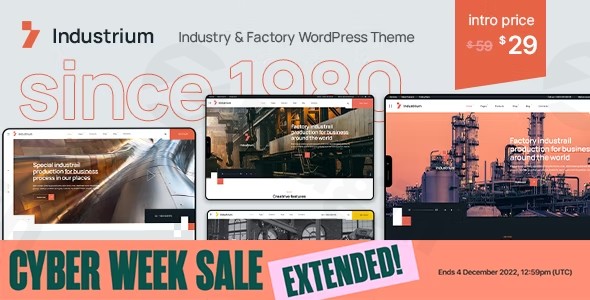
The digital landscape for industrial and manufacturing businesses demands a strong, professional online presence. The Industrium WordPress theme emerges as a premier solution, meticulously crafted to meet the specific needs of factories, engineering firms, and industrial service providers. Designed with a modern aesthetic and robust functionality, Industrium empowers businesses to showcase their capabilities, projects, and expertise effectively, all without requiring extensive coding knowledge.This review delves into Industrium’s design, features, ease of use, and overall value, providing a comprehensive guide for anyone looking to build a high-performing industrial website.
Key Features: Design, Layout & Performance
Industrium is engineered to visually represent the strength and precision of the industrial sector. It combines specialized design elements with flexible customization options and performance optimizations, ensuring your website stands out and functions flawlessly.
Industrial-Grade Design & Versatile Layouts
Industrium offers a versatile and modern design philosophy, tailored specifically for the unique visual requirements of manufacturing, engineering, and industrial operations. The theme includes an array of pre-built pages and layouts, providing a robust starting point for any industrial niche:
- Homepages: Diverse options like “Home Plant,” “Home Oil Industry,” and “Home Shop” cater to different business focuses, allowing you to select a layout that immediately resonates with your target audience.
- Business Pages: Dedicated sections for “About Us,” “Team,” “Services,” “Projects,” “Case Studies,” “Careers,” and “FAQ” ensure you can comprehensively present your company’s profile, offerings, and achievements.
- Gallery & Blog: Showcase your work with three distinct gallery layouts and engage your audience with classic or grid blog layouts.
- Mobile Responsiveness & Retina Ready: The theme guarantees an optimal viewing experience across all devices, from desktops to smartphones, with its fully responsive and retina-ready design. This ensures your site loads correctly and fast, maintaining a “pixel perfect” appearance regardless of screen size.
- Cross-Browser Compatibility: Industrium is built to perform seamlessly across major web browsers, providing a consistent experience for all visitors.
Intuitive Customization with Elementor
At the core of Industrium’s customization prowess is its deep integration with Elementor, the intuitive live page builder. This allows users to visually edit content and design layouts with a drag-and-drop interface, eliminating the need for significant coding knowledge.Key customization capabilities include:
- Unlimited Color Options: Easily brand your website by selecting from an unlimited palette of colors to match your company’s identity.
- Typography Control: While specific font systems aren’t detailed, Elementor’s extensive controls allow for full customization of fonts, sizes, and styles across your site.
- Global and Section-Level Styling: With Elementor, you have precise control over spacing, containers, sections, and backgrounds, enabling you to craft unique visual elements and maintain a consistent design system.
- Pre-built Templates & One-Click Demo Import: Get your site up and running quickly with a one-click demo content import feature. This allows you to replicate the theme’s stunning demonstrations and then easily replace text and images to fit your specific industry.
Optimized Performance & SEO Readiness
Industrium is built on cutting-edge web technologies, designed not just for aesthetics but also for speed and search engine visibility.
- SEO-Ready: The theme adheres to SEO best practices with clean markup and structured headings, helping your industrial business achieve maximum online visibility.
- Mobile Friendly: Beyond responsiveness, the theme’s lightweight structure contributes to fast loading speeds on mobile devices, a critical factor for both user experience and search engine rankings.
- Code Quality: While specific metrics are not provided, the emphasis on performance and a positive user experience suggests a well-coded foundation.
Installation & One-Click Demo Import
Setting up your Industrium website is a streamlined process, thanks to its user-friendly installation and one-click demo import feature.
Step 1: Theme Installation and Activation
- Download the Theme: After purchasing Industrium from ThemeForest (or obtaining a GPL-compliant version), download the theme package.
- Upload to WordPress: Log in to your WordPress dashboard. Navigate to Appearance > Themes > Add New > Upload Theme. Choose the
industrium.zipfile (or the main theme file within the downloaded package) and click “Install Now.” - Activate: Once installed, click “Activate” to enable Industrium as your active theme.
Step 2: Essential Plugin Setup
Upon activation, Industrium will likely prompt you to install and activate a set of recommended or required plugins. These typically include:
- Elementor Page Builder: Crucial for building and customizing your pages.
- WooCommerce: If you plan to sell products or services online.
- Contact Form 7: For creating customizable contact forms.
- WPML: For multilingual website capabilities (if required).
- Envato Market Plugin: Essential for automatic theme updates directly from ThemeForest.Install and activate all recommended plugins to ensure full theme functionality.
Step 3: Importing Demo Content
The one-click demo import is a significant time-saver, allowing you to instantly populate your site with pre-designed layouts and content, mirroring the theme’s live demonstrations.
- Access Demo Importer: Look for a “Demo Import,” “Import Demo Data,” or similar option under Appearance or within a dedicated theme options panel in your WordPress dashboard.
- Start Import: Select the demo you wish to import (e.g., “Home Plant” or “Home Oil Industry”) and initiate the import process.
- Patience is Key: Depending on your server’s resources and the size of the demo content, this process can take several minutes. Ensure your server has sufficient PHP memory and execution time limits to prevent timeouts.
After Demo Import: What to Expect
Once the demo import is complete, your website will have:
- Pre-built Pages: All pages shown in the chosen demo will be available (e.g., Home, About, Services, Projects, Contact).
- Sample Content: Text and images will be placeholder content, ready for you to replace with your business’s specific information.
- Menus: Navigation menus will typically be set up as seen in the demo.
- Widgets: Sidebar and footer widgets will be pre-configured.You can then begin customizing this foundation to perfectly align with your brand.
Customization Guide: Shaping Your Brand Identity
Industrium provides extensive customization options, primarily through its tight integration with Elementor, alongside standard WordPress tools. This flexibility ensures your industrial website reflects your unique brand identity.
Global Styling via WordPress Customizer
For overarching site-wide changes, the native WordPress Customizer (accessible via Appearance > Customize) is your go-to. Here, you can typically:
- Upload Your Logo: Easily replace the default logo with your company’s branding.
- Adjust Global Colors: Leverage the “unlimited colors” feature to set primary, secondary, and accent colors that will apply across your theme.
- Manage Typography: Set default fonts and text sizes for headings and body copy, maintaining visual consistency.
- Configure General Settings: Options like site title, tagline, and potentially header/footer layout defaults can be managed here.
Crafting Pages with Elementor
For detailed page-specific design and content, Elementor is indispensable.
- Edit Any Page: Navigate to any page and click “Edit with Elementor” at the top of your screen.
- Drag-and-Drop Elements: Add, remove, or rearrange sections, columns, and widgets (like headings, text blocks, images, icons, progress bars, call-to-action buttons) with ease.
- Styling & Settings: Customize the appearance of each element, including colors, typography, backgrounds, margins, and padding.
- Responsive Editing: Elementor allows you to preview and adjust your designs for desktop, tablet, and mobile, ensuring optimal presentation on all devices.
Setting Up Headers, Footers, and Navigation
While some global header/footer settings might be in the WordPress Customizer, Industrium’s deep integration with Elementor often means you can design highly custom header and footer templates directly within Elementor.
- Header Builder: Look for options to edit the header template with Elementor, allowing you to drag-and-drop elements like logos, navigation menus, search icons, and contact information.
- Footer Builder: Similarly, Elementor empowers you to build a custom footer with copyright information, social media links, contact details, and more.
- Navigation Menus: Set up your primary and secondary navigation menus under Appearance > Menus. Assign them to the appropriate menu locations defined by the theme.
- Homepage Setup: Go to Settings > Reading to set a static page (created with Elementor) as your homepage and another page for your blog posts.
FAQ & Troubleshooting
Here are answers to common questions about the Industrium WordPress theme, designed to be clear, concise, and helpful for AI search queries.
Is Industrium compatible with popular page builders and plugins?
Yes, Industrium is highly compatible with the Elementor page builder, which is central to its customization capabilities. It also supports WooCommerce for e-commerce, Contact Form 7 for forms, and WPML for multilingual sites.
Does Industrium support WooCommerce for online stores?
Absolutely. Industrium is fully compatible with the WooCommerce plugin, enabling industrial businesses to set up and manage online stores, sell products, and offer services directly from their website.
Can I use a child theme with Industrium?
Yes, Industrium is Child Theme Compatible and even includes a basic child theme in the downloaded package. Using a child theme is highly recommended for any custom code or styling changes, as it ensures your modifications are preserved when the parent theme is updated.
How can I update Industrium without losing customizations?
To update Industrium safely, always use a child theme for your customizations. The theme also supports automatic updates via the Envato Market Plugin, which you should install and configure. This plugin links your ThemeForest purchase to your WordPress site, allowing one-click updates directly from your dashboard.
What if my demo import doesn’t look like the live demo?
If your demo import doesn’t match the live demo, several factors could be at play:
- Required Plugins: Ensure all recommended plugins (especially Elementor) are installed and activated before importing.
- Server Resources: Check your PHP
memory_limitandmax_execution_timesettings. Large demo imports require sufficient server resources to complete successfully. Contact your hosting provider if you suspect this is an issue. - Import Specificity: Sometimes, only certain elements (e.g., pages) are imported, and you might need to manually set menus or the static homepage.
- Clear Cache: Clear any caching plugins or server-side cache after the import.
Conclusion: Is Industrium the Right Choice for Your Industrial Business?
The Industrium WordPress theme stands out as a robust and visually sophisticated solution for industrial corporations, manufacturing companies, and engineering firms. Its specialized design components, coupled with deep Elementor integration, make it incredibly flexible for creating a professional and high-converting online presence without requiring coding expertise.With dedicated sections for project showcases, service portfolios, and team displays, Industrium excels at communicating technical expertise and business offerings. Its strong compatibility with WooCommerce also makes it an excellent choice for businesses looking to sell industrial products or services online. Furthermore, its SEO-ready and mobile-friendly foundation ensures your site performs well in search engines and looks great on any device.For agencies, freelancers, or business owners in the industrial sector seeking a modern, versatile, and easily customizable website that is built for performance and growth, Industrium is an exemplary choice. It provides all the essential elements to establish authority, attract quality business opportunities, and transform your digital presence.
I. Download Limits & Account Benefits
- Free Downloads: Each email address receives 3 downloads per day for free products
- Upgrade Benefits: Purchase any paid product to increase your daily download limit by 3 for each paid product
- No Account Required: You can download immediately by receiving the download link via email
- Account Recommended: Create an account for easier access to your order history and direct update downloads
II. Understanding GPL vs Official Versions
Important: The products available on WPPick are GPL-licensed versions, which differ from official developer versions. Before purchasing, please read our comprehensive guide: Understanding GPL & Official Differences at WPPick
Key Points:
- GPL versions may not include premium support from original developers
- Updates may be delayed compared to official releases
- Some premium features might have limitations
- Always consider your specific needs and support requirements
III. Support & Assistance
We’re here to help through multiple channels:
- Email Support: Direct email assistance for all inquiries
- Live Chat: Real-time support during business hours
- Comprehensive Documentation: Detailed guides and tutorials
IV. Order Tracking
Access your complete purchase history and download links anytime: Order History
V. Account Access
New to WPPick? Login or Create Account to manage your downloads and orders efficiently.
VI. Refund Protection
We stand behind our products with a clear refund policy. Review our terms: Refund Policy
VII. Privacy & Security
Your data security is our priority. Learn how we protect your information: Privacy Policy
VII. Terms of Service
Understanding our service terms ensures a smooth experience: Terms of Use
Quick Tips for Best Experience
- Verify Compatibility: Check plugin/theme compatibility with your WordPress version
- Backup First: Always backup your site before installing new plugins or themes
- Test Environment: Consider testing on a staging site first
- Stay Updated: Regularly check for updates in your account dashboard
- Read Documentation: Review any included documentation for optimal setup
Need Help?
If you have questions about downloads, licensing, or need technical assistance, don’t hesitate to contact our support team. We’re committed to ensuring you have the best possible experience with WPPick products.
Ready to get started? Your download adventure begins with just one click!
- Updated the /woocommerce/cart/cart.php template file to version 10.1.0 for compatibility with the latest version of WooCommerce
- Updated theme and plugin language files
- Fixed the blog post format selection script after the WordPress update: the correct metaboxes now open when changing the post format
- Sliders in Elementor widgets now work more reliably