

Medeus – Medical Multipurpose Doctor WordPress Theme
/Year
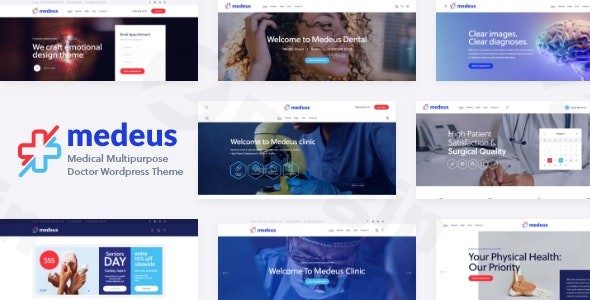
Elevate Your Medical or Wellness Business with Medeus
The Medeus WordPress theme is a modern and sophisticated solution specifically engineered for the diverse needs of healthcare professionals and wellness service providers. Whether you’re running a hospital, a specialized clinic, a pharmacy, or a beauty and wellness center, Medeus provides a clean, professional, and highly functional platform to establish a commanding online presence. Its design philosophy centers on creating trust and ensuring a seamless user experience, making it an ideal Medical WordPress theme for any practitioner seeking to enhance their digital footprint.From dermatologists and cosmetologists to spa owners and nutritionists, Medeus is meticulously crafted to present your services with elegance and clarity, ensuring your website resonates with your target audience.
Key Features: Design, Layout & Performance
Medeus is packed with features designed to offer both aesthetic appeal and robust functionality, ensuring your medical or wellness site is both beautiful and highly effective.
Design & Layout Options
Medeus boasts a 100% responsive and Retina-ready design, ensuring your website looks impeccable and performs flawlessly across all devices, from desktops to smartphones, with crystal-clear imagery. Its comprehensive layout options allow for extensive customization:
- Header & Footer Layouts Builder: Take full control of your site’s top and bottom sections with multiple pre-designed header styles and a flexible builder, allowing you to craft unique and professional layouts.
- Diverse Blog Layouts: Showcase your expertise and engage your audience with various blog layouts, perfect for health articles, news, and patient education.
- Prebuilt Templates & One-Click Demo Import: Get a head start with multiple pre-designed templates tailored for doctors, dentists, surgeons, pharmacies, hospitals, and a range of beauty industry niches. The One-Click Demo Import feature allows you to quickly set up your site with professional, pre-designed content, significantly accelerating your development process.
- Custom Post Types: Medeus includes essential built-in custom post types for “Services,” “Testimonials,” and “Team Members,” making it effortless to showcase your offerings, build credibility, and introduce your staff.
- Dynamic Sliders: Engage visitors with mobile-friendly sliders like Revolution Slider and Swiper Slider, perfect for highlighting key services or promotions.
Customization Capabilities
Personalizing your Medeus site to perfectly match your brand’s identity is intuitive and flexible:
- Flexible Colors & Typography: With “Flexible Colors” and integration with Google Fonts, you have extensive control over your website’s visual branding. Choose from a vast array of fonts and color schemes to create a unique look.
- Advanced Theme Options: Medeus comes with advanced theme options, allowing you to fine-tune virtually every aspect of your site. It features a unique system of inheritance and override options, enabling granular control over individual parameters for different sections and plugins.
- Page Builder Integration: For true drag-and-drop flexibility, Medeus is highly versatile and compatible with popular page builders like Elementor and WPBakery Page Builder, allowing you to design complex layouts without a single line of code.
Performance & SEO Features
Medeus is engineered for optimal performance and visibility, crucial for attracting new patients and clients online:
- Optimized for Fast Loading Speeds: Built with clean HTML5 and CSS3 code, and supporting JavaScript and CSS compression, Medeus prioritizes speed, offering a smooth browsing experience for your visitors.
- SEO-Friendly Structure: The theme features a strong, SEO-optimized structure designed to improve your online visibility and ranking in search engines.
- Mobile Responsiveness & Cross-Browser Compatibility: Beyond just being responsive, Medeus is cross-browser compatible, ensuring consistent performance across Firefox, Safari, Chrome, and even IE11.
Installation & Demo Import
Setting up your Medeus website is a straightforward process, even if you’re new to WordPress.
1. Theme Installation
First, ensure your WordPress environment meets the theme’s requirements:
- WordPress Version: Minimum WordPress 5.0 (tested up to 6.0).
- PHP Version: Minimum PHP 5.6.20. However, for full compatibility with integrated plugins like Booked (requires PHP 7.0+) and WooCommerce (requires PHP 7.2+), we recommend PHP 7.2 or higher.For optimal performance and successful demo import, configure your PHP limits as recommended:
max_execution_time: 600memory_limit: 128Mpost_max_size: 32Mupload_max_filesize: 32MOnce your environment is ready:
- Download Medeus: Obtain the theme files from your purchase source.
- Upload & Activate: In your WordPress dashboard, navigate to
Appearance > Themes, click “Add New,” then “Upload Theme.” Choose the Medeus.zipfile and click “Install Now.” Once uploaded, click “Activate.” - Install Required Plugins: After activation, Medeus will typically prompt you to install a set of recommended and required plugins (e.g., ThemeREX Addons, Elementor/WPBakery, Revolution Slider, Booked, Contact Form 7, WooCommerce). Install and activate all of these to ensure full theme functionality.
2. One-Click Demo Import
The Medeus One-Click Demo Import feature is a game-changer, allowing you to quickly replicate the look and feel of the live demo site.
- Navigate to Demo Importer: After installing and activating all necessary plugins, look for a “Demo Import” or similar option in your WordPress dashboard, often under
Appearanceor a dedicated theme options panel. - Choose Your Demo: Browse the available pre-designed demo layouts (e.g., Doctor, Dentist, Pharmacy, Spa) and select the one that best suits your needs.
- Start Import: Click the “Import” button. Be patient, as this process can take several minutes, especially for larger demos, and relies on your server’s resources. Do not close your browser during this time.
- Post-Import Check: Once the import is complete, your website will largely resemble the chosen demo. This includes pre-built pages, posts, sample images, and basic theme settings. You will then need to:
- Set Up Menus: Go to
Appearance > Menusand assign the imported menus to their respective locations (e.g., Primary Menu, Footer Menu). - Set Homepage: Navigate to
Settings > Readingand choose your newly imported homepage from the “Your homepage displays” dropdown. - Replace Placeholder Content: Crucially, replace all demo content (text, images, contact information) with your own specific details to establish your unique brand and services.Important Note: Using a child theme is highly recommended for any customizations you plan to make. This ensures that your changes are preserved when you update the Medeus theme to a newer version.
- Set Up Menus: Go to
Customization Guide: Branding & Layout
Medeus offers extensive flexibility to personalize your site and align it with your brand’s unique identity.
- WordPress Customizer & Theme Options: Access the live Customizer via
Appearance > Customize. Here, you’ll find global styling options for colors, typography, header and footer layouts, and general site settings. Medeus also includes an “Advanced Theme Options” panel, providing even deeper control over various aspects of your site’s design and functionality. - Colors & Typography: Easily change your site’s primary and secondary color palettes, background colors, and link colors. Utilize Google Fonts to select the perfect typeface for your headings and body text, ensuring consistency and readability across your site.
- Logo & Favicon: Upload your brand’s logo and favicon through the Customizer to immediately establish your professional presence.
- Header & Footer Layouts: Use the integrated Header & Footer Layouts Builder to select from pre-designed styles or create custom layouts. You can configure elements like navigation menus, contact information, social media links, and custom widgets.
- Page Building with Elementor/WPBakery: For intricate page layouts and visual design, leverage the power of Elementor or WPBakery Page Builder. Simply open any page or post with your preferred builder to drag, drop, and customize sections, columns, and elements. This provides a truly intuitive, code-free design experience.
- Gutenberg Readiness: Medeus is 100% Gutenberg Ready, allowing you to use the native WordPress block editor for creating and styling content. You can combine custom Medeus blocks with standard Gutenberg blocks for flexible content creation.
- Setting Up Your Homepage and Blog Page: After importing a demo, confirm your desired homepage and blog page in
Settings > Reading. Then, go toAppearance > Menusto create and assign your main navigation menus. - Widgets & Sidebars: Utilize the available widget areas (e.g., sidebar, footer, custom widget zones) to add extra functionality and content.Medeus’s intuitive interface, combined with its powerful page builder integrations and detailed theme options, makes the customization process highly efficient, allowing you to craft a professional, branded online presence without extensive technical knowledge.
FAQ & Troubleshooting
Is Medeus compatible with Elementor / WPBakery / Gutenberg?
Yes, Medeus is fully compatible with popular page builders like Elementor and WPBakery Page Builder (Visual Composer) for drag-and-drop visual editing. It is also 100% Gutenberg Ready, allowing you to leverage the native WordPress block editor for content creation.
Does Medeus support WooCommerce for online stores?
Absolutely. Medeus is fully compatible with WooCommerce, enabling you to set up a comprehensive online store to sell medical products, health supplements, appointment bookings, or services directly from your website.
Does Medeus support child themes?
Yes, Medeus fully supports child themes. It is highly recommended to use a child theme for any customizations you make to your site. This ensures that your modifications are preserved when you update the main Medeus theme to a newer version, preventing data loss.
How can I update Medeus without losing my customizations?
To update Medeus safely without losing your custom changes, you should always implement your customizations within a child theme. This keeps your modifications separate from the main theme files, allowing you to update the parent theme without overwriting your custom code or styling.
What are the recommended server settings for Medeus?
For optimal performance and to ensure successful demo imports and plugin functionality, Medeus recommends the following PHP configuration limits: max_execution_time: 600, memory_limit: 128M, post_max_size: 32M, and upload_max_filesize: 32M. It also requires a minimum PHP version of 5.6.20, but PHP 7.2+ is recommended for full compatibility with integrated plugins like Booked and WooCommerce.
Conclusion
The Medeus WordPress theme is an outstanding choice for any medical, health, or wellness professional seeking a modern, reliable, and feature-rich online platform. Its elegant design, combined with extensive customization options and robust performance, makes it a top contender in its niche.With its responsive and Retina-ready layouts, built-in custom post types for services and team members, and powerful integration with page builders like Elementor and WPBakery, Medeus provides unparalleled design flexibility. Its focus on speed and SEO-friendly structure ensures your site not only looks great but also performs well in search rankings, helping attract new patients and clients.Medeus is ideal for individual practitioners, clinics, hospitals, pharmacies, wellness centers, and beauty spas. It’s also an excellent option for WordPress developers and agencies building sites for clients in the healthcare sector, offering a solid foundation and significant time-saving features like the one-click demo import and Medeus appointment booking system. For anyone looking to establish a credible, high-converting online presence in the medical and wellness industry, Medeus delivers a comprehensive and highly capable solution.
I. Download Limits & Account Benefits
- Free Downloads: Each email address receives 3 downloads per day for free products
- Upgrade Benefits: Purchase any paid product to increase your daily download limit by 3 for each paid product
- No Account Required: You can download immediately by receiving the download link via email
- Account Recommended: Create an account for easier access to your order history and direct update downloads
II. Understanding GPL vs Official Versions
Important: The products available on WPPick are GPL-licensed versions, which differ from official developer versions. Before purchasing, please read our comprehensive guide: Understanding GPL & Official Differences at WPPick
Key Points:
- GPL versions may not include premium support from original developers
- Updates may be delayed compared to official releases
- Some premium features might have limitations
- Always consider your specific needs and support requirements
III. Support & Assistance
We’re here to help through multiple channels:
- Email Support: Direct email assistance for all inquiries
- Live Chat: Real-time support during business hours
- Comprehensive Documentation: Detailed guides and tutorials
IV. Order Tracking
Access your complete purchase history and download links anytime: Order History
V. Account Access
New to WPPick? Login or Create Account to manage your downloads and orders efficiently.
VI. Refund Protection
We stand behind our products with a clear refund policy. Review our terms: Refund Policy
VII. Privacy & Security
Your data security is our priority. Learn how we protect your information: Privacy Policy
VII. Terms of Service
Understanding our service terms ensures a smooth experience: Terms of Use
Quick Tips for Best Experience
- Verify Compatibility: Check plugin/theme compatibility with your WordPress version
- Backup First: Always backup your site before installing new plugins or themes
- Test Environment: Consider testing on a staging site first
- Stay Updated: Regularly check for updates in your account dashboard
- Read Documentation: Review any included documentation for optimal setup
Need Help?
If you have questions about downloads, licensing, or need technical assistance, don’t hesitate to contact our support team. We’re committed to ensuring you have the best possible experience with WPPick products.
Ready to get started? Your download adventure begins with just one click!
- Plugin Settings – Added links to documentation and descriptions of custom Elementor settings/widgets.
- Stack Sections – Added transition duration control for Zoom, Blur, Opacity effects.
- Elementor Presets Support – Added ability to save/load custom style presets for widgets, sections, columns, and containers. Stored in /plugins/trx_addons/presets/trx_addons-presets.json.
- Skin Notice – Admin notice now includes "Dismiss" (7 days) and "Never Show Again" options.
- Backdrop Blur: New settings for sections, columns, containers, and all Elementor widgets; default semi-transparent background for sticky sections.
- HotSpot Widget: Major redesign for responsive positioning and styling; added tag selection, icon customizations, popup alignment, offsets, and more.
- Accessibility Improvements – Added role="button" to non-link anchors, converted anchor tags to <span> where appropriate, and added control for target="_blank" for external links.
- TrxAddons: Hook for SportsPress to prevent redirecting to the “Welcome” screen after activation during demo import.
- Theme Core Check: Added warning if theme core isn't updated before skin update (to avoid missing functions).
- Fixed potential LFI vulnerability during pagination.
- TrxAddons: Tribe Events export now checks for new TEC tables (tec_events, tec_occurrences) if no events in wp_posts.
- Stack Sections: Fixed offsets, sticky section positioning on iOS, and animation issues with GSAP.
- TrxAddons: Fixed issue where inserting an empty header/footer would insert full page content.
- AJAX Responses: Standardized response parsing and error handling across theme/plugin.
- Mobile Menu: Fixed auto-close when clicking tabs inside the menu.
- PHP 8 Compatibility: Fixed various warnings and errors with string/integer operations and child post queries.
- Header Fixes: Ensured mobile menu button displays correctly in default headers not using shortcodes.
- Customizer: Fixed reset behavior for Logo option.
- Minor bug fixes and optimization.
- Updated: QW Extension addon (to version 1.6.1)
- Updated: Optimized all image files stored in the plugin and theme folders
- Added: TrxAddons: WPML – added translation support for our Elementor Extensions like "Background Text"
- Added: theme_filter_page_title_selector filters in JS and PHP to allow replacement of the page title selector in Elementor skins and clones
- Added: In the woocommerce.js script, added updating of the total number of products on the page after loading the next batch via load_more or infinite
- Added: a forced check for addon and skin updates via the "Check again" link
- Added: support for skin filtering keywords in the Theme Dashboard
- Fixed: SEO attributes now respect the "SEO snippets" option to avoid validation issues
- Fixed: in the WooCommerce page processing script – Cart: after changing the shipping address on touch devices (mobiles, tablets), the product table disappeared
- Fixed: in the markup and styles of sub-tabs in theme and plugin options to align the spacing from the last sub-tab to the next tab’s heading
- Fixed: In theme options, added a selector to display a divider if a hidden option (type=hidden) precedes it. Previously, the divider (border) was missing in this case
- Fixed: Disabled initialization of the mediaelements script for videos inside the Revolution Slider
- Fixed: Moved loading of translation domains and theme plugins to priority -1 on the after_setup_theme action
- Removed: 'medium' from external thumbnail sizes to prevent conflicts with the custom trx-addons-thumb-medium size
- Removed: the Twenty20 Image Before-After plugin is no longer recommended for installation (compatibility is retained), please use the Images Compare widget instead