
Mozda – Micro Magazine & Blog Theme With Dark Mode
/Year
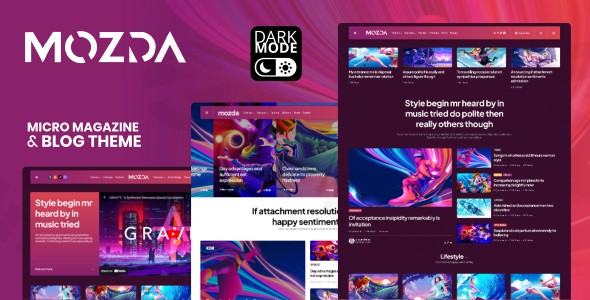
The digital landscape thrives on engaging content, and for content creators, bloggers, and micro magazine publishers, the right WordPress theme is paramount. The Mozda WordPress theme emerges as a sophisticated solution, meticulously crafted for those who prioritize clean design, exceptional readability, and robust features without the complexity of traditional page builders. With its native dark mode, versatile layouts, and a focus on the WordPress Customizer, Mozda empowers you to create stunning online publications that captivate your audience.
Introduction: Visual Appeal & Target Audience
Mozda is a premium micro magazine and personal blog theme designed for content creators, bloggers, and online publishers who value simplicity, elegance, and a highly customizable reading experience. Its design philosophy centers on a clean, modern aesthetic that puts your content front and center, ensuring a delightful experience for your readers across all devices. This theme is ideal for individuals and small publications looking to build a professional-looking blog or online magazine with advanced features like native dark mode and comprehensive layout options, all managed intuitively through the WordPress Customizer and Gutenberg editor.
Key Features: Design, Layout & Performance
Mozda offers a rich suite of features tailored to create a dynamic and visually appealing online magazine or blog.
Design & Layout Options
Mozda provides unparalleled flexibility in content presentation, allowing you to craft a unique look for your publication.
- 15 Versatile Blog Layouts: Choose from a wide array of blog layout combinations, supporting up to 4 columns with optional sidebars. These are built directly into the theme, eliminating the need for extra plugins.
- 3 Distinct Post Styles: Showcase your articles with “default,” “alternative,” or “cover” post styles, providing visual variety.
- Masonry & Grid Layouts: Implement modern masonry or traditional grid layouts in 1, 2, 3, or 4 columns for your blog archives.
- 12 Header Layout Variations: Design a distinctive header for your site with numerous pre-built options, complemented by a sticky header navigation menu for enhanced user experience.
- 12 Single Post Layout Options: Each individual post can be tailored with different layout configurations to suit its content.
- Hero Content Showcase: Highlight your most important articles with customizable hero sections. These can be static displays or dynamic carousels, featuring full-width layouts and extensive color editing options to grab immediate attention.
- Enhanced Reader Engagement: Keep your audience exploring with an intelligent related posts system, configurable by category, author, or tag, with multiple display styles to match your design.
Customization Capabilities
One of Mozda’s strongest selling points is its commitment to the native WordPress Customizer, offering a real-time, visual customization experience.
- Complete Customization Control via Customizer: Every aspect of your theme, from global settings to individual post elements, can be tweaked and previewed live through the WordPress Customizer. This approach means you can personalize your site without touching a line of code or relying on heavy page builders.
- Advanced Dark & Light Mode: Mozda goes beyond a simple dark mode. It includes separate, fully customizable color schemes for both light and dark modes, dynamic mode detection (adapting to user’s system preferences), manual toggling, and the option to set a permanent default mode.
- Flexible Thumbnail Aspect Ratios: Maintain image quality and consistency by selecting from multiple thumbnail aspect ratios, including landscape, wide, portrait, square, hero, and uncropped options. Mozda works seamlessly with your existing media library, avoiding the need for re-uploads or thumbnail regeneration.
- Element Toggle Control: Gain granular control over post elements (globally or per post), theme components, sidebars, and plugin elements, allowing you to switch them on or off with ease.
- Typography & Icons: Integrate Google Fonts for diverse font choices and utilize the Fontello Icons Collection to enhance visual communication.
Performance & SEO Features
Mozda is engineered for modern web standards, ensuring your site is fast, responsive, and search engine friendly.
- PHP8 Compatible: Built with modern PHP standards, Mozda ensures optimal performance and security with the latest server environments.
- Optimized for Gutenberg Editor: The theme fully embraces the native WordPress block editor, Gutenberg, for intuitive and rich content creation without needing external page builder plugins.
- Lightweight & Fast: By focusing on the WordPress Customizer and Gutenberg rather than complex page builders, Mozda remains lightweight, contributing to faster loading times and a smoother user experience.
- 100% Responsive Design & Retina-Ready: Your site will look stunning and perform flawlessly on any device, from desktops to smartphones, with graphics optimized for high-resolution screens.
- SEO Readiness: Mozda is built with clean markup and supports popular SEO plugins like Yoast SEO and NavXT Breadcrumb Support, providing a solid foundation for search engine visibility.
- Advanced Monetization: Strategically placed advertising areas in headers, footers, sidebars, and between posts help maximize your ad revenue.
Installation & Demo Import
Getting started with Mozda is designed to be straightforward, allowing you to quickly launch your micro magazine or blog.
- Download the Theme: After purchasing Mozda, download the theme package from your source (e.g., ThemeForest or ZeroPlugin.com).
- Install & Activate:
- Log in to your WordPress dashboard.
- Navigate to Appearance > Themes.
- Click “Add New” and then “Upload Theme.”
- Choose the
mozda.zipfile (or the theme file within the downloaded package) and click “Install Now.” - Once installed, click “Activate.”
- Install Required Plugins: Upon activation, Mozda will prompt you to install its companion plugin, TFM Theme Boost. This lightweight, single-purpose plugin powers many of Mozda’s premium features, such as homepage post blocks, social media integration, and the hero slider. Ensure you install and activate it.
- One-Click Demo Import:
- After activating the theme and its required plugin, look for the “Demo Import” or similar option, typically found under Appearance > Import Demo Data or within a dedicated theme options panel.
- Click the “One-Click Demo Import” button.
- Mozda includes optional demo content, which is highly recommended to give you a head start. Importing it will populate your site with pre-designed pages, posts, menus, and widgets, replicating the beautiful layouts you see in the theme’s live demo.
- What to Expect: The demo import process may take a few minutes, depending on your hosting environment. Once complete, your website should closely resemble the Mozda demo site. You’ll find pre-configured menus, widgets in their designated areas, and example posts and pages. If you encounter issues (e.g., a timeout), it could be due to low server memory or execution limits; contact your host if problems persist.
Customization Guide: Branding & Layout
Mozda shines in its commitment to customization through the native WordPress Customizer, making branding and layout adjustments intuitive and immediate.
- Accessing the Customizer: From your WordPress dashboard, navigate to Appearance > Customize. This opens the Customizer interface, where you’ll see a live preview of your site on the right and customization options on the left.
- Changing Colors & Dark Mode Settings:
- Within the Customizer, find sections related to “Colors” or “Dark Mode Settings.”
- Here, you can independently set color schemes for both light and dark modes, ensuring your brand identity is consistent across all viewing preferences. Experiment with background colors, text colors, accent colors, and link colors.
- Configure dynamic mode detection, enable a manual toggle for users, or set a permanent default mode.
- Typography & Fonts:
- Look for “Typography” settings to choose from a wide range of Google Fonts for headings, body text, and other elements.
- Adjust font sizes, weights, and line heights to optimize readability and align with your brand’s visual style.
- Logo & Site Identity:
- Under “Site Identity,” upload your custom logo and favicon.
- Set your site title and tagline, which Mozda will display beautifully in your chosen header layout.
- Header & Footer Layouts:
- Explore the “Header” and “Footer” sections in the Customizer. Mozda offers 12 header layout variations, allowing you to choose the perfect arrangement for your branding and navigation.
- Customize footer content, including copyright information and social media links.
- Homepage & Blog Page Setup:
- To set a static homepage, go to Settings > Reading in your WordPress dashboard. However, Mozda excels at dynamically displaying your latest posts. You can configure your blog layouts, featured posts, and hero sections directly within the Customizer using the options provided by the TFM Theme Boost plugin.
- Adjust the number of posts per page, toggle post meta elements (author, date, comments), and control sidebar visibility.
- Menu Management:
- Navigate to Appearance > Menus in the WordPress dashboard to create and manage your primary navigation menus.
- Once created, assign your menus to the designated menu locations within the Customizer.
- Mozda also supports a sticky header, which you can enable for better navigation.The customization experience in Mozda is highly intuitive, providing real-time feedback on your changes. This visual approach empowers both beginners and experienced users to personalize their site effectively without a steep learning curve.
FAQ & Troubleshooting
Here are answers to some common questions about the Mozda WordPress theme:
Is Mozda compatible with Elementor, WPBakery, or Gutenberg?
Mozda is fully compatible and optimized for the Gutenberg block editor for all your content creation needs. It is explicitly designed to work without traditional, heavy page builders like Elementor or WPBakery, leveraging the native WordPress Customizer for layout and design instead. While some resellers might mention page builder compatibility, official developer sources confirm that Mozda requires no page builders and is not supported for advanced page builders. This approach contributes to its lightweight nature and performance.
Does Mozda support WooCommerce for online stores?
While Mozda is primarily designed for content-rich micro magazines and blogs, and official documentation does not highlight deep WooCommerce integration as a core feature, it does integrate with other popular plugins like Contact Form 7 and MailChimp. If you plan to run a full-fledged eCommerce store, it’s recommended to verify specific WooCommerce compatibility with the developer, as the theme’s core focus is on content presentation and reader engagement.
Is a child theme included with Mozda, and should I use it?
Yes, a child theme is included with your Mozda purchase. It is highly recommended to use the child theme for any significant customizations you plan to make. This ensures that your modifications are preserved when you update the main Mozda theme, preventing your custom code from being overwritten.
How can I update the Mozda theme without losing my customizations?
If you’ve made customizations directly to the main theme files, they will be lost during an update. To avoid this, always use the included child theme for any custom CSS, functions, or template modifications. When an update is available, you can safely update the parent Mozda theme through your WordPress dashboard, and your child theme customizations will remain intact.
What should I do if the Mozda demo import fails or looks different from the demo site?
If the demo import fails or doesn’t perfectly match the live demo, here are common troubleshooting steps:
- Check Server Resources: Ensure your hosting environment meets WordPress minimum requirements, especially for PHP memory limit,
max_execution_time, andpost_max_size. Low limits can cause timeouts during large imports. - Required Plugins: Confirm that the TFM Theme Boost plugin (and any other recommended plugins) is installed and activated before running the demo import.
- Fresh WordPress Installation: For best results, perform the demo import on a clean WordPress installation without existing content.
- Re-run Import (if safe): Some demo importers allow re-running. If not, try resetting your WordPress installation (use a plugin for this on development sites) and re-importing.
- Check Documentation: Refer to the official Mozda documentation for specific demo import instructions or potential caveats.
- Contact Support: If problems persist, contact the theme developer’s support for assistance.
Is the Mozda theme SEO friendly?
Yes, the Mozda theme is designed with SEO best practices in mind. It features clean, semantic HTML markup, supports proper heading structure, and is compatible with leading SEO plugins like Yoast SEO. Additionally, its lightweight nature and optimization for Gutenberg contribute to faster loading times, which is a crucial factor for search engine rankings and overall user experience.
Conclusion
The Mozda – Premium Micro Magazine & Blog Theme with Dark Mode stands out as an exceptional choice for content creators, bloggers, and micro magazine publishers seeking a sophisticated, high-performing, and visually stunning WordPress website. Its unique focus on the native WordPress Customizer and full compatibility with the Gutenberg block editor makes it an ideal solution for those who prefer working within the familiar WordPress environment without the overhead of heavy, external page builders.With its extensive design flexibility, including 15 blog layouts, 12 header variations, and a truly advanced native dark mode, Mozda empowers users to create a unique and highly engaging reading experience. Its commitment to performance, mobile responsiveness, and SEO readiness ensures your content reaches a wider audience effectively. For anyone looking to launch a professional, fast, and beautifully designed content-driven site, Mozda offers a compelling blend of elegance, functionality, and ease of use, making it a truly smart investment for your online presence.
I. Download Limits & Account Benefits
- Free Downloads: Each email address receives 3 downloads per day for free products
- Upgrade Benefits: Purchase any paid product to increase your daily download limit by 3 for each paid product
- No Account Required: You can download immediately by receiving the download link via email
- Account Recommended: Create an account for easier access to your order history and direct update downloads
II. Understanding GPL vs Official Versions
Important: The products available on WPPick are GPL-licensed versions, which differ from official developer versions. Before purchasing, please read our comprehensive guide: Understanding GPL & Official Differences at WPPick
Key Points:
- GPL versions may not include premium support from original developers
- Updates may be delayed compared to official releases
- Some premium features might have limitations
- Always consider your specific needs and support requirements
III. Support & Assistance
We’re here to help through multiple channels:
- Email Support: Direct email assistance for all inquiries
- Live Chat: Real-time support during business hours
- Comprehensive Documentation: Detailed guides and tutorials
IV. Order Tracking
Access your complete purchase history and download links anytime: Order History
V. Account Access
New to WPPick? Login or Create Account to manage your downloads and orders efficiently.
VI. Refund Protection
We stand behind our products with a clear refund policy. Review our terms: Refund Policy
VII. Privacy & Security
Your data security is our priority. Learn how we protect your information: Privacy Policy
VII. Terms of Service
Understanding our service terms ensures a smooth experience: Terms of Use
Quick Tips for Best Experience
- Verify Compatibility: Check plugin/theme compatibility with your WordPress version
- Backup First: Always backup your site before installing new plugins or themes
- Test Environment: Consider testing on a staging site first
- Stay Updated: Regularly check for updates in your account dashboard
- Read Documentation: Review any included documentation for optimal setup
Need Help?
If you have questions about downloads, licensing, or need technical assistance, don’t hesitate to contact our support team. We’re committed to ensuring you have the best possible experience with WPPick products.
Ready to get started? Your download adventure begins with just one click!