

Quylo – Multi-purpose WordPress Theme
/Year
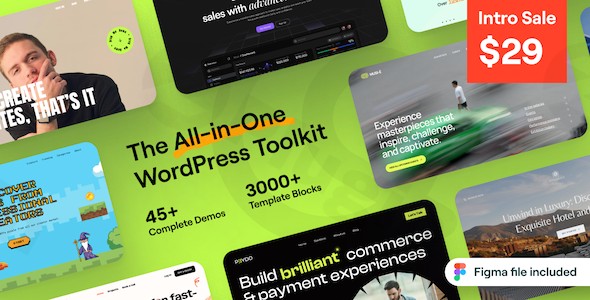
The digital landscape demands websites that are not only visually stunning but also lightning-fast and incredibly easy to manage. The Quylo WordPress theme rises to this challenge as a robust, multi-purpose solution built for anyone from burgeoning bloggers and small business owners to seasoned freelancers and digital agencies. Leveraging the powerful UiCore Framework, Quylo provides an intuitive, no-code environment to craft professional, high-performing websites.This comprehensive review will explore Quylo’s design capabilities, technical specifications, ease of use, and overall value, helping you determine if it’s the right foundation for your next online project.
Key Features: Design, Layout & Performance
Quylo stands out with an impressive array of features designed to offer unparalleled design flexibility, intuitive customization, and top-tier performance.
Design & Layout Options
Quylo gives you complete control over your site’s aesthetic and structure. It supports both boxed and full-width layouts, allowing you to choose the presentation that best suits your content.
- Prebuilt Demos & Templates: Jumpstart your project with a vast library of over 45 premium demos (or 46 ready-made templates) and more than 300 blocks and widgets. These pre-built sections and inner pages cover a wide range of niches, from business and agency sites to online stores, portfolios, and blogs, all importable with a single click.
- Flexible Layouts: Customize headers and footers with a dedicated Theme Builder, allowing you to design these critical elements from scratch or use pre-designed templates. You also get granular control over archive pages, single posts, and page titles.
- Blog & Portfolio Styles: Showcase your content beautifully with 4 distinct blog layouts, complete with customizable grids, image ratios, and typography. For creatives, Quylo offers 4 sophisticated portfolio layouts to highlight your work.
- Unique Visual Elements: Elevate your design with stunning interactions like text animations, mesmerizing hover effects, and parallax backgrounds. The theme also includes 26 unique shape dividers to create eye-catching background sections, adding depth and modern flair to your pages.
Customization Capabilities
Personalizing your website to match your brand vision is effortless with Quylo’s “Next-Gen Theme Options” panel.
- Global Color System: Achieve consistent branding with the Global Color System, which lets you manage all color elements across your entire website using just 7 base colors. This system is fully integrated with the Elementor Design System, ensuring seamless workflow.
- Unified Typography Control: Define your brand’s voice with Global Fonts. Easily change fonts sitewide by choosing from over 990 Google Fonts, Adobe Fonts, or even custom fonts. Control every aspect of typography, including font family, style, size, spacing, and more.
- Responsive Design Tools: Design for every device with dedicated responsive design tools. Set different values for desktop, tablet, and mobile views for virtually any element, guaranteeing a pixel-perfect look on all screen sizes.
- Advanced Background Options: Choose from solid colors, gradients, or images for your backgrounds, giving you maximum creative freedom.
- Preset Management: Save your theme configurations as presets and load them later, or import demo presets to quickly apply professional designs.
- Dark Mode: Offer a superior viewing experience in low-light conditions with the built-in Dark Mode functionality, a highly sought-after feature for modern websites.
- Instant Settings Search: Quickly locate any feature or setting within the theme options panel using the smart search functionality, saving you valuable time.
Performance & SEO Features
The Quylo Elementor theme isn’t just about looks; it’s engineered for speed and search engine visibility.
- Blazing-Fast Performance: Quylo is consistently highlighted for its exceptional speed, often achieving “A” scores on PageSpeed and GTmetrix tests right out of the box. This optimization is crucial for user experience and SEO rankings.
- Clean & Optimized Code: Developed by UiCore, the theme boasts clean and optimized code, minimizing bloat and ensuring efficient loading times.
- Performance Manager: A built-in Performance Manager helps you analyze and manage website features without the need for additional plugins, giving you granular control over what loads on your site.
- Mobile Responsiveness & Cross-Browser Compatibility: The theme is fully responsive and mobile-optimized, ensuring your site looks sharp and functions flawlessly across all devices and screen sizes. It’s also retina-ready and rigorously tested for cross-browser compatibility.
- SEO-Friendly Structure: Quylo is designed with SEO best practices in mind, featuring clean HTML markup and a logical heading structure that helps search engines understand your content better.
Installation & Demo Import
Getting started with Quylo is straightforward, even for beginners.
- Install & Activate the Theme:
- From your WordPress dashboard, navigate to
Appearance > Themes > Add New > Upload Theme. - Upload the Quylo theme file (
.zip) you received from ZeroPlugin.com or UiCore. - Click
Install Nowand thenActivate.
- From your WordPress dashboard, navigate to
- Install Required Companion Plugins:
- Upon activation, Quylo will prompt you to install and activate necessary plugins. Key among these is the Elementor page builder and potentially MetForm PRO (which is bundled with Quylo). Follow the on-screen instructions to install and activate all recommended plugins.
- Quylo also includes a System Status Check feature under its theme options, allowing you to verify that your server environment meets all minimum requirements (e.g., PHP version, memory limits) for optimal theme performance and demo import.
- Use the One-Click Demo Import:
- Navigate to the Quylo theme options or a dedicated “Demo Import” section within your WordPress dashboard.
- Browse through the 45+ premium demos and select the one that best fits your vision.
- Click the “One-Click Demo Import” button.
- What to Expect: The demo import process will pull in all the pages, posts, images, menus, widgets, and theme settings from the chosen demo. This can take several minutes, depending on your server’s speed and the size of the demo content. It’s important to have sufficient server memory and execution time configured to prevent timeouts.
- Quylo includes Error Logging to help you track any issues that might occur during the demo import process, making troubleshooting easier.
- After Demo Import: Once complete, your site will look almost identical to the demo. You’ll then need to:
- Set your desired homepage (usually
Settings > Reading). - Assign your menus (usually
Appearance > Menus > Manage Locations). - Start replacing the placeholder content with your own.
- Set your desired homepage (usually
Customization Guide: Branding & Layout
Quylo’s “Next-Gen Theme Options” panel, part of the powerful UiCore Framework, acts as your central hub for complete branding and layout control.
- Accessing Theme Options: You’ll find a dedicated “Quylo” or “Theme Options” menu item in your WordPress dashboard. This is where you’ll make most of your global design changes.
- Global Styles for Consistent Branding:
- Colors: Use the Global Color System to define your primary, secondary, accent, and other key colors. Any element linked to these global colors will update site-wide, ensuring brand consistency.
- Typography: Set your brand’s fonts for headings, body text, and other elements using the Unified Typography Control. Choose from Google Fonts, Adobe Fonts, or upload custom fonts, and define sizes, weights, and line heights for different devices.
- Logo & Identity: Easily upload your logo and favicon via the theme options or the WordPress Customizer (
Appearance > Customize > Site Identity). - Header & Footer Customization: Utilize the Theme Builder (often integrated with Elementor) to design custom headers and footers. This gives you unparalleled flexibility, allowing you to drag-and-drop elements, add custom menus, social icons, search bars, and more, specific to different pages or your entire site. This is how you can effectively address “how to customize header in Quylo theme”.
- Setting Up Your Homepage and Blog Page:
- After demo import, navigate to
Settings > Readingto select which page will be your static homepage and which will display your latest posts. - Customize blog layouts through the theme options, choosing from the 4 available styles and configuring elements like sidebars, reading progress bars, and meta-information display.
- After demo import, navigate to
- Menu Management: Create and assign navigation menus via
Appearance > Menus. Quylo often supports mega menus, which you can configure through the theme builder or dedicated menu settings for richer navigation. - Elementor Integration: Since Quylo deeply integrates with Elementor, much of your page-specific customization will happen directly within the Elementor editor. Here, you can visually design layouts, add elements, and apply styles with live previews. The UiCore Template Library provides 500+ pre-designed sections and pages to use within Elementor.
FAQ & Troubleshooting
Here are answers to common questions about the Quylo theme:
Is Quylo compatible with Elementor and WooCommerce?
Yes, Quylo is deeply integrated with Elementor and is fully WooCommerce Ready. It leverages Elementor as its primary page builder, offering live editing and many features similar to Elementor PRO, such as a Theme Builder for headers and footers, visual form builder (with MetForm PRO included), motion effects, parallax, and custom fonts. For online stores, Quylo provides customizable product pages, flexible shop grids, off-canvas filters, and streamlined checkout options.
Is Quylo a fast WordPress theme?
Yes, Quylo is engineered for blazing-fast performance. It consistently achieves high scores on speed tests like PageSpeed Insights and GTmetrix, often receiving an “A” grade without extensive manual optimization. This is due to its clean code, lightweight UiCore Framework, and a built-in Performance Manager that helps optimize website features.
Does Quylo support child themes?
Yes, Quylo is “Child Theme Ready.” Using a child theme is highly recommended for any custom code or modifications you wish to make. This ensures that your customizations are not overwritten when you update the main Quylo theme, preserving your work and allowing for seamless updates.
How do I update the Quylo theme?
If you obtained Quylo from ZeroPlugin.com with a genuine GPL license, you can expect regular updates and security patches. Typically, theme updates appear in your WordPress dashboard under Appearance > Themes or Dashboard > Updates. Before updating, always back up your site and ensure you are using a child theme for any customizations to avoid losing them. Official purchases from UiCore/ThemeForest also include free future updates.
What should I do if the demo import fails or looks different from the demo site?
If a demo import fails or doesn’t look as expected, first check Quylo’s System Status Check within the theme options to ensure your server meets all requirements (e.g., sufficient PHP memory limit, execution time). Also, review the Error Logging feature in the theme options for specific messages that can pinpoint the problem. Common issues include insufficient server resources or conflicts with other plugins. You may need to increase your PHP memory limit or temporarily deactivate other plugins during import.
Conclusion
The Quylo – Multi-Purpose WordPress Theme stands out as an exceptional choice for anyone looking to build a modern, high-performance, and visually appealing website with WordPress. Its core strength lies in the seamless integration with Elementor, empowered by the intuitive UiCore Framework, which makes advanced design and customization accessible to users of all skill levels.From its comprehensive Global Color System and Unified Typography Control to its blazing-fast performance and SEO-friendly structure, Quylo offers a complete ecosystem for web development. Its extensive library of pre-built demos and blocks, coupled with powerful responsive design tools and a dedicated Theme Builder for headers and footers, means you can launch a stunning site quickly and efficiently.Whether you’re a beginner seeking an easy-to-use platform, a freelancer or agency managing client projects, or a store owner needing robust WooCommerce integration, Quylo delivers. It eliminates the need for complex coding while providing the flexibility and performance typically found in premium solutions. With its commitment to speed, design flexibility, and user-friendly customization, Quylo is a confident recommendation for crafting a professional online presence.
I. Download Limits & Account Benefits
- Free Downloads: Each email address receives 3 downloads per day for free products
- Upgrade Benefits: Purchase any paid product to increase your daily download limit by 3 for each paid product
- No Account Required: You can download immediately by receiving the download link via email
- Account Recommended: Create an account for easier access to your order history and direct update downloads
II. Understanding GPL vs Official Versions
Important: The products available on WPPick are GPL-licensed versions, which differ from official developer versions. Before purchasing, please read our comprehensive guide: Understanding GPL & Official Differences at WPPick
Key Points:
- GPL versions may not include premium support from original developers
- Updates may be delayed compared to official releases
- Some premium features might have limitations
- Always consider your specific needs and support requirements
III. Support & Assistance
We’re here to help through multiple channels:
- Email Support: Direct email assistance for all inquiries
- Live Chat: Real-time support during business hours
- Comprehensive Documentation: Detailed guides and tutorials
IV. Order Tracking
Access your complete purchase history and download links anytime: Order History
V. Account Access
New to WPPick? Login or Create Account to manage your downloads and orders efficiently.
VI. Refund Protection
We stand behind our products with a clear refund policy. Review our terms: Refund Policy
VII. Privacy & Security
Your data security is our priority. Learn how we protect your information: Privacy Policy
VII. Terms of Service
Understanding our service terms ensures a smooth experience: Terms of Use
Quick Tips for Best Experience
- Verify Compatibility: Check plugin/theme compatibility with your WordPress version
- Backup First: Always backup your site before installing new plugins or themes
- Test Environment: Consider testing on a staging site first
- Stay Updated: Regularly check for updates in your account dashboard
- Read Documentation: Review any included documentation for optimal setup
Need Help?
If you have questions about downloads, licensing, or need technical assistance, don’t hesitate to contact our support team. We’re committed to ensuring you have the best possible experience with WPPick products.
Ready to get started? Your download adventure begins with just one click!
- Added new Google Fonts: Afacad, Geist, Funnel Sans, Cal Sans, and Liter
- Added mobile header padding option
- Added Design Cloud (available only with UiCore Pro)
- Custom Fonts now support WOFF2 format
- Fixed issue with search icon not appearing in the Creative Center header layout
- Fixed bug causing smooth scroll to disable scrolling inside popup content
- Fixed behavior where mobile submenu links were unresponsive
- Fixed issue with System hide functionality not working in Admin Customizer
- Fixed line height inconsistency in newly added icon packs
- Fixed fatal error on Elements Manager screen