
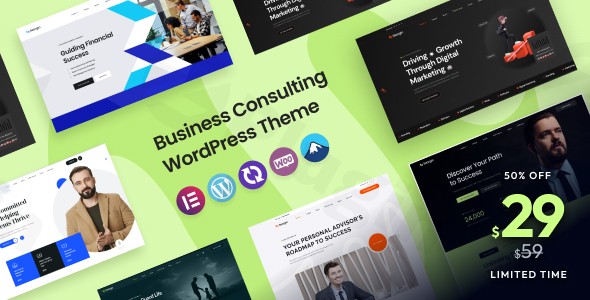
Seargin – Business Consulting WordPress Theme
/Year
Introduction: Modern Design for Elite Consulting Firms
Are you a business consultant, financial advisor, legal professional, or marketing agency looking to establish a commanding online presence? The Seargin WordPress theme is meticulously crafted to transform your digital footprint into a polished, professional, and conversion-optimized platform. This cutting-edge theme from ZeroPlugin.com is designed with the unique needs of the business consulting WordPress theme niche in mind, offering sleek aesthetics and robust functionality to attract and engage high-value clients. Seargin’s design philosophy centers on creating trust and showcasing expertise, providing a modern and intuitive experience for both you and your visitors.
Key Features: Design, Layout & Performance
Seargin stands out with a blend of elegant design, flexible layouts, and strong performance foundations, making it an ideal consulting agency WordPress theme.
Professional Design Elements & Layout Options
Seargin provides a sophisticated visual experience with its professional design elements. It features sleek, modern layouts with intuitive navigation, essential for building trust with potential clients. You can choose from industry-specific demos tailored for various consulting specialties, including legal services, financial advisory, and HR consulting. These pre-built website templates are thoughtfully designed to showcase your expertise effectively.The theme is built on the Bootstrap 5.x Framework, ensuring a responsive, mobile-first design that looks excellent on all devices. While explicit details on full-width or boxed layouts are gleaned through the demos, Seargin offers multiple header and footer options, allowing for diverse presentation of these key website areas. Visual engagement is further enhanced with smooth parallax scrolling, video backgrounds, and subtle CSS3 animations.
Customization Capabilities for Branding
Seargin empowers you with extensive customization options to align your site perfectly with your brand identity. It supports unlimited color schemes, providing complete flexibility for your visual branding. The theme integrates seamlessly with Google Fonts, allowing you to select from a vast library to fine-tune your typography.Beyond global styles, an advanced theme options panel and support for the WordPress Customizer offer effortless adjustments. Crucially, Seargin features seamless integration with the Elementor Page Builder, a popular drag-and-drop tool, giving you comprehensive control over spacing, containers, sections, and backgrounds, including support for image backgrounds. This makes Seargin an excellent Seargin Elementor theme for business professionals.
Performance & SEO Features
In today’s competitive digital landscape, performance and search engine visibility are paramount. Seargin is designed to be SEO Optimized for better search engine rankings, ensuring your consulting services are easily discoverable. It promises a “rocket fast” experience with quick and easy installation, though specific performance benchmarks are not explicitly detailed.The theme is 100% responsive and retina-ready, guaranteeing a flawless appearance across all screen sizes and devices. It also offers cross-browser compatibility, reaching a wider audience without compromising design or functionality. These features combine to make it an excellent choice if you’re looking for an SEO optimized WordPress theme for consultants or a fast loading WordPress theme for consulting.
Installation & Demo Import Guide
Setting up your Seargin-powered consulting website is designed to be straightforward, even for those without extensive technical knowledge.
Step 1: Install & Activate the Theme
- Log in to your WordPress dashboard.
- Navigate to Appearance > Themes.
- Click “Add New” and then “Upload Theme”.
- Choose the
seargin.zipfile (which you would have downloaded from ZeroPlugin.com or ThemeForest) and click “Install Now”. - Once installed, click “Activate”.
Step 2: Install Required Companion Plugins
Upon activation, Seargin will typically prompt you to install a set of recommended plugins essential for its full functionality. These commonly include:
- Elementor Page Builder: For drag-and-drop visual editing.
- Contact Form 7: For creating custom contact forms.
- Slider Revolution: For creating dynamic sliders (often included in demos).
- WooCommerce: If you plan to sell products or services directly.
- WPML: For multilingual website capabilities.
- Mailchimp for WordPress: For newsletter integration.Follow the on-screen instructions to install and activate all recommended plugins.
Step 3: Use the One-Click Demo Import
Seargin simplifies the initial setup with its one-click demo import feature, allowing you to quickly replicate one of the professionally designed layouts. This is how you can effectively execute the Seargin theme demo import.
- After installing the necessary plugins, navigate to the theme’s specific demo import section (often found under Appearance > Import Demo Data or a dedicated theme options panel).
- Browse the available industry-specific demos (e.g., finance consulting, digital marketing, legal services).
- Select the demo that best fits your business and click the “Import” button.
Step 4: What to Expect During/After Demo Import
The demo import process might take a few minutes, depending on your server’s speed and the size of the demo content. During this time, refrain from refreshing the page.Once complete, your site will have imported:
- Pre-designed pages (Home, About, Services, Contact, Case Studies, Team Profiles).
- Sample posts, menus, and widgets.
- Theme settings and customizer options as seen in the demo.You can then begin replacing the placeholder content with your own, leveraging the imported structure. Note that for very large demo imports, sometimes server memory limits or execution timeouts can cause issues; ensure your hosting environment meets standard WordPress requirements (e.g., higher PHP memory limits).
Customization Guide: Branding & Layout
Personalizing your Seargin theme to reflect your brand’s unique identity is a seamless process, primarily managed through the WordPress Customizer and the powerful Elementor Page Builder. This allows you to customize virtually every aspect of your site without coding.
Using the WordPress Customizer & Advanced Theme Options
The WordPress Customizer (found under Appearance > Customize) allows for global style adjustments. Here, you can easily:
- Change Colors: Select your brand colors for primary, secondary, accent colors, and background hues across your site.
- Adjust Typography: Choose from a wide range of Google Fonts for headings, body text, and other elements.
- Upload Your Logo: Replace the default logo with your brand’s emblem for instant recognition.
- Configure Global Styles: Apply consistent padding, margins, and other design parameters site-wide.Additionally, Seargin often includes an advanced theme options panel (accessible via your WordPress dashboard, usually under a “Seargin” or “Theme Options” menu item), providing more granular control over various aspects of the theme.
Leveraging Elementor for Layout and Content
For detailed page layouts and content customization, Elementor is your primary tool. Every page imported with a demo can be edited visually:
- Navigate to the page you want to edit and click “Edit with Elementor” at the top of the screen.
- Use Elementor’s drag-and-drop interface to:
- Modify Sections and Columns: Rearrange content blocks, adjust their width, and set responsive behaviors.
- Edit Text and Images: Simply click on any text block or image to change its content, styling, or link.
- Add New Elements: Drag and drop widgets like headings, text editors, images, buttons, testimonials, service showcases, and contact forms.
- Customize Header and Footer: Elementor’s full header and footer builder capabilities mean you can design these critical areas to perfectly match your brand. To address queries like “How to customize Seargin header?“, you’ll typically find header templates editable with Elementor.
Setting Up Homepage, Blog Page, and Menus
- Homepage: Go to Settings > Reading and set your imported demo homepage as your “Static page” for the homepage.
- Blog Page: Create a new page, name it “Blog,” and then in Settings > Reading, set it as your “Posts page.”
- Menus: Navigate to Appearance > Menus to create and assign your main navigation, footer menus, or any mega menus supported by the theme.Seargin is also child theme compatible, which is a crucial feature for power users. This allows you to safely make custom CSS/JS adjustments or override template files without fear of losing your changes when the theme updates.
FAQ & Troubleshooting
Here are some common questions about the Seargin WordPress theme and concise answers to help you get started.
Is Seargin compatible with Elementor / Gutenberg?
Yes, Seargin features seamless integration with the Elementor Page Builder for drag-and-drop functionality. It is also compatible with Gutenberg, the native WordPress Block Editor, allowing you to use both for content creation.
Does Seargin support WooCommerce for online stores?
Absolutely. Seargin is fully compatible with WooCommerce, enabling you to set up and manage an online store to sell your consulting services, digital products, or any other items directly from your website.
How can I customize the Seargin header?
Seargin offers multiple header options that can be customized. With its deep integration with Elementor, you can typically use Elementor’s powerful builder to design and modify your header areas, including elements like logos, navigation menus, and call-to-action buttons, by editing the dedicated header template.
Is Seargin WordPress theme mobile friendly and SEO optimized?
Yes, Seargin is 100% responsive and retina-ready, ensuring your website looks excellent on all devices, from desktops to smartphones. It is also explicitly stated as SEO Optimized, built with clean code and a structure that helps improve your search engine rankings.
What should I do if the demo import fails or looks different from the demo site?
If the demo import fails, check your server’s PHP memory limit and execution time settings (consult your hosting provider or increase them in wp-config.php). If it looks different, ensure all recommended plugins were installed and activated before running the demo import. Sometimes, permalinks need to be re-saved (Settings > Permalinks) after import.
Conclusion
The Seargin – Premium Business Consulting WordPress Theme is a powerful and visually appealing solution for professionals in consulting, finance, legal, and marketing sectors. Its core strength lies in its industry-specific demos and deep integration with Elementor, offering unparalleled design flexibility without requiring coding knowledge.With its sleek, modern design, extensive customization options (unlimited colors, Google Fonts), and robust performance features (SEO optimized, responsive design), Seargin empowers users to create a high-converting online presence. It’s an ideal choice for consultants, accountants, business advisors, HR professionals, and marketing agencies seeking a ready-made, professional, and easily customizable website solution. If you need a polished, fast, and Elementor WordPress theme for business that effectively showcases your expertise and attracts quality leads, Seargin is a highly recommended choice.
I. Download Limits & Account Benefits
- Free Downloads: Each email address receives 3 downloads per day for free products
- Upgrade Benefits: Purchase any paid product to increase your daily download limit by 3 for each paid product
- No Account Required: You can download immediately by receiving the download link via email
- Account Recommended: Create an account for easier access to your order history and direct update downloads
II. Understanding GPL vs Official Versions
Important: The products available on WPPick are GPL-licensed versions, which differ from official developer versions. Before purchasing, please read our comprehensive guide: Understanding GPL & Official Differences at WPPick
Key Points:
- GPL versions may not include premium support from original developers
- Updates may be delayed compared to official releases
- Some premium features might have limitations
- Always consider your specific needs and support requirements
III. Support & Assistance
We’re here to help through multiple channels:
- Email Support: Direct email assistance for all inquiries
- Live Chat: Real-time support during business hours
- Comprehensive Documentation: Detailed guides and tutorials
IV. Order Tracking
Access your complete purchase history and download links anytime: Order History
V. Account Access
New to WPPick? Login or Create Account to manage your downloads and orders efficiently.
VI. Refund Protection
We stand behind our products with a clear refund policy. Review our terms: Refund Policy
VII. Privacy & Security
Your data security is our priority. Learn how we protect your information: Privacy Policy
VII. Terms of Service
Understanding our service terms ensures a smooth experience: Terms of Use
Quick Tips for Best Experience
- Verify Compatibility: Check plugin/theme compatibility with your WordPress version
- Backup First: Always backup your site before installing new plugins or themes
- Test Environment: Consider testing on a staging site first
- Stay Updated: Regularly check for updates in your account dashboard
- Read Documentation: Review any included documentation for optimal setup
Need Help?
If you have questions about downloads, licensing, or need technical assistance, don’t hesitate to contact our support team. We’re committed to ensuring you have the best possible experience with WPPick products.
Ready to get started? Your download adventure begins with just one click!