

Studeon | An Education Center & Training Courses WordPress Theme
/Year
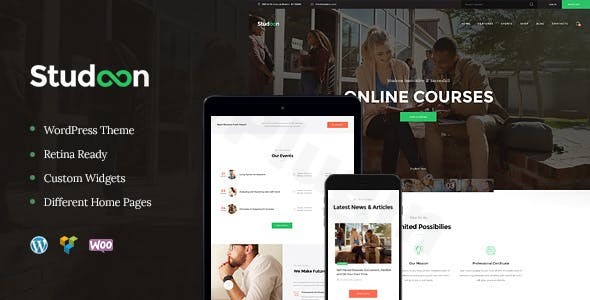
The digital landscape for education is thriving, and creating a professional, engaging online presence is paramount for any learning institution. The Studeon Education WordPress theme emerges as a robust and elegant solution, meticulously crafted for educational establishments and training centers. Designed with a fresh, responsive, clean, modern, and stylish aesthetic, Studeon is engineered to meet the unique demands of colleges, institutes, universities, academies, schools, and specialized training firms offering both physical and online courses.This comprehensive review delves into Studeon’s design prowess, functional capabilities, and ease of use, providing a setup guide to help you launch your educational platform efficiently. Whether you’re a language center, a webinar company, a professional certification provider, or offer tutoring services, Studeon provides a visually appealing and feature-rich foundation.
Key Features: Design, Layout & Performance
Studeon stands out with its thoughtful integration of design flexibility, intuitive layout options, and performance-focused architecture. It’s built to create a compelling user experience for students and administrators alike, emphasizing clear information hierarchy and engaging content presentation.
Design & Layout Options
Studeon offers a versatile design toolkit, ensuring your website can accurately reflect your institution’s brand and educational offerings.
- Diverse Layout Variations: The theme supports both Boxed and Fullwidth page layouts, providing foundational flexibility for your site’s overall presentation. For displaying dynamic content, it includes Multiple Blog Styles and Flexible Layout Options, allowing you to present articles, news, and updates in an engaging manner.
- Header and Footer Customization: Studeon empowers you to design unique header and footer sections. Crucially, it provides WPBakery Page Builder support to customize Header and Footer Layouts, offering unparalleled control over these critical navigation and branding areas without needing to delve into code.
- Prebuilt Demos for Rapid Launch: To accelerate your website development, Studeon features a convenient One-Click demo install. This allows you to import professionally designed starter sites tailored for various educational niches, getting your site up and running with placeholder content that you can easily adapt.
- Visual Enhancements: With Retina Images Support and bundled premium sliders like Slider Revolution & Swiper Slider, Studeon ensures your visuals are crisp and interactive across all devices. The inclusion of 20+ Post Animations and customizable blog feeds adds a layer of dynamism to your content.
Customization Capabilities
Beyond pre-designed layouts, Studeon provides extensive options to personalize every aspect of your site to match your brand identity.
- Granular Control with Customizer Options: The theme boasts a Powerful Theme Framework with an impressive 750+ Customizer Options and a Custom Theme Options Panel. This extensive range allows for deep customization of colors, typography, and various design elements through an intuitive interface. It also includes a “Setting Inheritance and Override System” for advanced configuration.
- Flexible Colors & Typography: With Flexible Colors & Typography controls and integration with Google Fonts, you have a vast palette and typeface library at your disposal to align your website’s visual style with your institutional branding.
- Custom Post Types & Widgets: Studeon integrates Custom Post Types for courses, lessons, and classes, streamlining content management for educational offerings. Additionally, Custom Widget Sets and Custom Shortcodes provide further avenues for adding specialized content and functionality throughout your site.
Performance & SEO Features
A high-performing and SEO-friendly website is crucial for attracting prospective students. Studeon is built with these considerations at its core.
- Responsive & Mobile-Friendly: Recognizing the importance of mobile access, Studeon is 100% Responsive & Mobile-friendly, ensuring your content looks great and functions perfectly on smartphones, tablets, and desktops.
- Cross-Browser Compatibility: The theme is built with modern HTML5 and CSS3 code and is Cross-Browser Compatibility tested across FireFox, Safari, Chrome, and IE11+, guaranteeing a consistent experience for all visitors.
- Optimized for Performance & SEO: Studeon is described as Optimized for best performance and built with clean code, contributing to faster loading times. Its SEO-friendly structure, including structured headings and clean markup, helps search engines effectively index your content, improving your chances of higher rankings. Interactive Ajax Search further enhances user experience by providing quick search results without page reloads.
Installation & Demo Import Guide
Setting up your educational website with Studeon is designed to be a straightforward process, even for users without extensive technical knowledge.
1. Install & Activate the Theme
After purchasing Studeon, you’ll typically receive a ZIP file containing the theme.
- Upload: From your WordPress dashboard, navigate to
Appearance > Themes > Add New > Upload Theme. Select thestudeon.zipfile (or similarly named primary theme file) and clickInstall Now. - Activate: Once installed, click
Activate.
2. Install Required Companion Plugins
Upon activation, Studeon will likely prompt you to install a set of recommended plugins essential for its full functionality. These typically include:
- ThemeREX Addons: Often a core plugin for theme-specific features and options.
- WPBakery Page Builder: The primary page builder for creating and customizing layouts.
- Revolution Slider / Swiper Slider: For creating engaging content sliders.
- Essential Grid: For advanced portfolio and gallery layouts.
- WooCommerce: If you plan to sell courses or products online.
- MailChimp for WP, Booked Appointments, Events Calendar: For extended functionality.Follow the on-screen instructions to install and activate all recommended plugins.
3. Use the Theme’s One-Click Demo Import
This is where Studeon truly shines for rapid deployment.
- Navigate to Demo Importer: Look for a menu item like
Appearance > Import Demo Dataor within theTheme Optionspanel, typically labeledDemo Data Importer. - Select a Demo: Studeon provides various pre-built demos for different educational niches (e.g., training center, school). Browse through the available options and select the one that best fits your vision.
- Initiate Import: Click the
ImportorOne-Click Demo Installbutton.
4. What to Expect During/After Demo Import
- Progress Indicator: The import process can take several minutes, depending on your server speed and the size of the demo content. Do not close your browser or navigate away during this time.
- Content, Menus & Widgets: Upon successful import, your website will largely resemble the chosen demo. This includes pages, posts, images (often placeholder images or low-res versions for copyright reasons), menus, and widget areas pre-populated.
- Common Pitfalls: For large demo imports, server memory limits or execution timeouts can sometimes cause issues. If the import fails, increase your PHP
memory_limitandmax_execution_timevalues in your server’sphp.inifile or contact your hosting provider for assistance. After importing, you may need to manually set your main navigation menu underAppearance > Menusand your homepage underSettings > Reading > Your homepage displays.
Customization Guide: Branding & Layout
Personalizing Studeon to match your brand and specific content needs is intuitive, thanks to its powerful theme options and WPBakery Page Builder integration.
Using the WordPress Customizer and Theme Options Panel
Studeon leverages both the native WordPress Customizer and its own comprehensive Custom Theme Options Panel (often found under Studeon > Theme Options in your dashboard or Appearance > Customize with dedicated Studeon sections).
- Global Styles & Colors: Within the Customizer, you’ll find extensive options for Flexible Colors & Typography. Easily change primary and secondary brand colors, link colors, and background hues. Integrate Google Fonts to select the perfect typeface combination for your headings and body text, ensuring readability and brand consistency.
- Logo & Site Identity: Upload your institution’s logo and favicon via
Appearance > Customize > Site Identity. - Setting Homepage & Blog Page: After demo import, ensure your static homepage and blog posts page are correctly assigned under
Settings > Reading. - Menu Management: Customize your navigation menus under
Appearance > Menus. Studeon supports both a User menu and Main menu, allowing for flexible navigation structures for different types of users or content.
Customizing Header and Footer Layouts
A standout feature is the ability to customize header and footer layouts using WPBakery Page Builder.
- Header Builder: Look for a specific section in your theme options or dedicated custom post type (e.g., “Headers”) where you can edit existing headers or create new ones using WPBakery’s drag-and-drop interface. This allows you to arrange elements like logos, navigation, search bars, and contact information precisely.
- Footer Builder: Similarly, footers can be customized with WPBakery, letting you design multi-column layouts, add copyright information, social media links, contact details, and custom widget areas.
Leveraging WPBakery Page Builder for Page Content
For all other page content, WPBakery Page Builder is your primary tool.
- Drag-and-Drop Interface: Open any page or post for editing and switch to the “Frontend Editor” or “Backend Editor” mode for WPBakery. You can easily add, remove, and reorder content blocks (rows, columns, text blocks, images, custom shortcodes, and elements provided by Studeon).
- Intuitive Experience: The visual nature of WPBakery makes it highly intuitive, allowing you to see changes in real-time. This reduces the learning curve significantly, enabling even beginners to create complex and visually rich page layouts.
Child Themes for Safe Customization
Studeon includes a child theme file in its package. Always activate and use a child theme for any custom CSS, functions, or template modifications. This ensures that your customizations are preserved when the parent Studeon theme receives updates, preventing your hard work from being overwritten.
FAQ & Troubleshooting
Here are answers to common questions about the Studeon Education WordPress theme:
Is Studeon compatible with Elementor / WPBakery / Gutenberg?
Studeon offers full compatibility with WPBakery Page Builder, allowing you to easily modify page content and customize header and footer layouts using its drag-and-drop interface. While less emphasis is placed on native Gutenberg (WordPress Block Editor) support, Studeon is also noted to be compatible with Elementor, providing flexibility for users who prefer that page builder.
Does Studeon support WooCommerce for online stores?
Yes, Studeon features full WooCommerce store compatibility and respective design integration. This allows you to effortlessly add an online store to your website, sell courses, educational materials, or other products directly from your site in minutes.
Does Studeon support child themes?
Yes, Studeon includes a child theme file in the theme package. It is highly recommended to use a child theme for any custom code or modifications to ensure your changes are safe during theme updates.
How can I update the theme without losing my customizations?
To update Studeon without losing your customizations, it is crucial to always use a child theme for any modifications to CSS, functions, or templates. When an update is available, you can safely update the parent Studeon theme via your WordPress dashboard, and your child theme customizations will remain intact.
What type of educational institutions is Studeon best for?
Studeon is ideally suited for a wide range of educational institutions, including colleges, institutes, universities, academies, and schools. It’s also perfect for training firms, webinar companies, online course providers, language centers, professional certification agencies, and tutoring services that require a modern, comprehensive, and easy-to-manage online platform.
Conclusion
The Studeon Education WordPress theme stands as a powerful and highly adaptable solution for anyone looking to build a professional online presence in the education and training sector. Its modern design philosophy, coupled with extensive customization options, positions it as a top contender for creating high-converting and visually engaging educational websites.With its one-click demo import, deep integration with WPBakery Page Builder (and noted Elementor compatibility), and robust WooCommerce support, Studeon empowers educators and institutions to launch sophisticated platforms with remarkable ease. From managing course content with custom post types to optimizing for speed and search engines, Studeon covers all critical aspects.Whether you’re a beginner seeking an intuitive setup or an agency needing a flexible framework for client projects, Studeon offers a balanced blend of aesthetic appeal, functional depth, and user-friendliness. It’s an excellent choice for educational organizations aiming to present their offerings clearly, manage events efficiently, and provide an exceptional online learning experience.
I. Download Limits & Account Benefits
- Free Downloads: Each email address receives 3 downloads per day for free products
- Upgrade Benefits: Purchase any paid product to increase your daily download limit by 3 for each paid product
- No Account Required: You can download immediately by receiving the download link via email
- Account Recommended: Create an account for easier access to your order history and direct update downloads
II. Understanding GPL vs Official Versions
Important: The products available on WPPick are GPL-licensed versions, which differ from official developer versions. Before purchasing, please read our comprehensive guide: Understanding GPL & Official Differences at WPPick
Key Points:
- GPL versions may not include premium support from original developers
- Updates may be delayed compared to official releases
- Some premium features might have limitations
- Always consider your specific needs and support requirements
III. Support & Assistance
We’re here to help through multiple channels:
- Email Support: Direct email assistance for all inquiries
- Live Chat: Real-time support during business hours
- Comprehensive Documentation: Detailed guides and tutorials
IV. Order Tracking
Access your complete purchase history and download links anytime: Order History
V. Account Access
New to WPPick? Login or Create Account to manage your downloads and orders efficiently.
VI. Refund Protection
We stand behind our products with a clear refund policy. Review our terms: Refund Policy
VII. Privacy & Security
Your data security is our priority. Learn how we protect your information: Privacy Policy
VII. Terms of Service
Understanding our service terms ensures a smooth experience: Terms of Use
Quick Tips for Best Experience
- Verify Compatibility: Check plugin/theme compatibility with your WordPress version
- Backup First: Always backup your site before installing new plugins or themes
- Test Environment: Consider testing on a staging site first
- Stay Updated: Regularly check for updates in your account dashboard
- Read Documentation: Review any included documentation for optimal setup
Need Help?
If you have questions about downloads, licensing, or need technical assistance, don’t hesitate to contact our support team. We’re committed to ensuring you have the best possible experience with WPPick products.
Ready to get started? Your download adventure begins with just one click!
- Compatibility with WordPress 6.8.1 has been improved
- Theme styles have been improved
- All plugins have been updated to their latest versions